What Is an Auto Attendant
- A person can call this an auto attendant (via Teams client or a PSTN number)
- The caller can hear a menu and set of messages to direct him/her to which key on the dial pad to press
- Based on the key the caller pressed on the dial pad of their phone (or Team client), the callers will reach a call queue, a person, or an operator
- The callers will reach their destination quickly, without relying on a human operator to handle incoming calls.
About The Steps Below
- In the steps below, I will show how to link a new auto attendant with 2 call queues (we created 2 call queues in the previous steps)
- The auto attendant will ask the caller to press 1 for Sales or press 2 for Support
- Based on the caller selection (key pressed on the dial pad of the caller’s phone), it will forward the call to the corresponding Call Queue (Sales or Support)
- Each of the call queues that I created earlier will forward the call to a specific channel in a specific team
- This will form a simple IVR (Interactive Voice Response)
- Although this IVR is simple, it will demonstrate how to create a functional IVR that can be easily improved and expanded
Auto Attendants Pane
Starting Auto Attendant Wizard
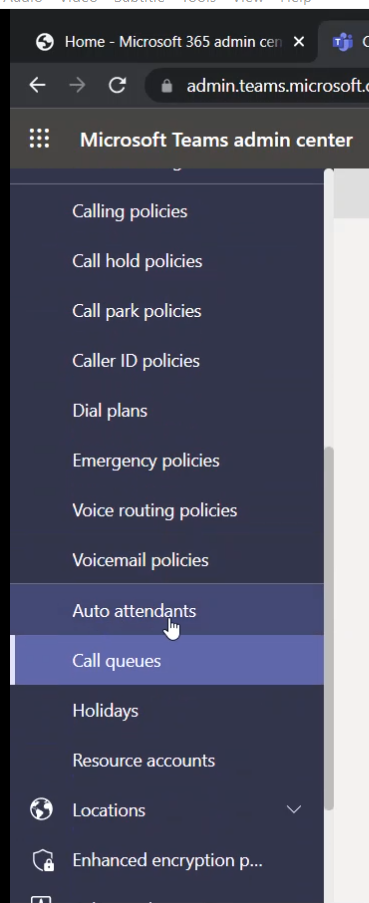
On Teams Admin Center, expand the “Voice” menu and select “Auto attendants”
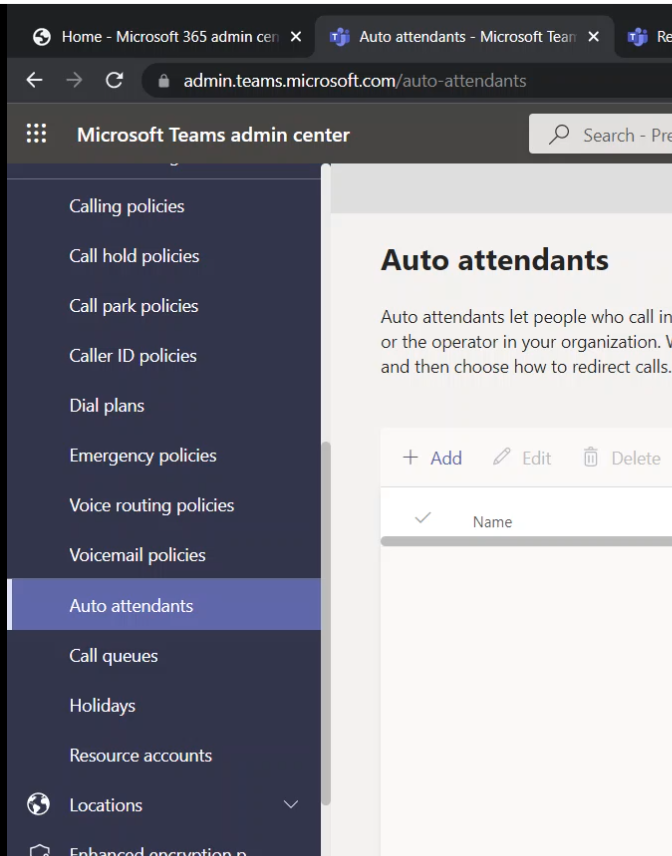
To add a new “Auto Attendant” click on Add
The “Add a call queue” wizard will appear, and it will start with the General info page
General Info Page
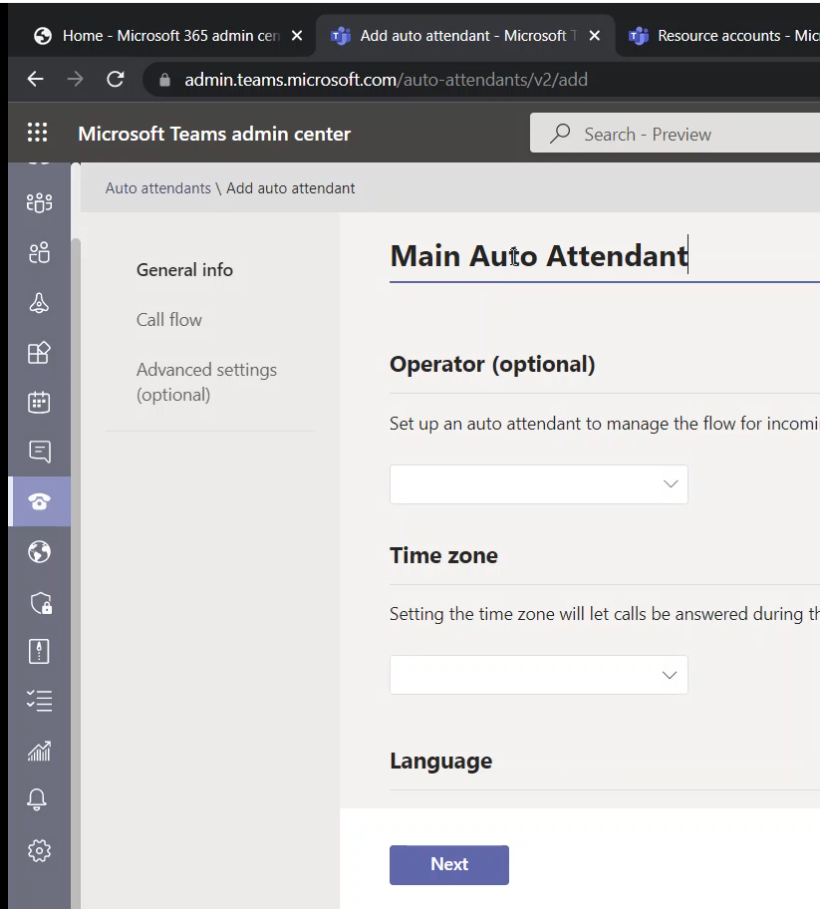
On the “General info page” Type the name of the Call Queue. For me, the name is “Main Auto Attendant” (there is no other Auto Attendant, I have just called it “Main” since it will be the first thing the PSTN call will be routed to)
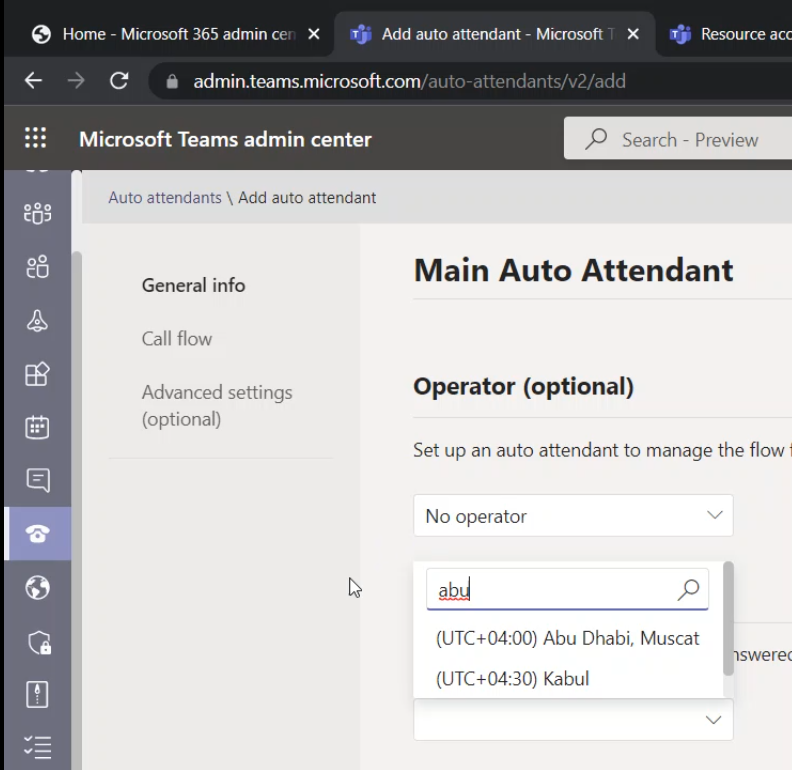
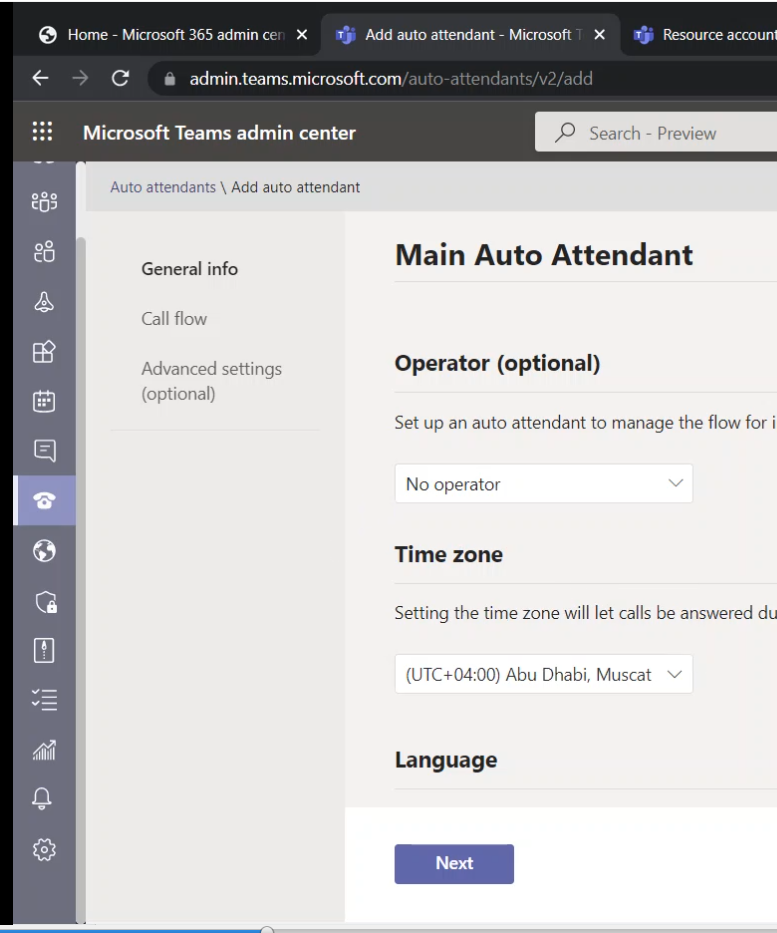
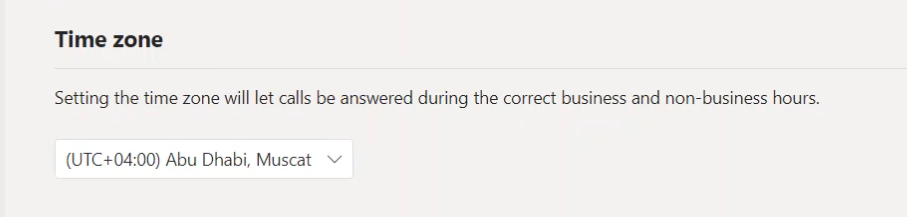
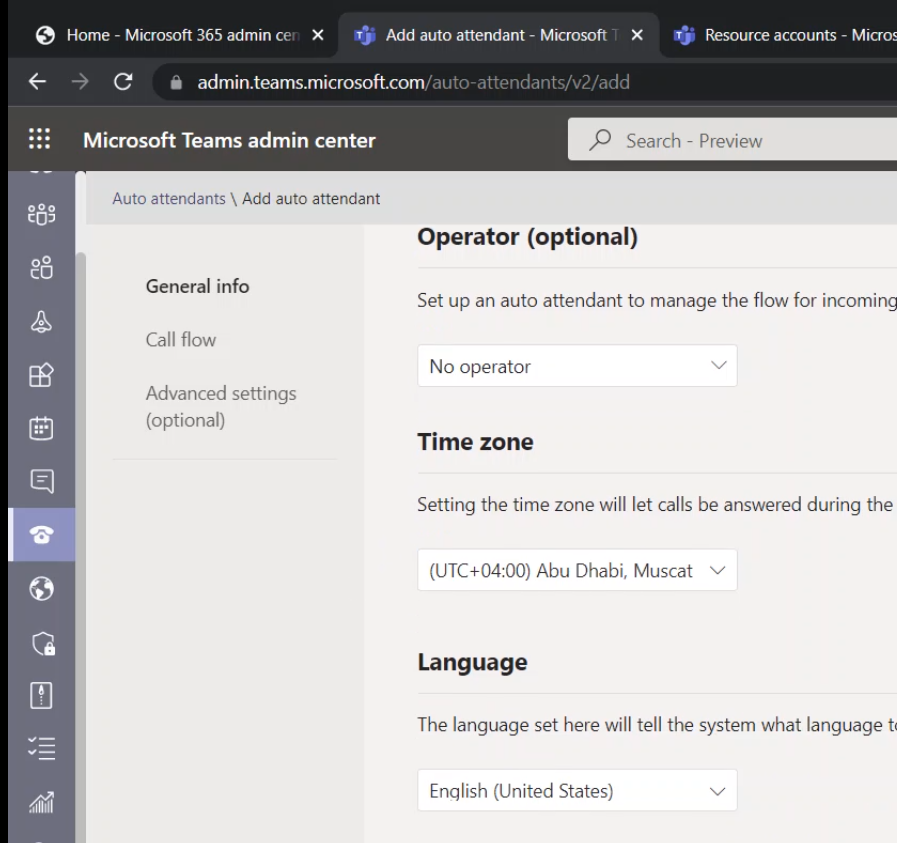
On this page, I have selected my time zone (This is useful for the “Set business hours” page on “Advanced settings”)
Scroll down until you reach “Language”. This is where you specify the language that will be used for the automatically generated voice messages. I have set my language to “English”
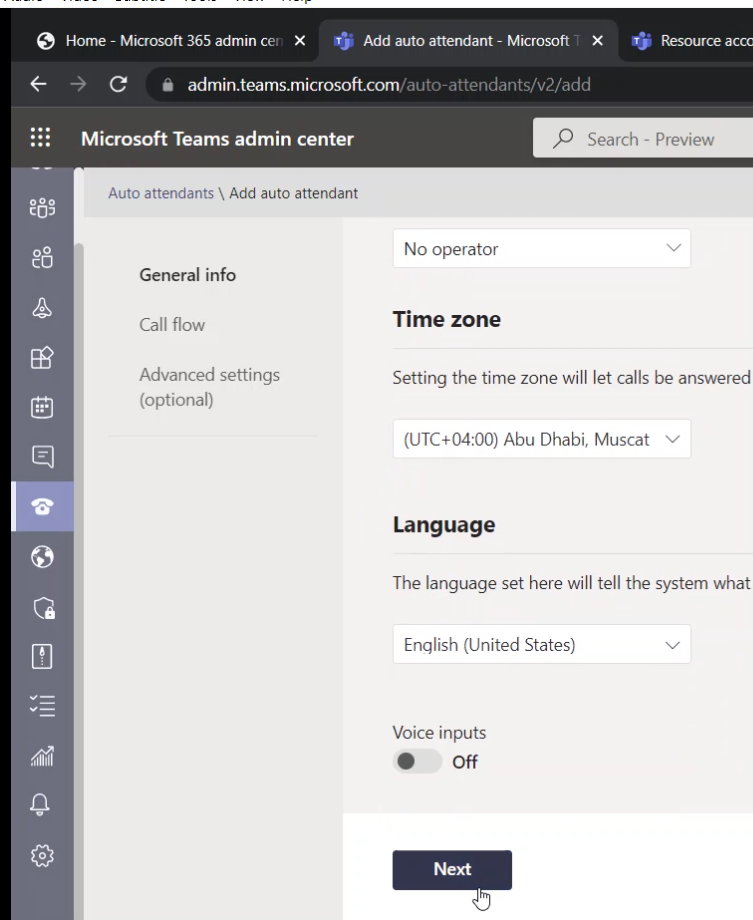
Click on the “Next” button
Call Flow Page
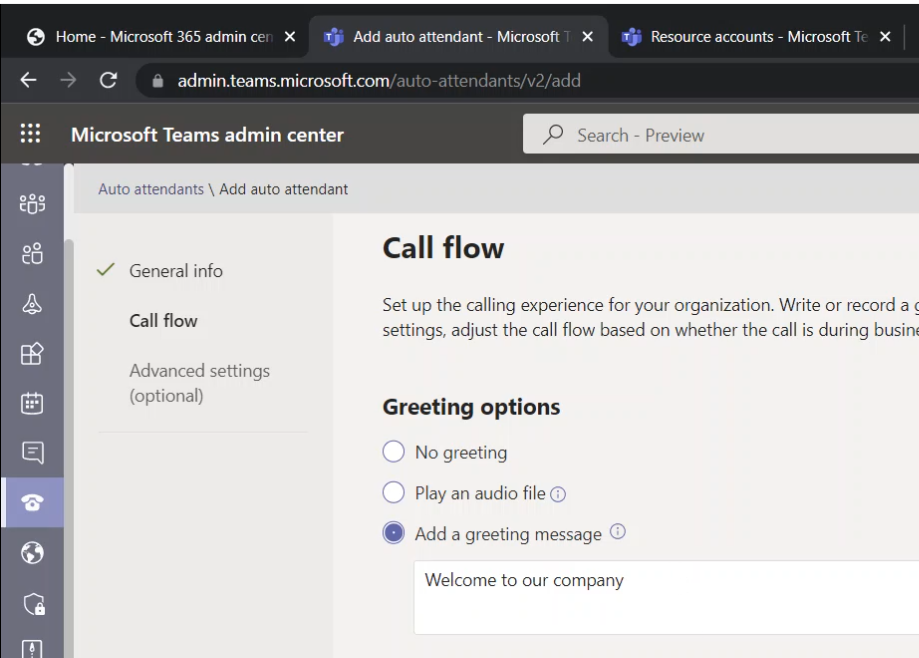
The next page is “Call Flow”
Under “Greeting options”, I have selected “Add a greeting message”. And I have typed a simple message “Welcome to our company”
When the call gets connected, the calling user will hear this greeting message
For “Call routing options”, scroll down to see the details and select “Play menu option” to put your voice menu options and actions
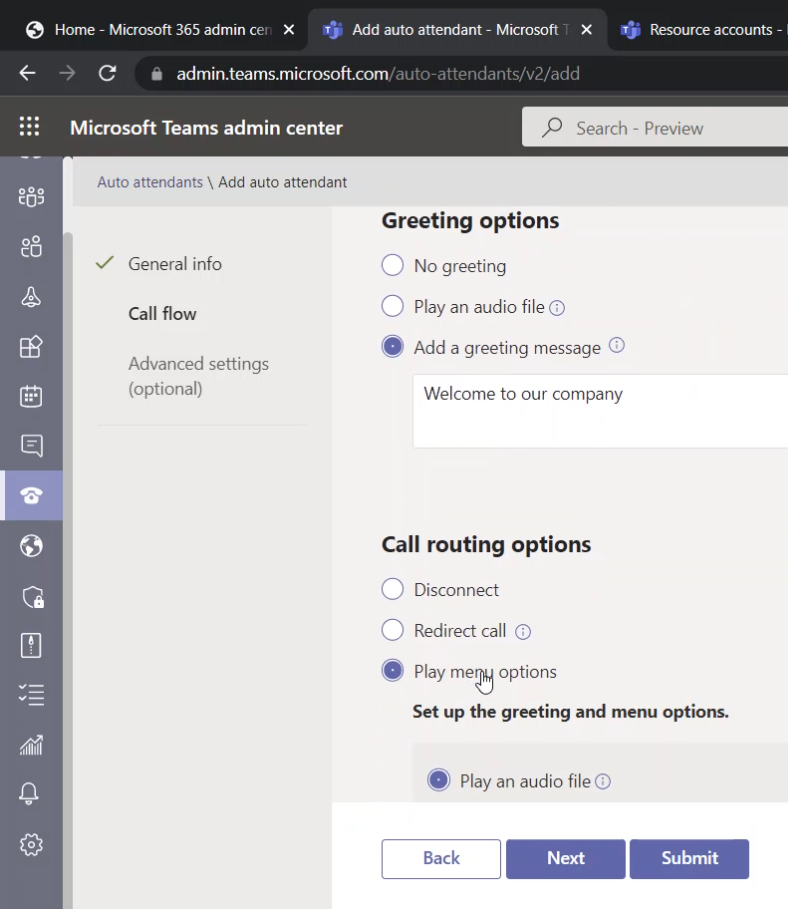
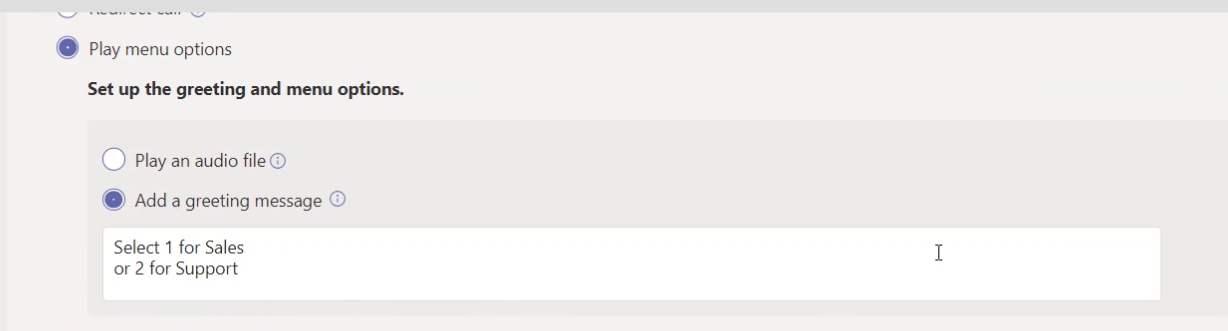
For my menu, I have added a greeting message (this message to inform the caller which phone key should be pressed)
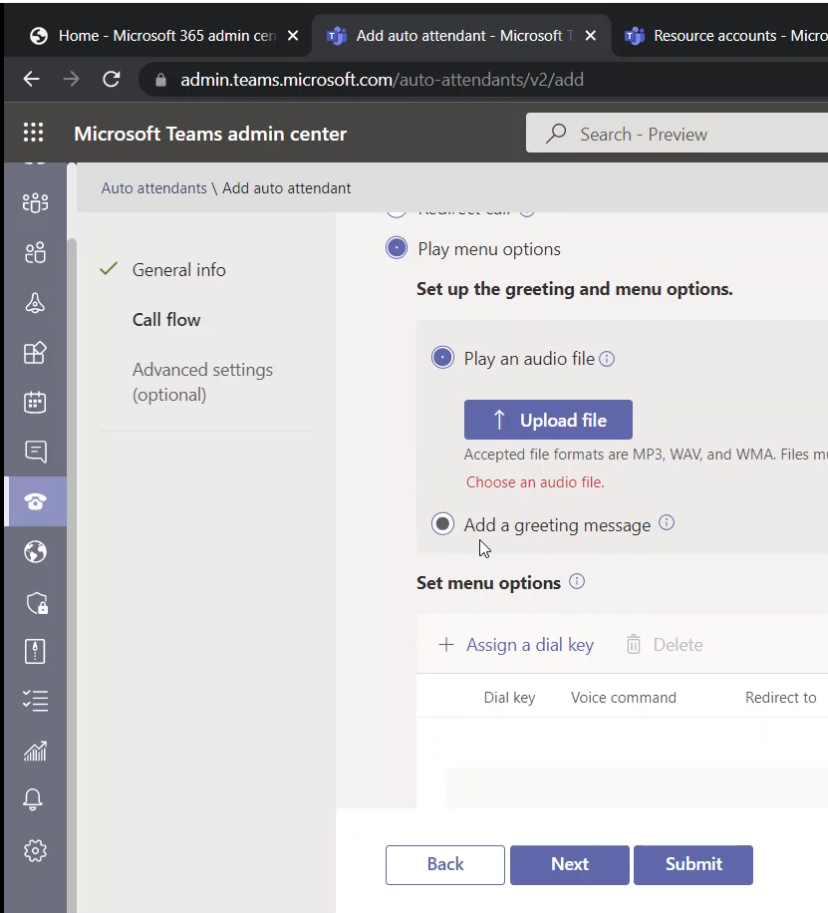
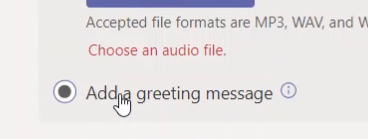
Below images show my “greeting message” which is “Select 1 for Sales or 2 for Support”
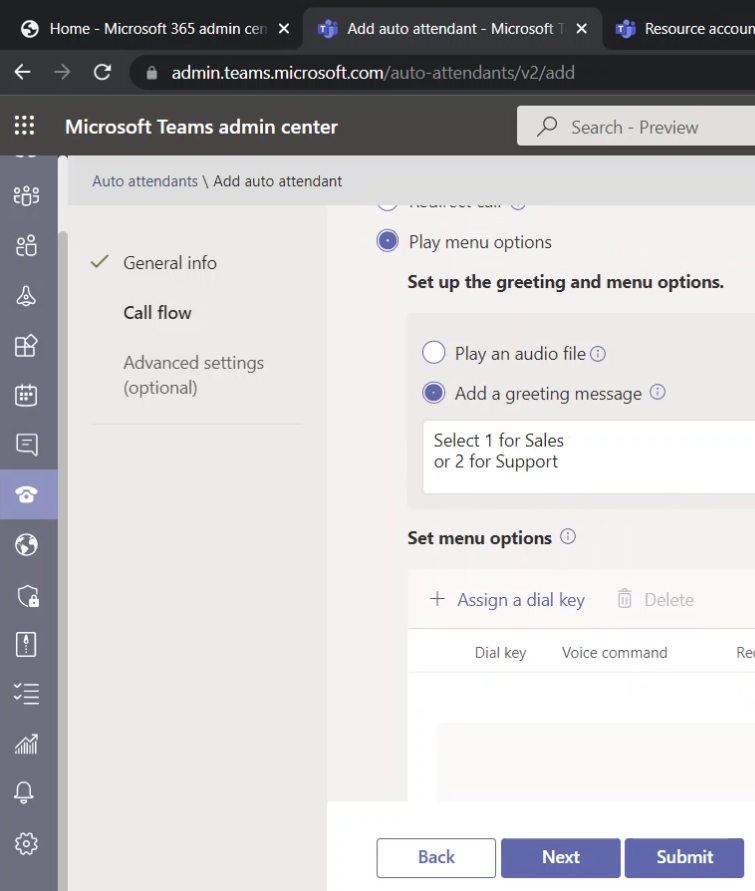
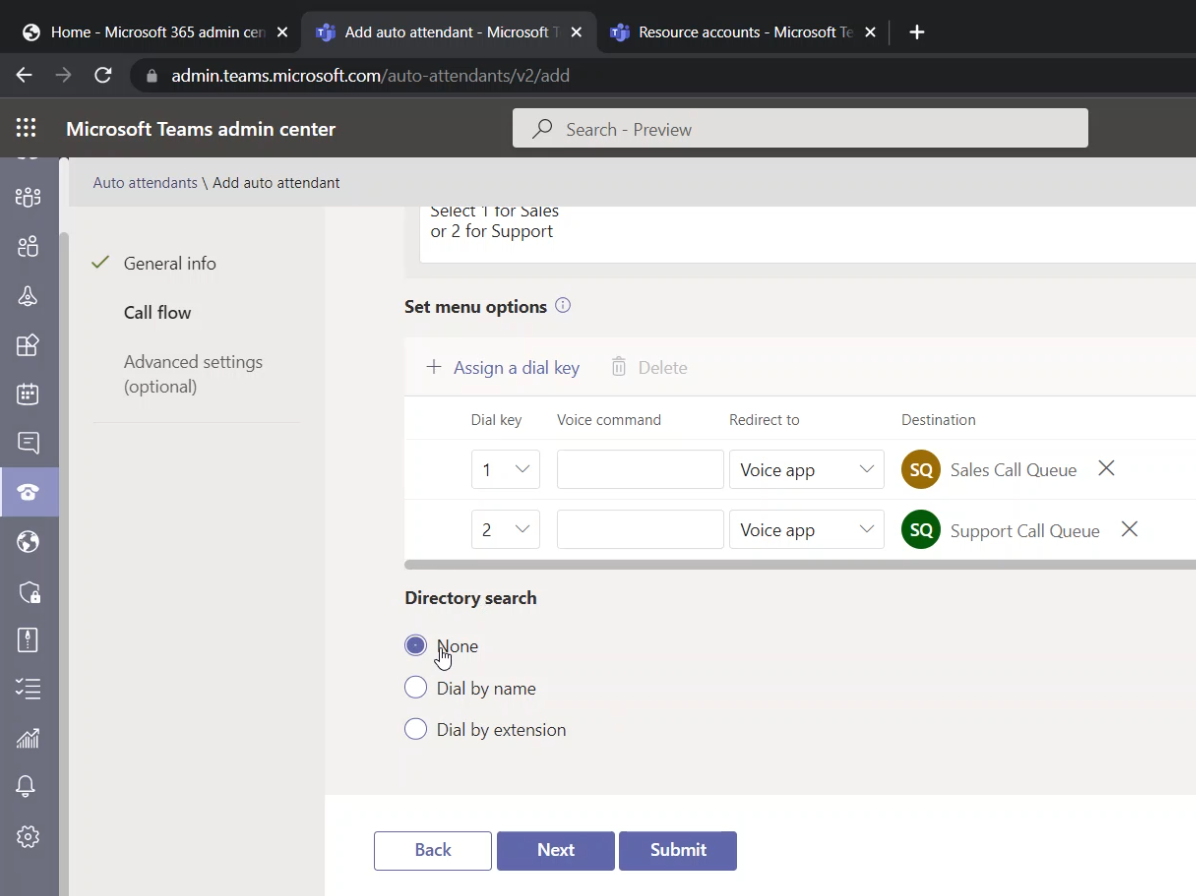
Under “Set menu options”, click on “Assign a dial key”
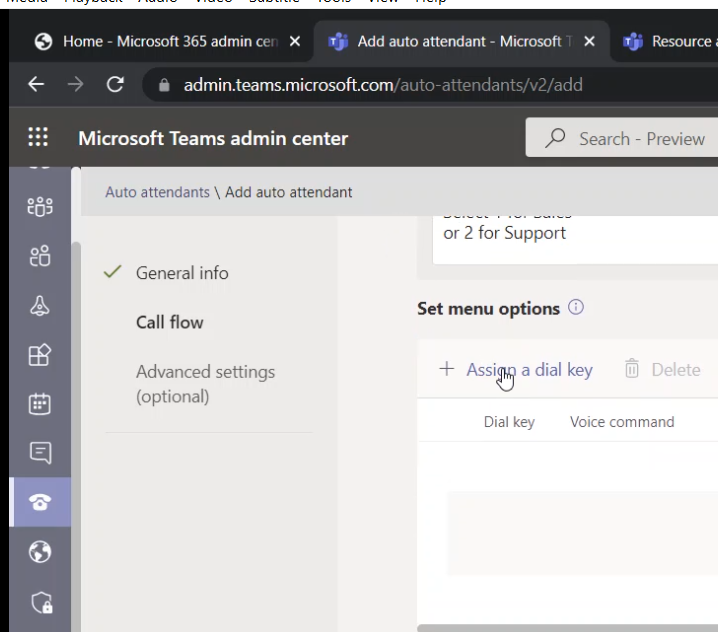
An empty menu entry will be added
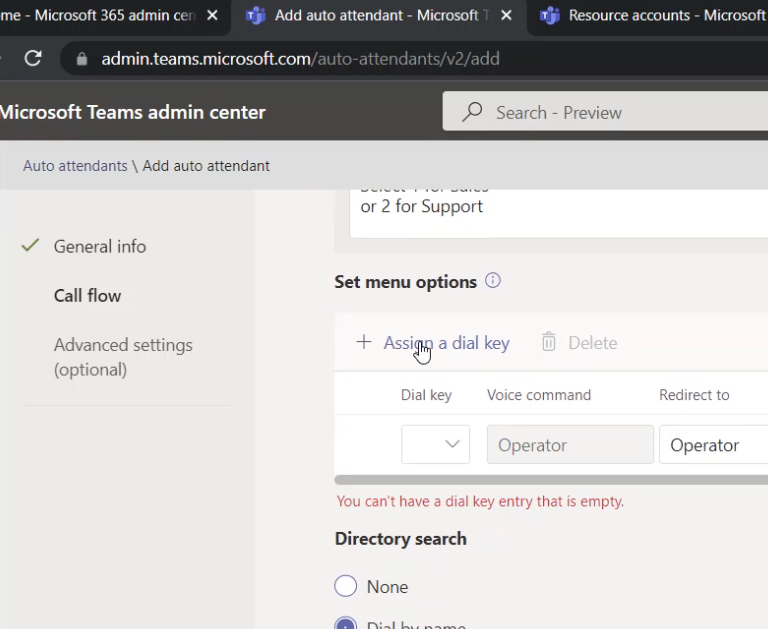
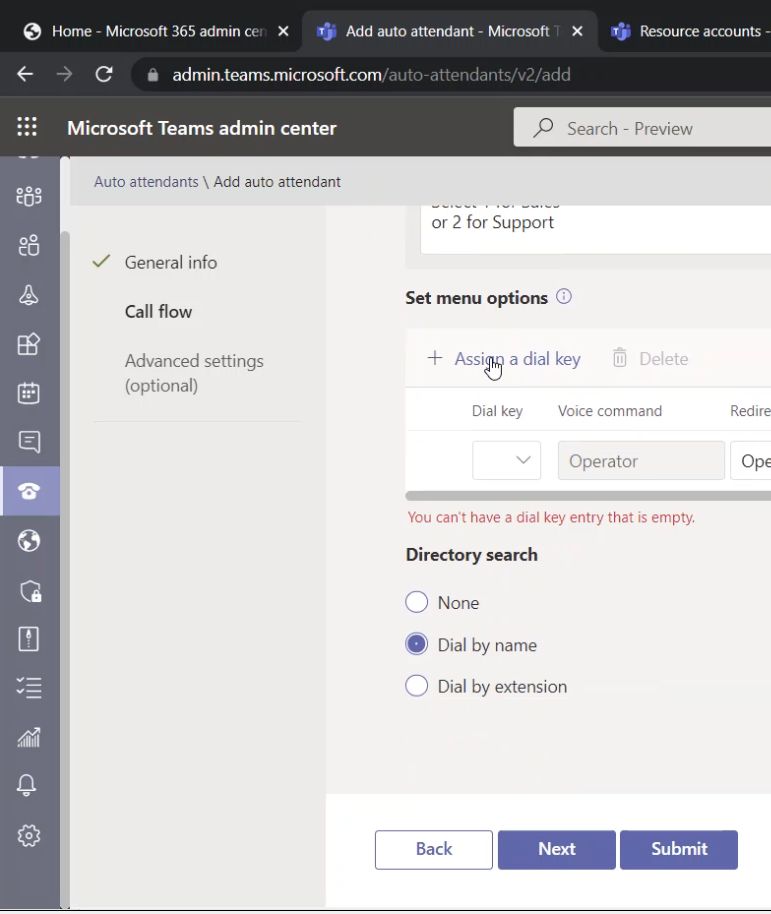
In the new menu entry/option, select the key the caller will click to select this menu option
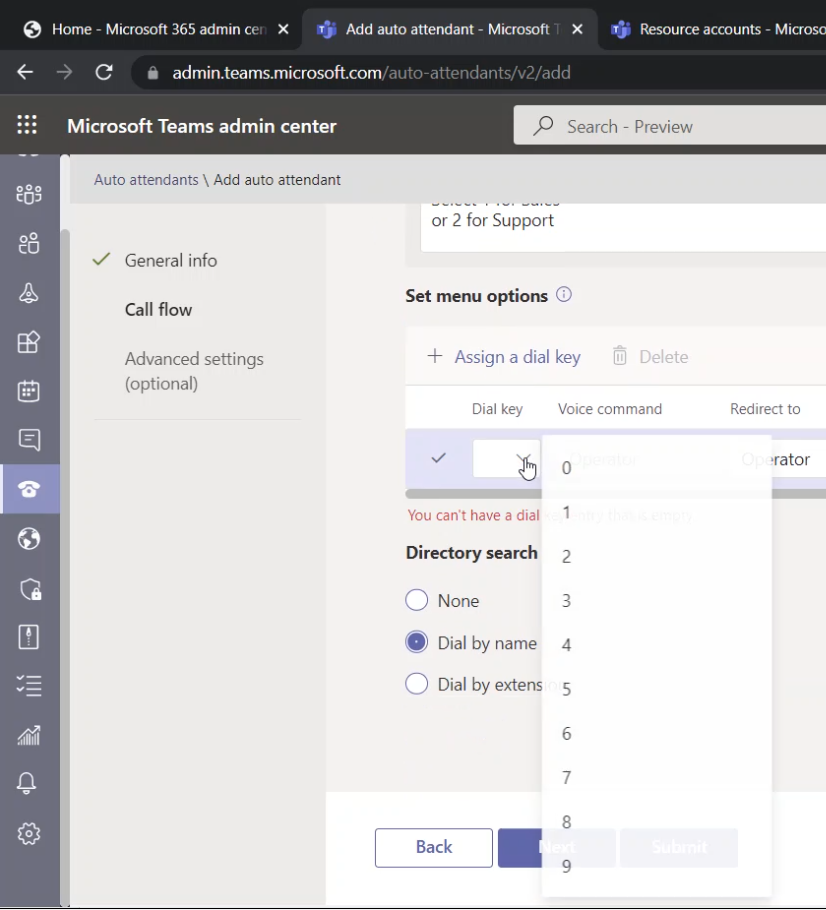
I am selecting 1 for the first entry
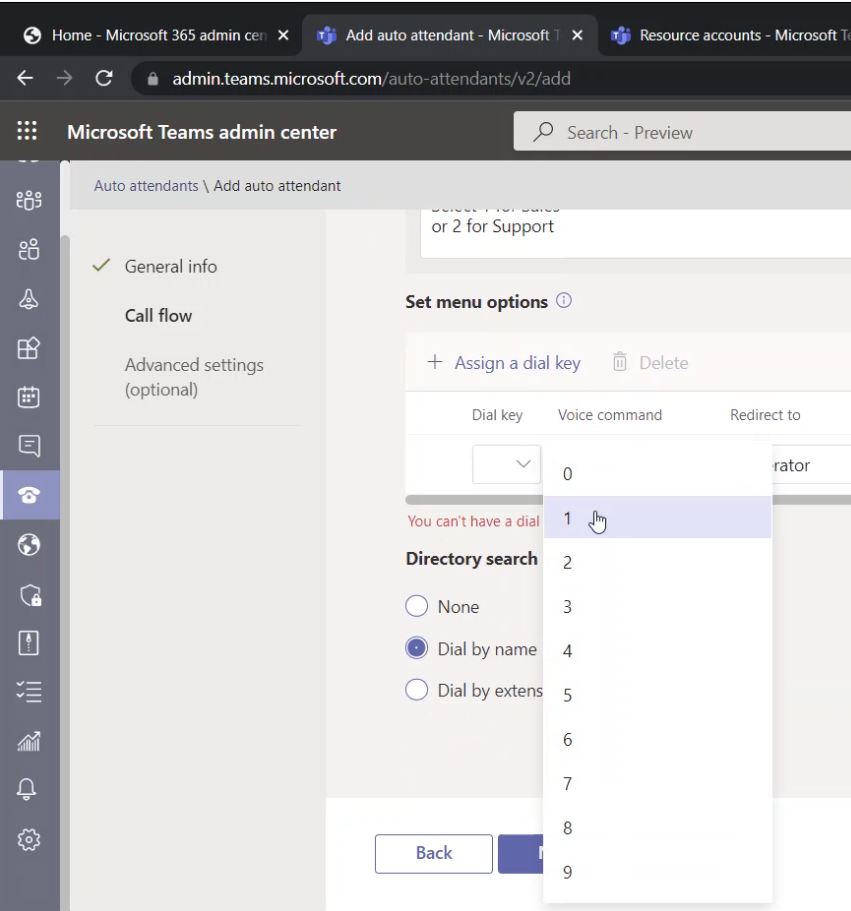
The following shows that key 1 is selected
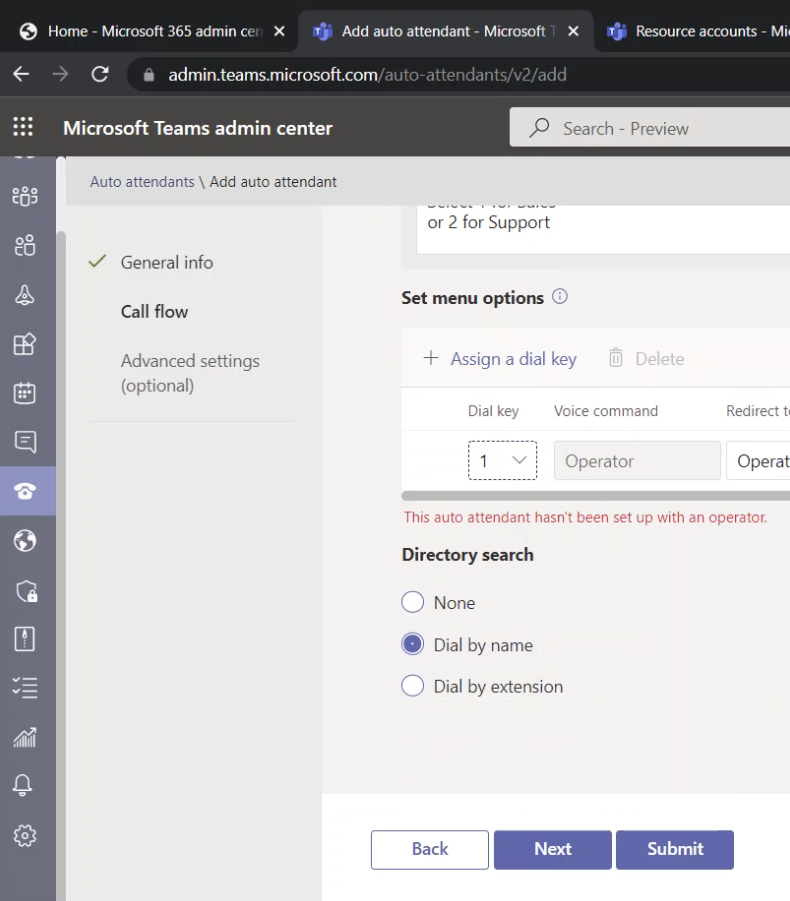
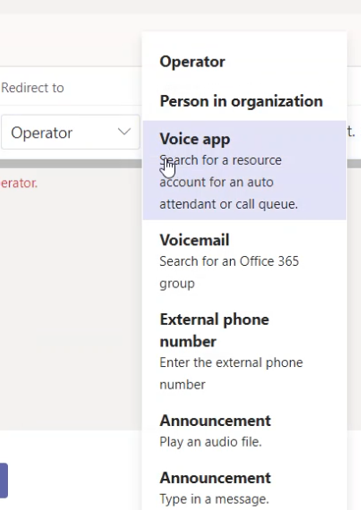
Click the menu for “Redirect to”

Select “Voice app” (since we want to redirect the call to the call queue that was created earlier)
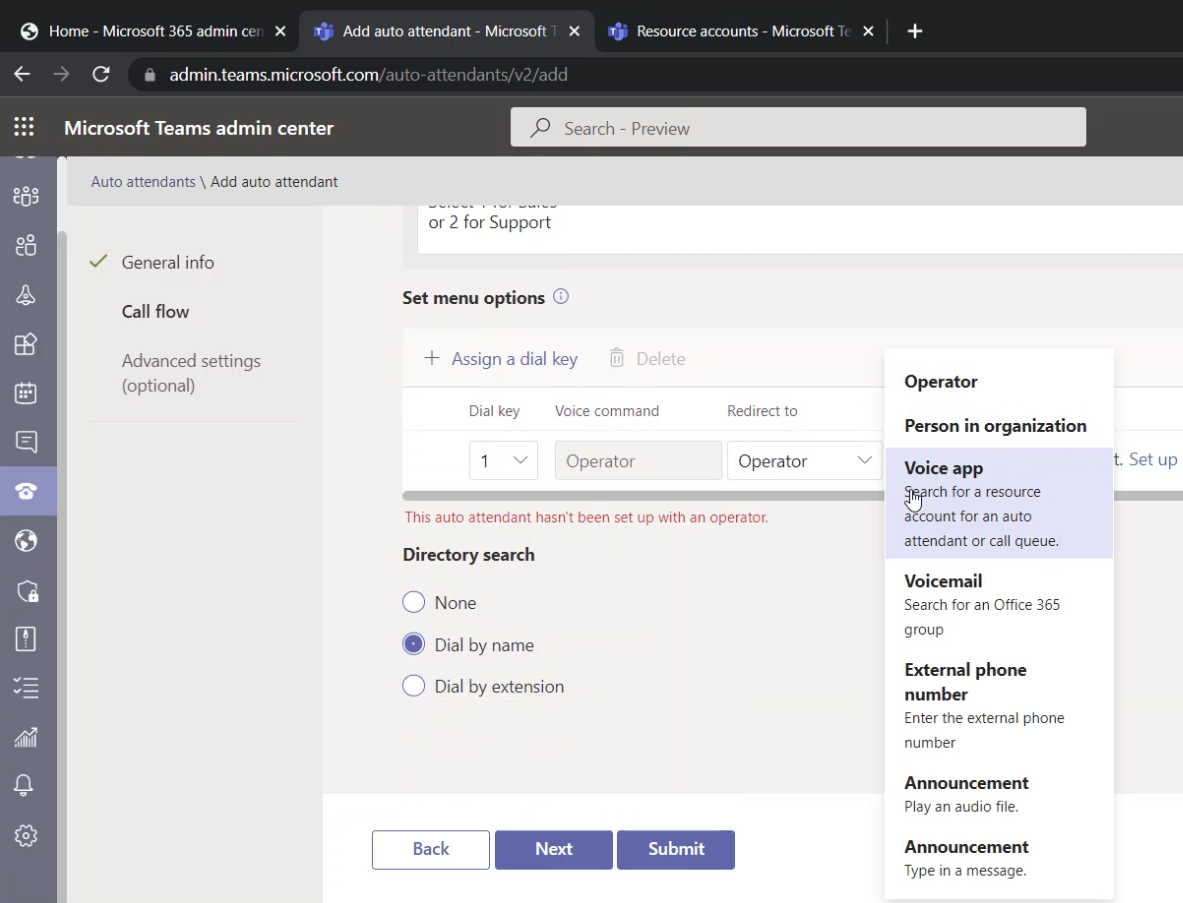
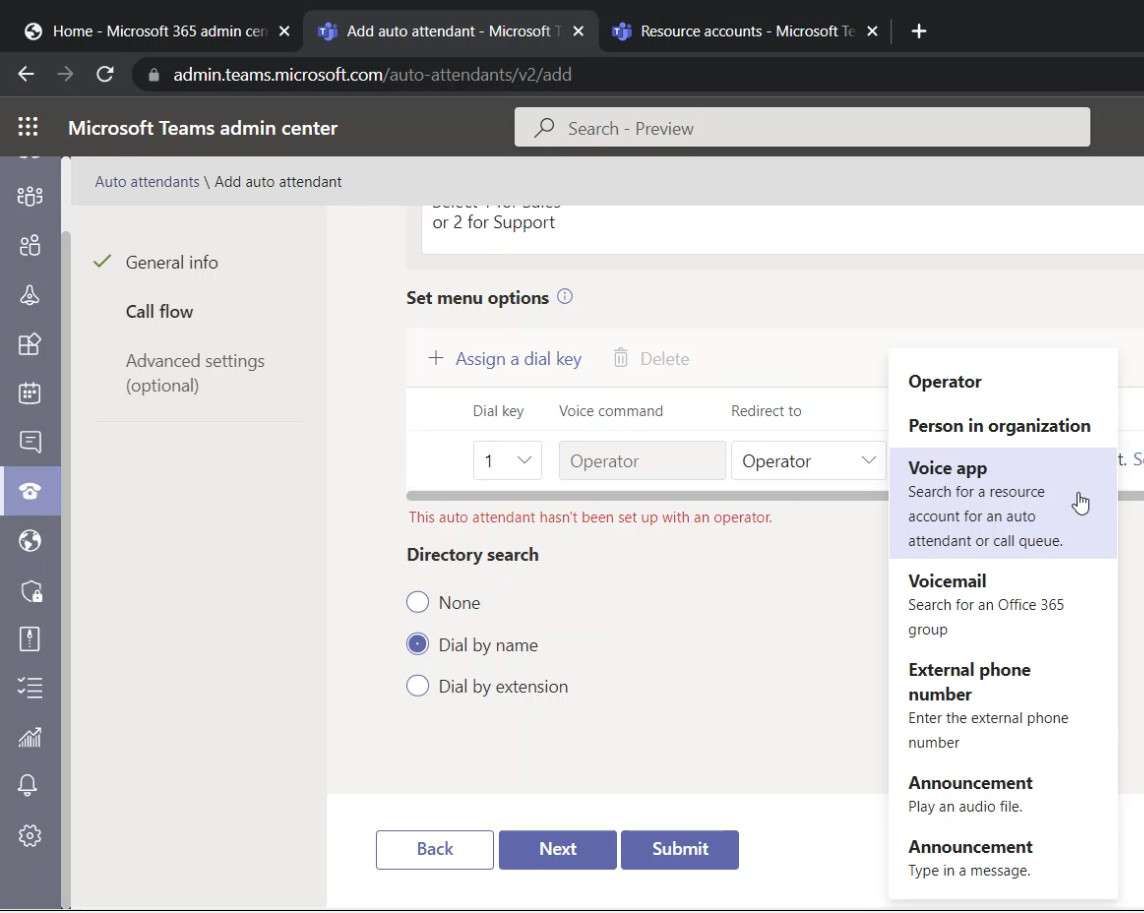
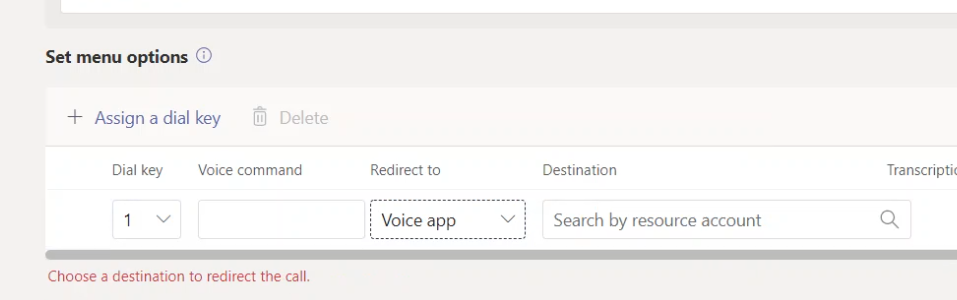
The following shows “Redirect to” is set to “Voice app” which means it will redirect the call to another Call Queue or Auto Attendant
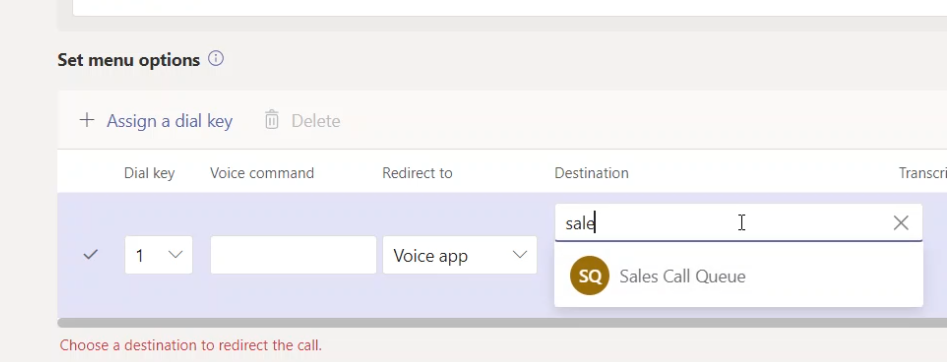
Under “Destination”, I am searching for the “Sales Call Queue” by typing the word “sale”
I am selecting the “Sales Call Queue” that I have created earlier
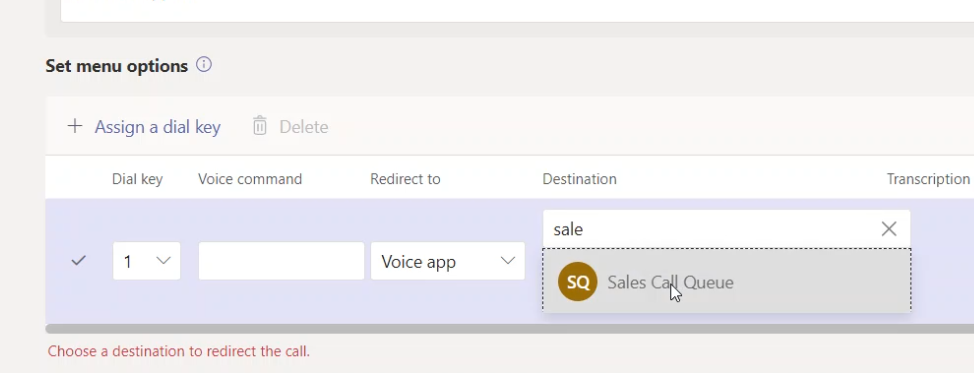
This menu entry/option is completed
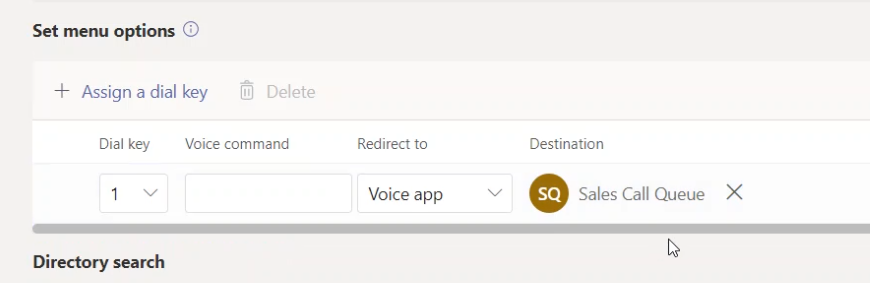
Using similar steps, I have added a menu entry/option for “Support Call Queue” when the caller clicks on “2” on his/her dial pad 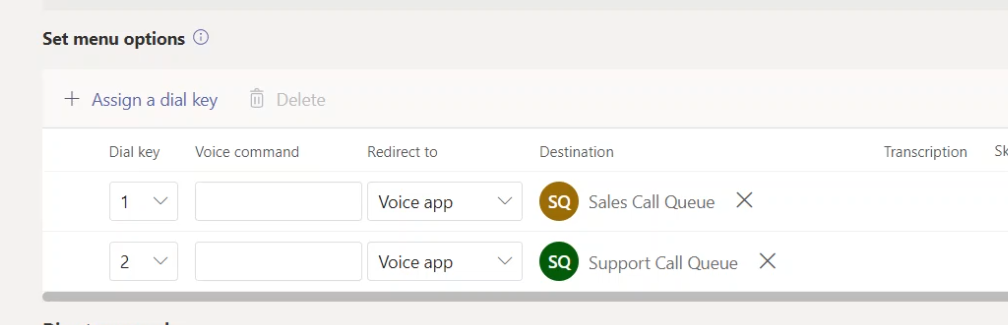
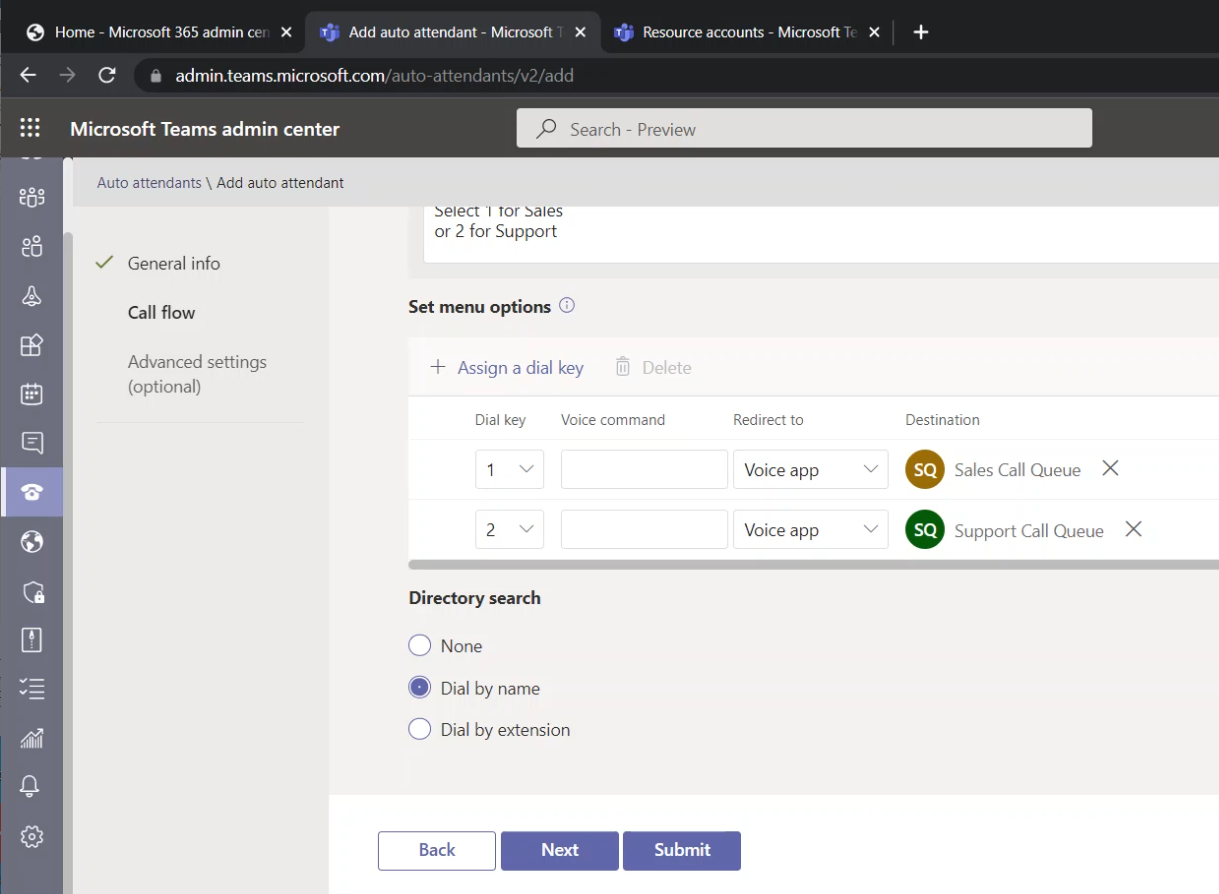
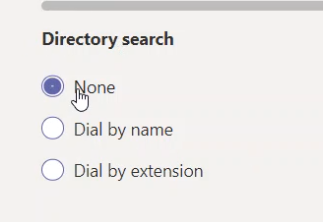
Under “Directory search”, I am selecting “None”. Since I don’t need the caller to call internal users of the organization
Adding a Resource Account to Our Auto Attendant
For simplicity, I am keeping “Advance setting (optional)” as default and I kept clicking next until I reached the “Resource account” page (the last page).
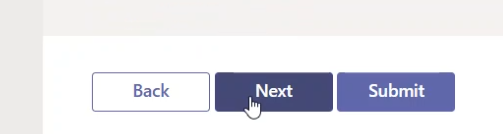
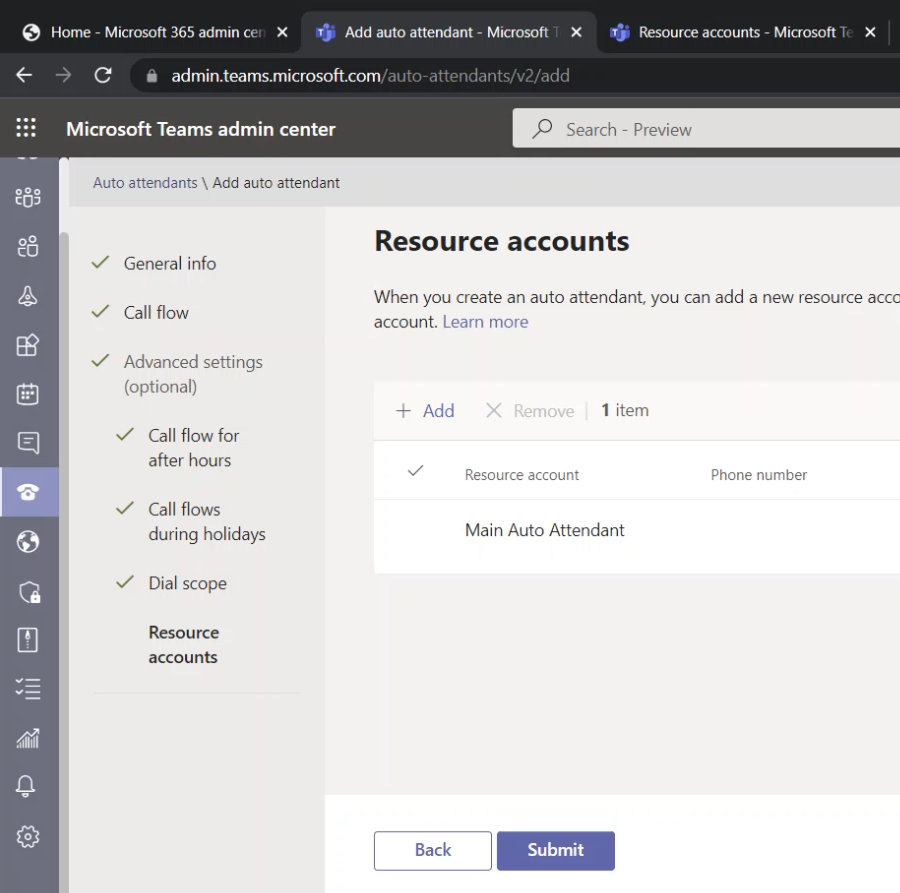
To add a Resource account, click on the “Add” button
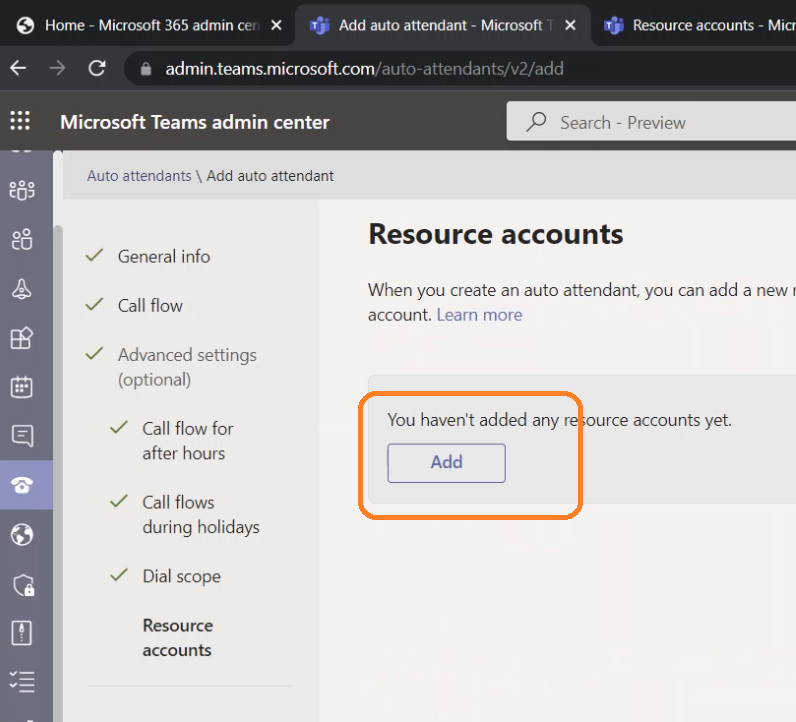
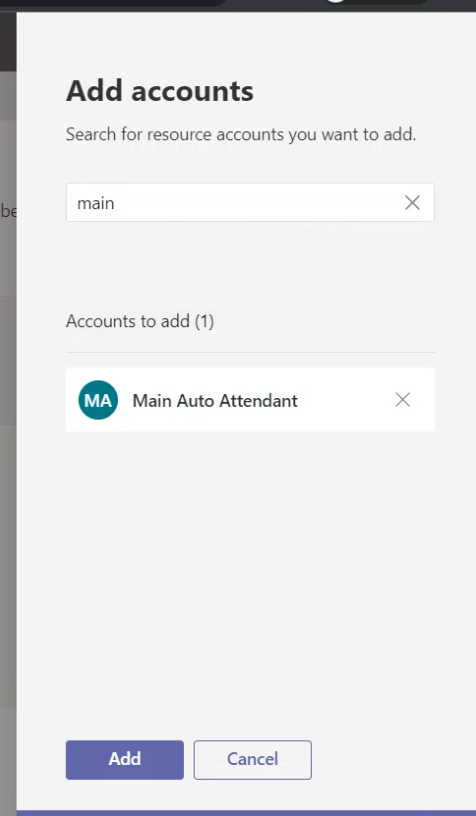
The “Add account” pane will appear on the right side, I searched and added the resource account for this auto attendant as the image below shows
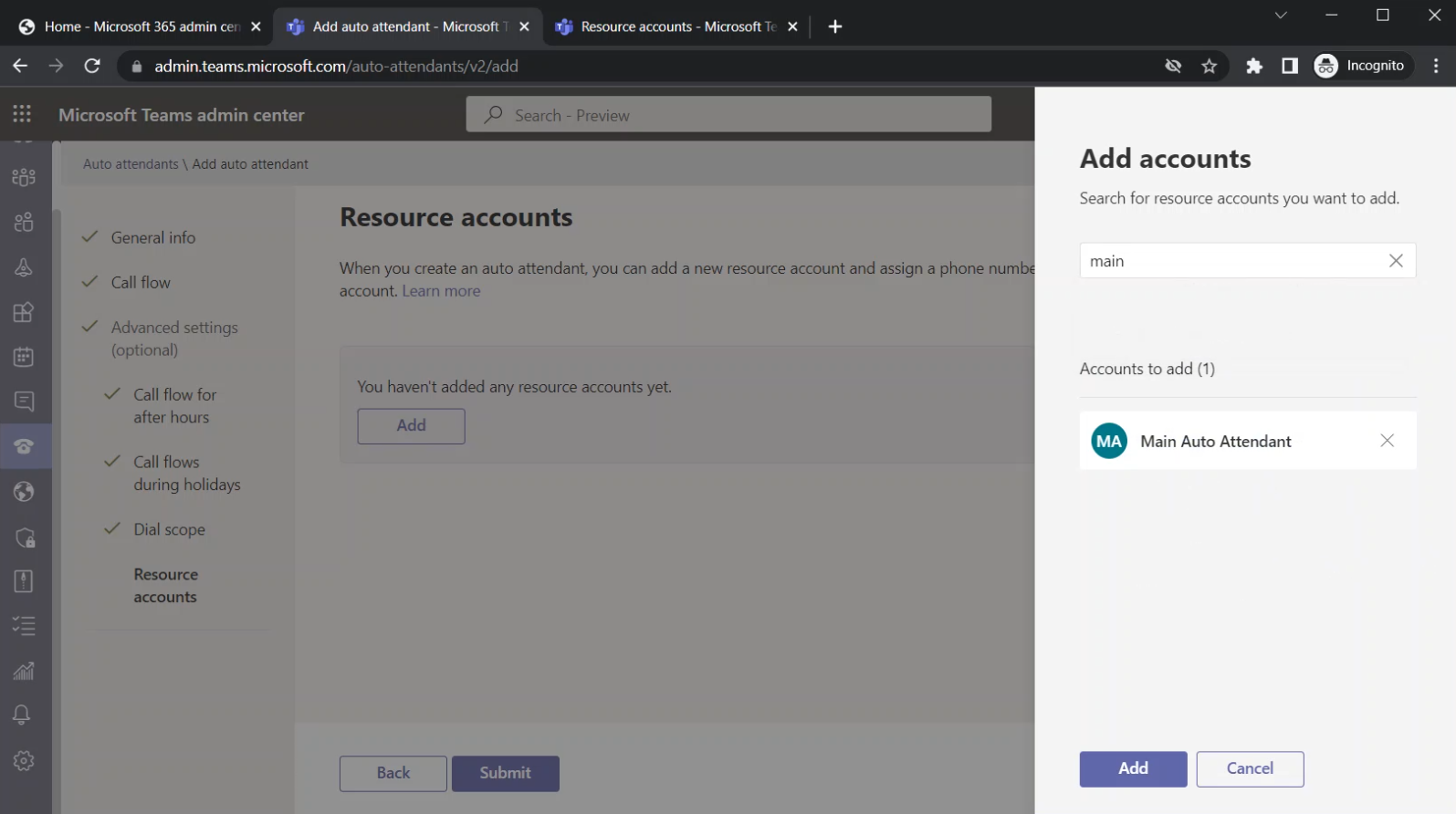
Click on “Add” at the bottom of the pane
When you back to the “Resource accounts” page, you will see the resource account(s) that you have added
Submitting the changes
Click on the Submit button at the bottom of the Wizard to save the changes of the new auto attendant
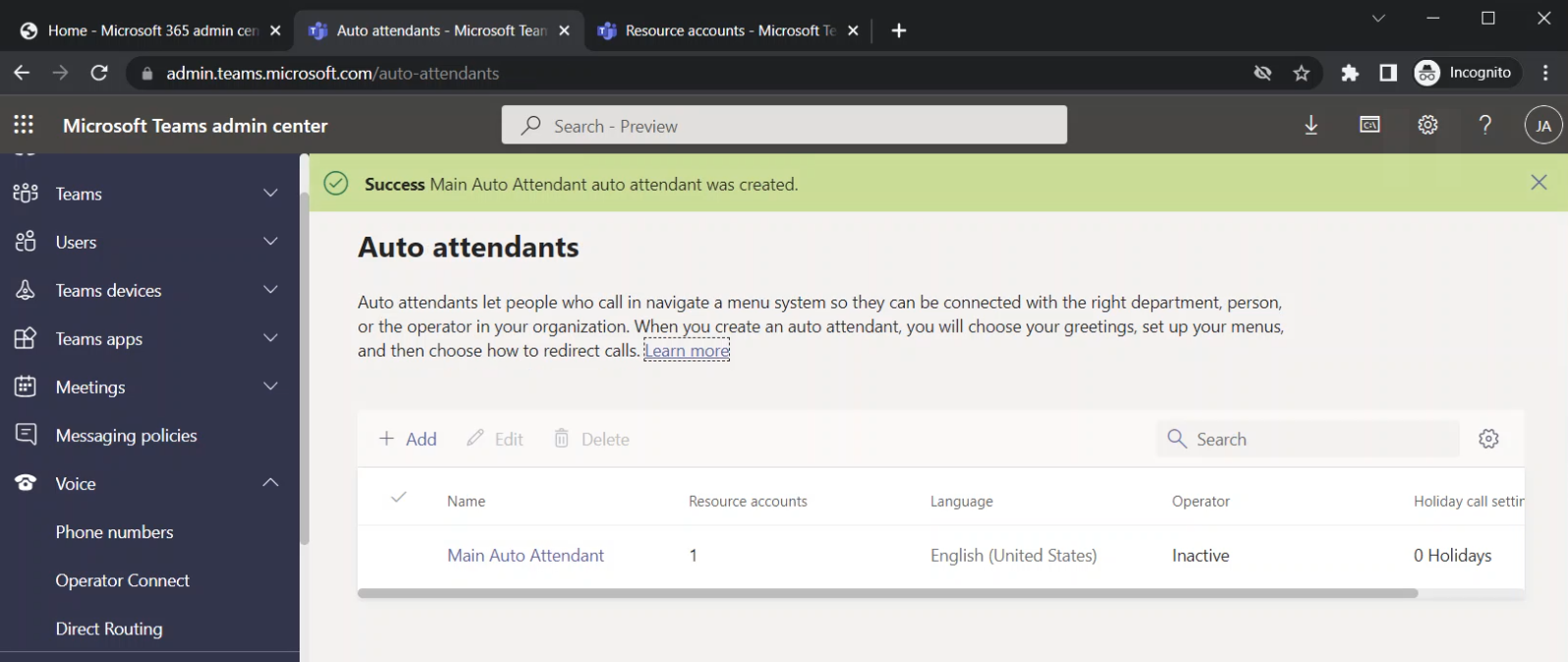
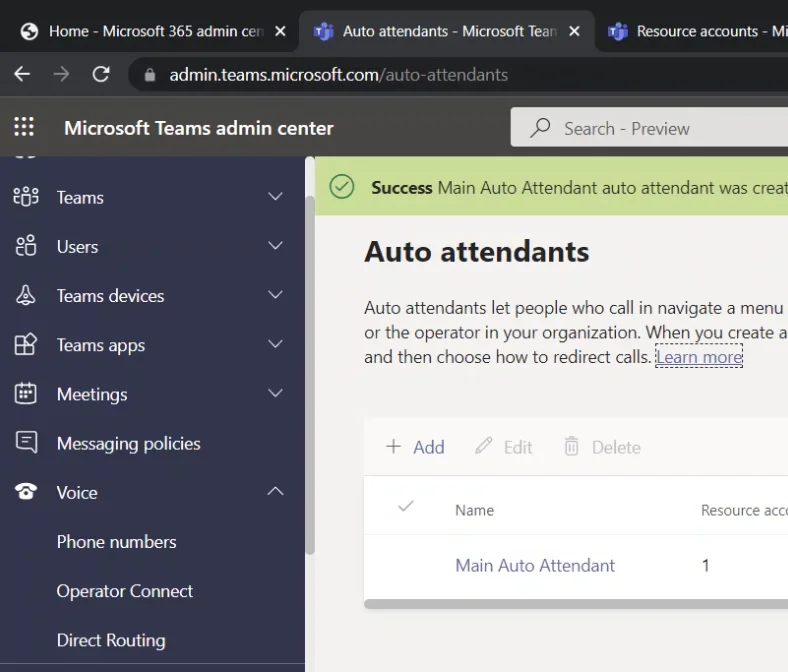
The auto attendant will be created, and it will be listed on the main page “Auto attendants”