Skip to content
Jay's Lab
Jay's Lab
  • About

Teams’ Call Queues and Auto Attendants – Adding an operator to the Auto Attendant

Auto Attendants, Call Queues and Auto Attendants, Direct Routing, Operator, Teams / August 19, 2023 August 19, 2023

In this article, I am improving my Auto Attendant by adding an option to reach the operator. The operator in my case is accessed by clicking on 0 on the dial pad when calling the Auto Attendant.

My operator is a Teams user (Person in organization) named User5. But you have the option to send the call to another Auto Attendant or Call Queue (Voice app). You can also send the call to an external PSTN number.

Go to

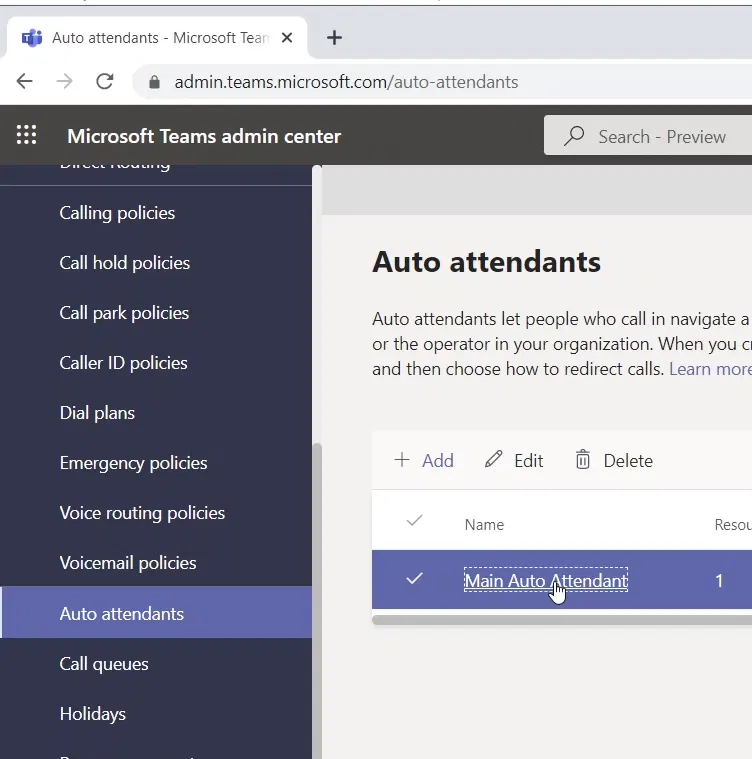
Teams Admin Center > Auto attendants > Click on the Auto Attendant that you want to modify. This will open the Auto Attendant Wizard

Part 1 – Adding an operator
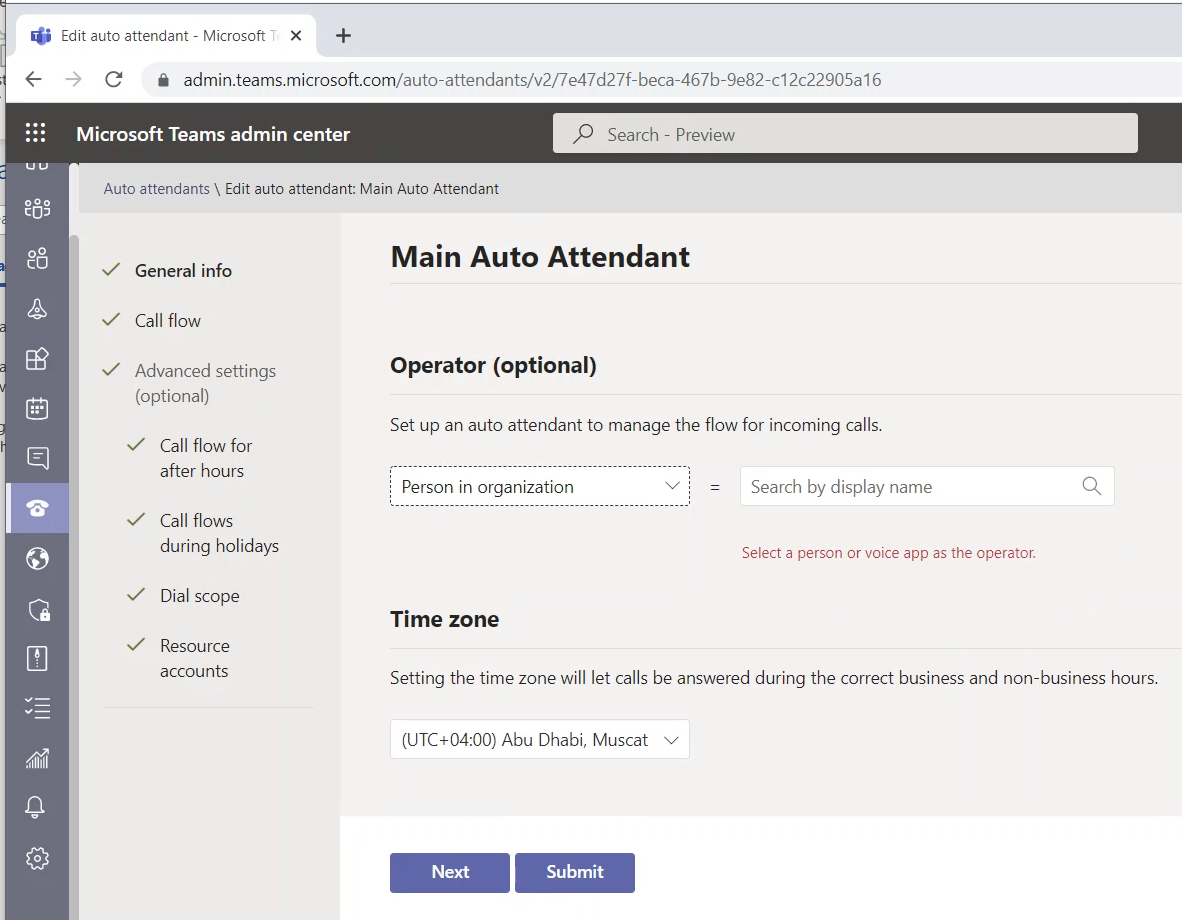
On the “General Info” page, you will see the “Operator (optional)” setting

Open the box and select “Person in organization”

It will give you a place to “Search by display name” filed
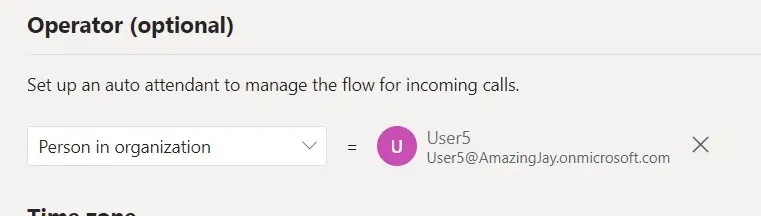
Type the display name or at least the first 3 letters, and select (click) the user name
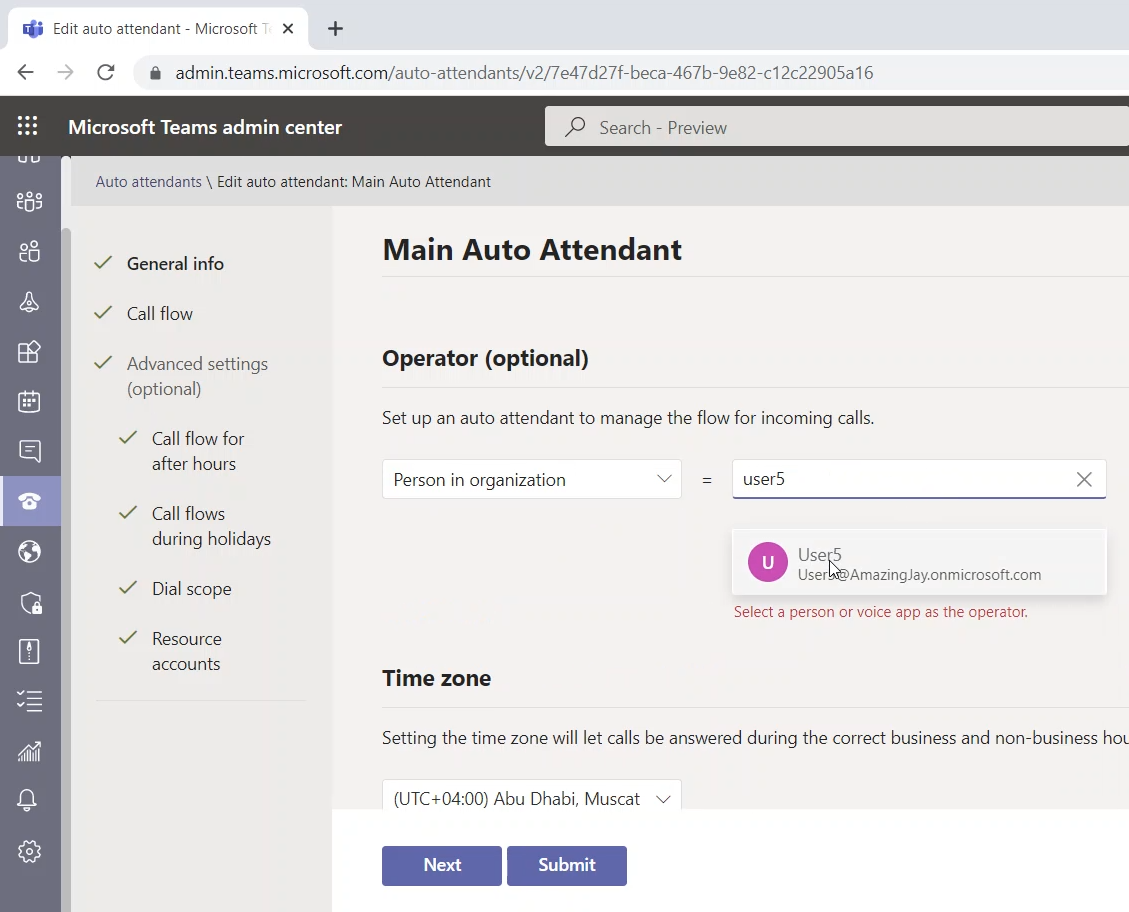
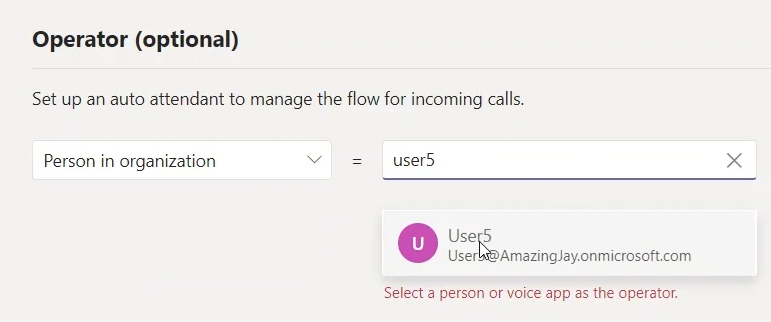
The username will be selected and will be designated as the operator
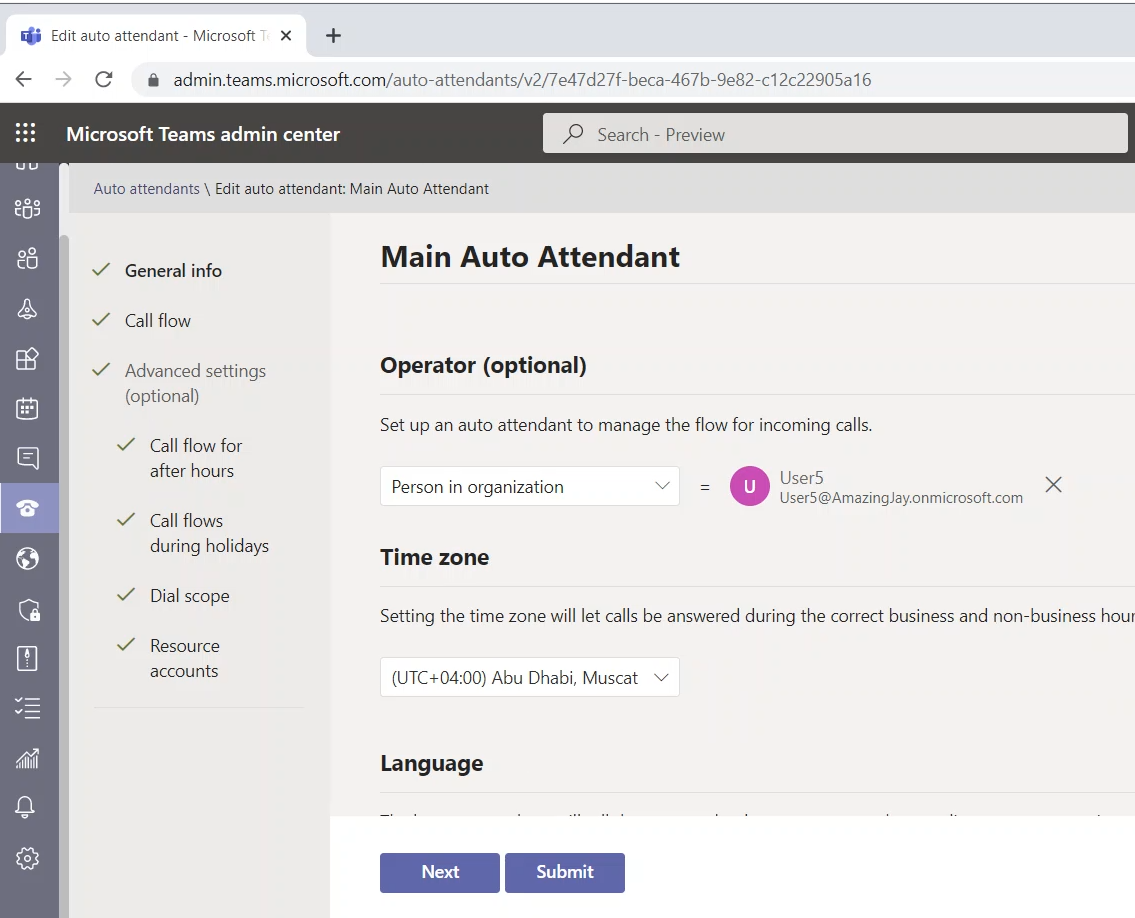
Now we can use the operator in the Call flow for this Auto Attendant as I am showing in the next part.

Part 2 – Making the operator a Call Flow Destination (reached when clicking)

Go to the “Call flow” page (on the settings of the Auto Attendant you are modifying)
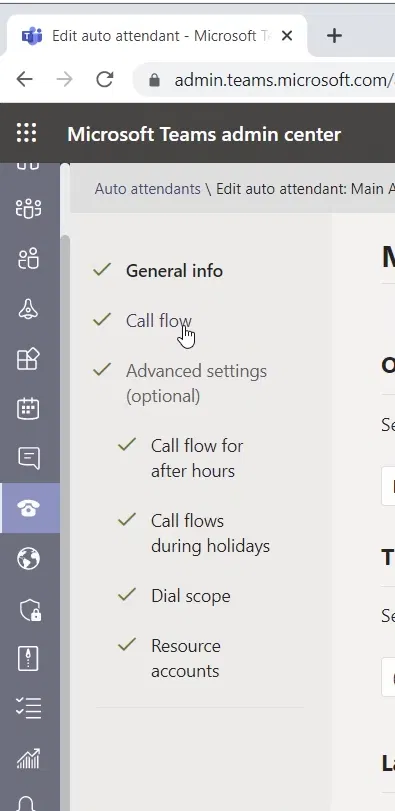
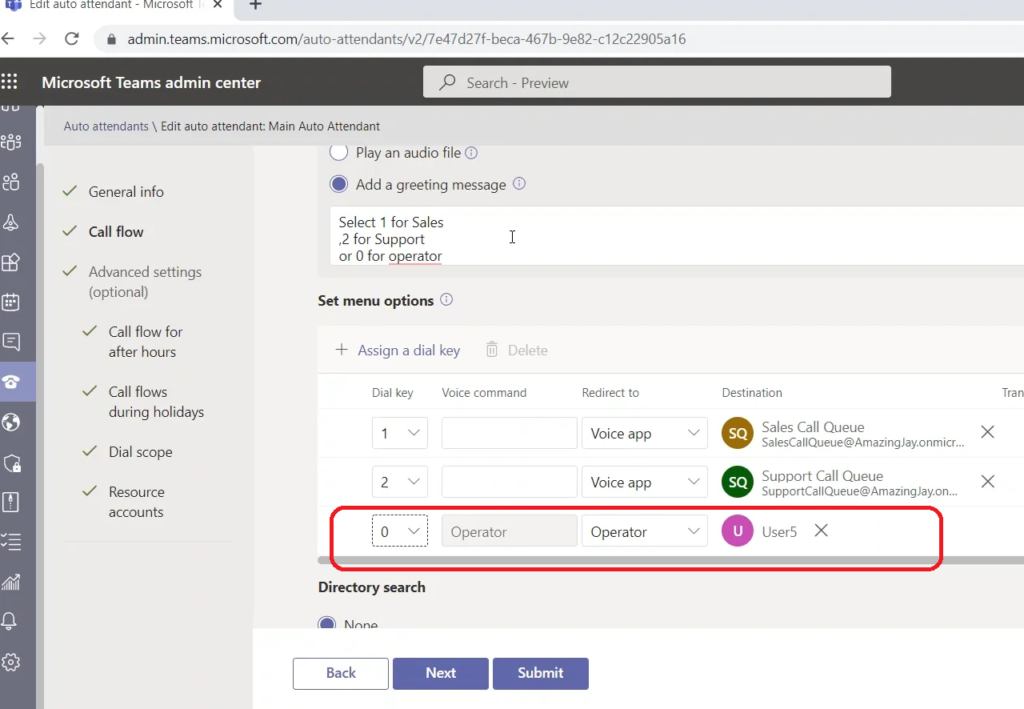
Modify the Greeting Message of the Auto Attendant to let the caller hear the option about the operator
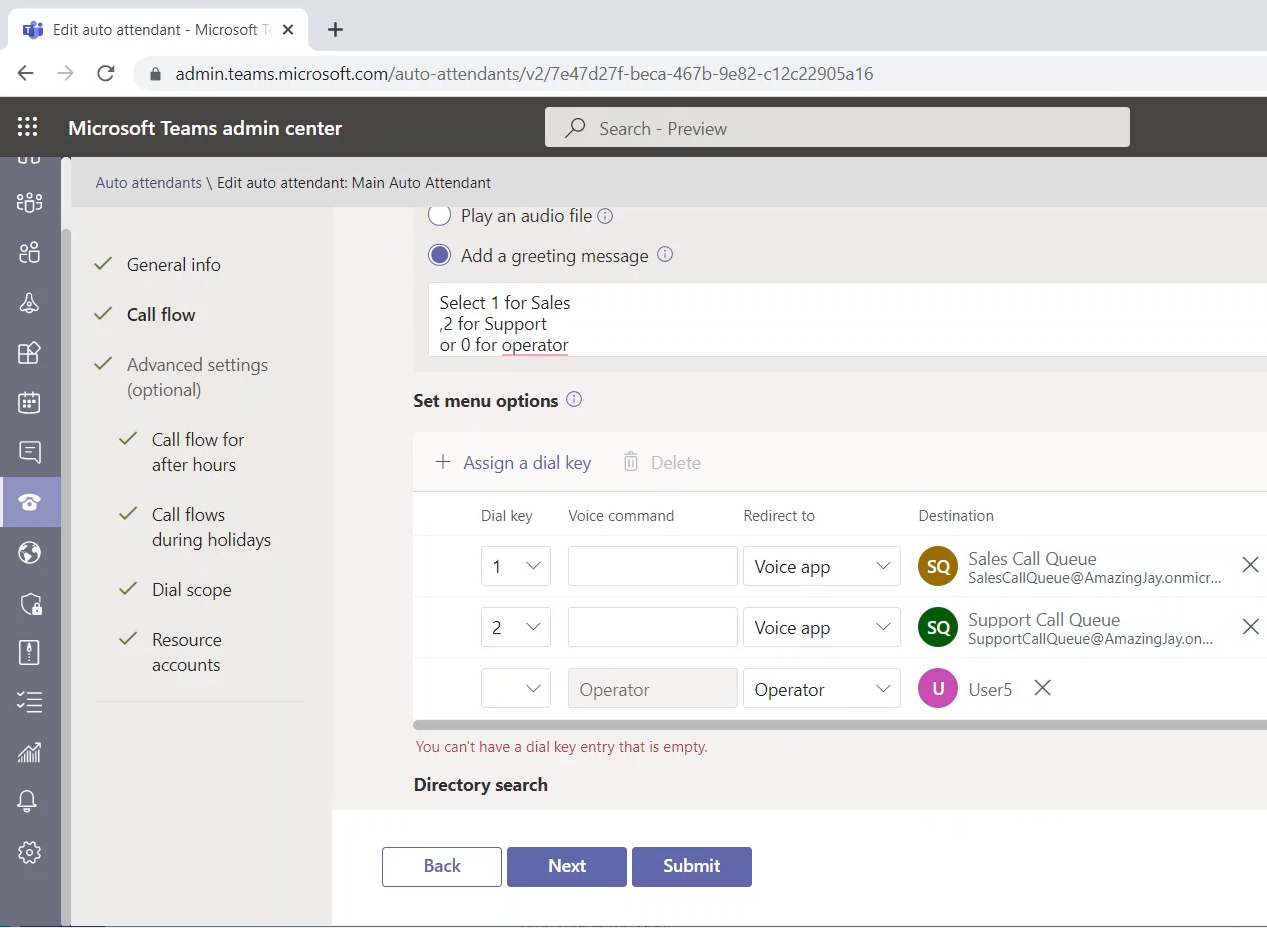
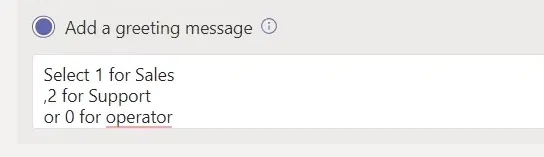
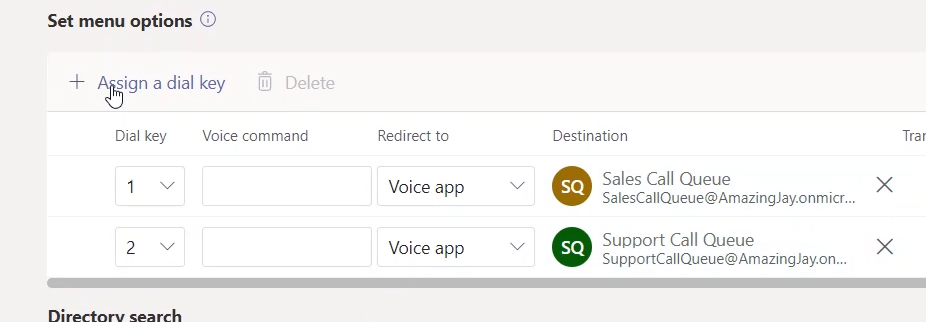
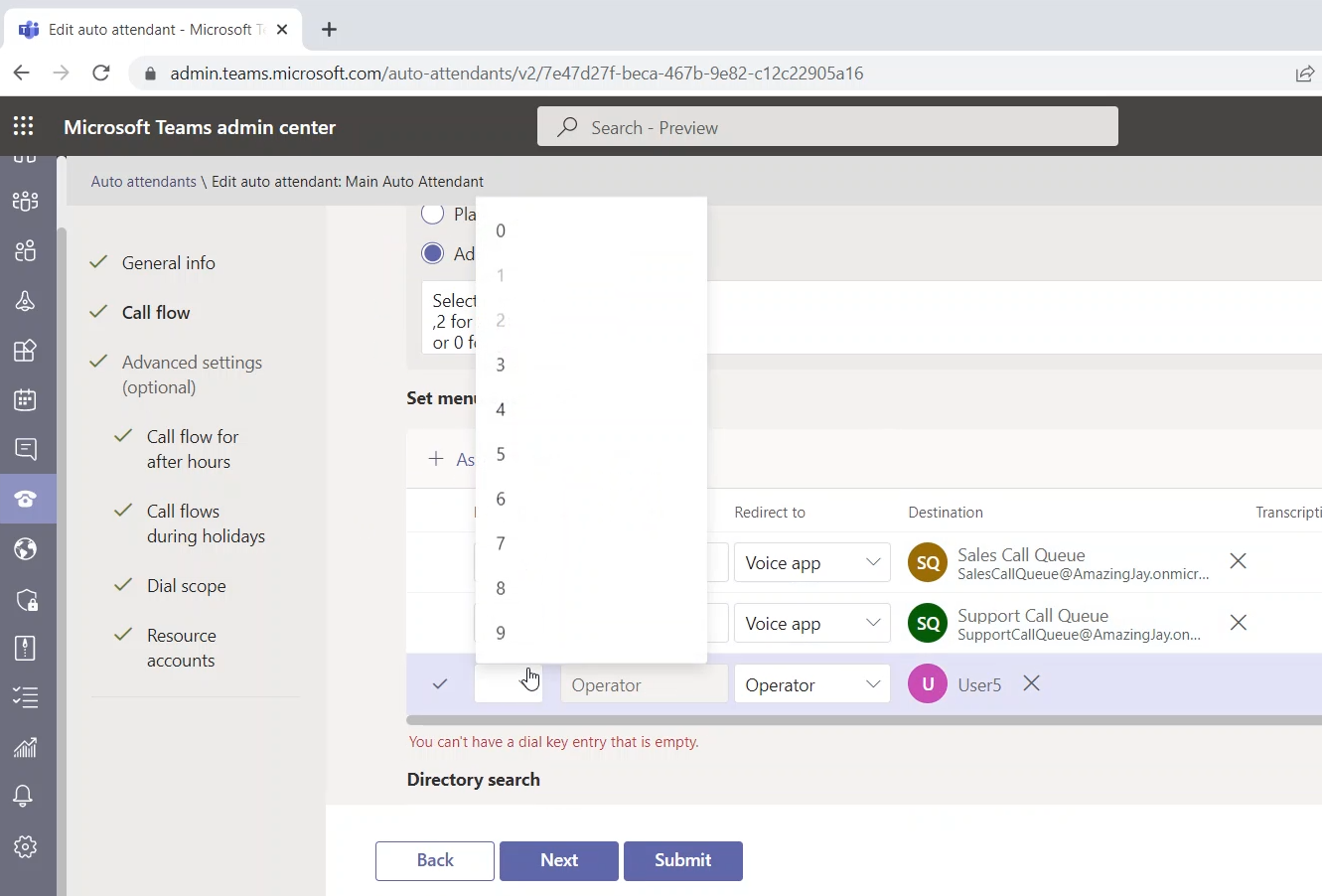
Click on “Assign a dial key”. This will add a new “dial key” option the caller can dial
The default option for the new key is Operator and it will automatically configure the call to be redirected to User5 (which is the operator that we have selected in the previous step)
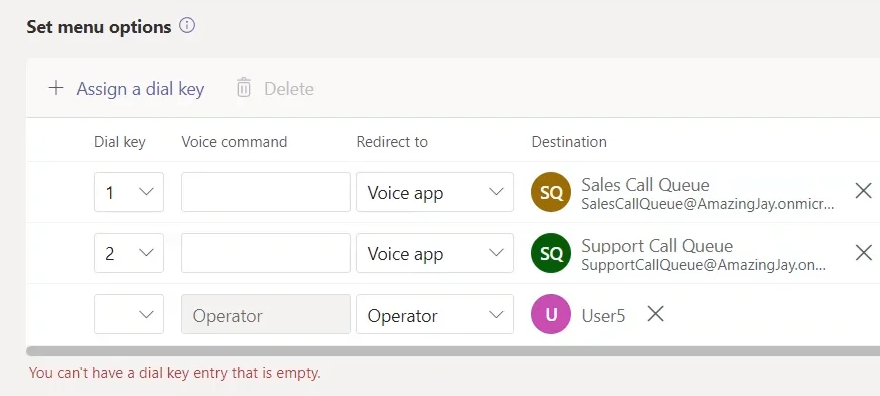
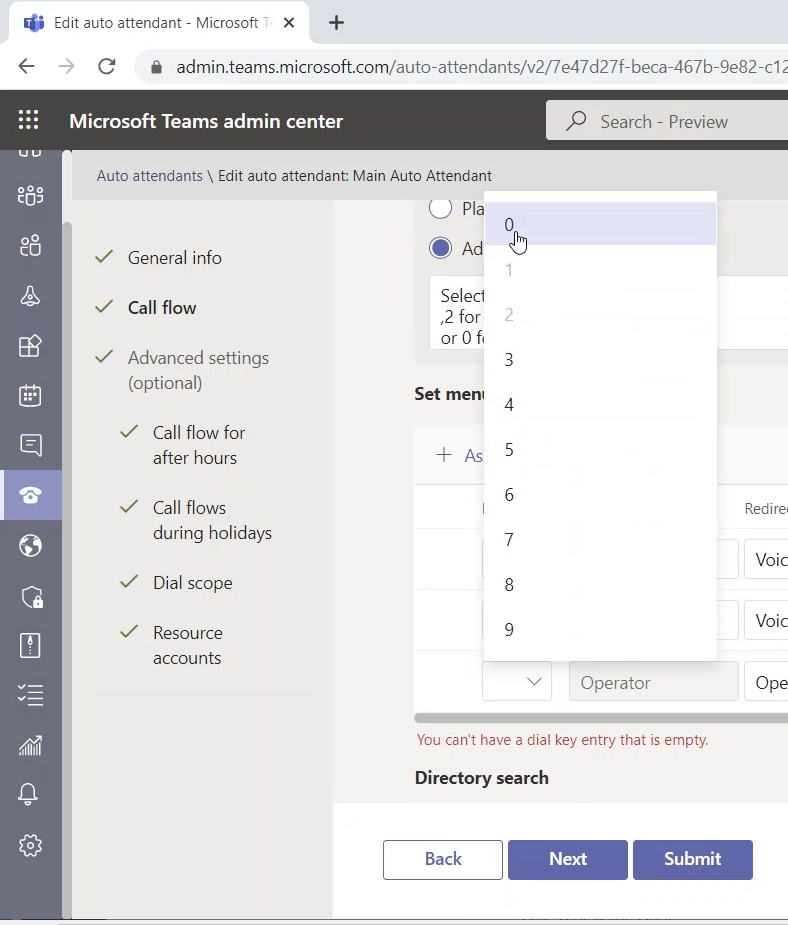
Select the 0 as the dial key
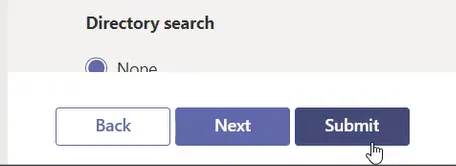
Click on the Submit button to save the changes
Post navigation
← Previous Post
Next Post →

Recent Posts

  • Checking SIP Messages to Verify the Local Media Optimization Between Teams Client and SBC
  • Configuring Direct Routing Local Media Optimization for Single-Site and Single SBC (Using Teams Admin Center)
  • Teams’ Call Queues and Auto Attendants – Testing Using Teams Client
  • Teams’ Call Queues and Auto Attendants – Allowing an Auto Attendant to Call an External Number (PSTN Number)
  • Teams’ Call Queues and Auto Attendants – Adding an operator to the Auto Attendant

Recent Comments

No comments to show.

Archives

  • August 2024
  • July 2024
  • September 2023
  • August 2023
  • January 2023
  • December 2022
  • November 2022
  • September 2022
  • July 2022
  • April 2022
  • March 2022
  • January 2022
  • July 2021
  • June 2021
  • May 2021
  • March 2021
  • January 2019
  • December 2018
  • May 2018

Categories

  • Access Control List (ACL)
  • Auto Attendants
  • Azure SWe Lite
  • Call Queue
  • Call Queues and Auto Attendants
  • Direct Routing
  • Direct Routing
  • E2EE
  • End-to-end encryption
  • Enterprise Voice
  • G.711
  • G.729
  • Hybrid Setup
  • Local Media Optimization
  • Media
  • Media Bypass
  • Operator
  • Ribbon
  • SBC
  • SBC 1000
  • SBC 2000
  • SBC Edge
  • Skype for Business
  • Skype for Business Control Panel
  • Step by Step
  • SWe Lite
  • Teams
  • Teams Client
  • Teams Mobile Client
  • Teams Walkie Talkie
  • Uncategorized
Copyright © 2026 Jay's Lab | Powered by Astra WordPress Theme