Teams Client

Checking SIP Messages to Verify the Local Media Optimization Between Teams Client and SBC

Why Do You Need to Check SIP Messages

After configuring Direct Routing with Local Media Optimization, you need to check that Local Media Optimization is working correctly

One way to verify that Local Media Optimization is working correctly is to check the headers in the invite SIP message to examine whether the headers contain the correct values.

Tool Used to Capture SIP Messages (LX Tool from Ribbon)

Ribbon SBC Edge family of products sends the logs using the Syslog protocol.

These logs can include SIP messages and other types of logs depending on the level and settings of logging.

To capture the logs from my Ribbon SBC 1000 (a member of the SBC Edge family), I am using the LX Tool from Ribbon to capture the SIP messages

The LX tool captures the logs by acting as a Syslog server to capture the logs.

After capturing the logs, I have used this tool to verify the header of the invite message

Teams Client Detects That It Is External

When Teams Client is inside the internal network, but the Direct Routing with Local Media Optimization is not configured correctly (or the Teams Client is external)

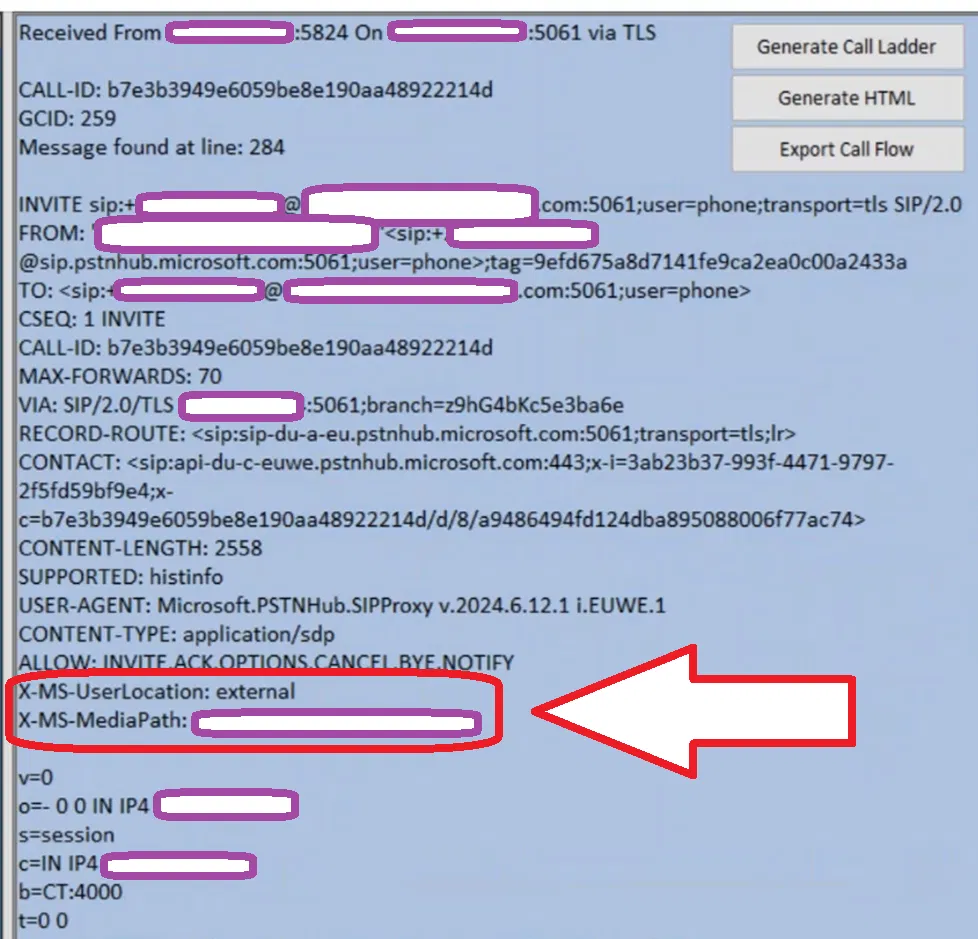
  • The X-MS-UserLocation header is set to external. In the invite message (as the image below shows)
  • X-MS-MediaPath is set to the SBC FQDN (this is a single SBC setup)

Note:

When Teams Client is really in the external network, the X-MS-UserLocation is set to external (which is the correct setting)

The image below shows the invite message between Teams Client and Ribbon SBC 1000 captured using the LX tool (Ribbon tool to capture Syslog we discussed above). The headers mentioned above are in a red box.

Teams Client Detects That It Is Internal

When the Teams client is inside the internal and Direct Routing with Local Media Optimization is configured correctly,

  • The Invite message will have the X-MS-UserLocation header set to internal.
  • X-MS-UserSite header will appear in the invite message and will be set to the site of the Teams Client
  • X-MS-MediaPath is set to the SBCs FQDN in the correct order (In the example below, X-MS-MediaPath shows only one SBC, since we have only one SBC in our setup)

The image below shows the invite message between Teams Client and Ribbon SBC 1000 captured using the LX tool. It contains the three headers we mentioned (The headers are in a red box)

Teams Walkie Talkie

With Teams Walkie Talkie feature you can turn your mobile phone into Walkie Talkie. You speak directly to the mobile device and others can hear you. Below are more details.

How to enable it

To use Teams Walkie Talkie, you need to have a Teams Setup Policy that includes Walkie Talkie as an app. Then you need to assign this policy to the users. This will be explained in more detail in this article.

How to use it

In a traditional phone call, you choose whom you want to call, and dial that person. They can accept the call or reject it call. But for Teams Walkie Talkie, you need first to be on a channel (by joining it), and when you want to talk you press a button and keep talking while the button is pressed, everyone on the same channel is going to hear you. This is like a real Walkie Talkie.

It required a Teams client running on a mobile phone. It needs internet of course. And it will work even if the phone is locked

Part 1: Modifying the Global Setup Policy to Make Walkie Talkie App Available

To enable Walkie Talkie, the users should be assigned a Setup Policy that has the Walkie Talkie app enabled. You can use a custom policy and assign it to a set of users, or you can simply modify a setup policy that is already assigned to the users.

In the below steps, I am modifying the Global Setup Policy that is already assigned by default to all users:

Go to Teams Admin Center > Teams apps > Setup policies and click on the “Global (Org-wide default)” policy

Make user that the “User pinning” option is on

Scroll down to “Pinned apps”

Click on “Add apps”

Search and add the Walkie Talkie app

Click on Add

The app will be added to the list of apps in the policy

To make Walkie Talkie app as the first tab on Teams client, rag the name of the app

Drag it until it reaches the top of the list of the apps

Release it and it will be on the top of the list

Click on “Save” to save the policy

Part 2: Accessing Walkie Talkie and Connecting to A Channel

When you open the Teams App on the mobile, you will notice the Walkie Talkie tab at the bottom of the screen, for my configuration, I made the tab to be the first by making the Walkie Talkie application the first when configuring the policy.

Accessing Walkie Talkie Tab

The following image shows the Tab the option to view the tab

After clicking on Walkie Talkie Tab, you will be taken to Walkie Talkie tab

Selecting a Channel

When you are connected to the channel, you will be able to hear the messages that are broadcasted to this channel, and you will be allowed to broadcast voice messages to that channel

Walkie Talkie tab, click on “Channel” to select the Team and the Channel in that Team where you want your Walkie Talkie to connect to

In my case, I am selecting the General Channel of Team1 as the image below shows

The Walkie Talkie tab/page will show you the selected channel

Connecting to A Channel

Click on the connect button to get connected to the selected channel.

The following shows the app is connecting to that specific channel

Viewing The Other Connected Users to Your Channel

The following image shows that there are two users connected to Walkie Talkie on the same channel

Click on  to view the connected users to that channel

The following image shows the connected users

Part 3: Sending a Voice Message

When you click on the microphone button in the middle of the Walkie Talkie tab, you will be “live”, and you can send a voice message to all the users connected to the channel you are connected to. When you are on live, will see the word “Live”. You need to keep the pressing microphone button as long as you are sending the voice message.

Enabling End-to-end encryption (E2EE)

Microsoft Teams’ calls are secured and encrypted by default. But using End-to-end encryption (E2EE) makes the media of the call (voice/video) getting encrypted by the client before it is sent to the other client. This would give extra security and, theoretically, even Microsoft cannot decrypt this media traffic.

Both parties of the call must enable E2EE on their Teams client. But before they can do that, an E2EE policy must be assigned to them to allow them to enable encryption.

E2EE is based on a 20-digit security code for each call that is agreed upon between the two clients, and you can view this code during a call as explained below

To have E2EE for the users, you need to do the following

  • Enable E2EE on Global Policy or create a custom policy and assign it to users
  • The users themselves enable E2EE on their Teams client

To enable End-to-end encryption (E2EE) using the admin center using the Global Policy

Usually, the Global Policy is assigned to all users by default. So, when enabling E2EE using the global Policy, it will be enabled for all users

On Teams admin center, on the left pane, click on “Enhanced encryption policies”

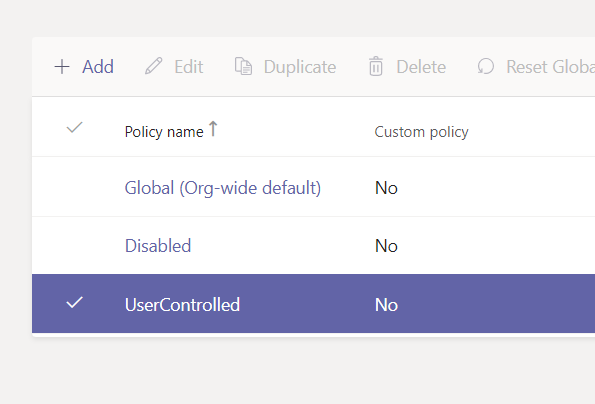
Select “Global (Org-wide default)” policy and click on Edit

This will show you the details of the Global policy
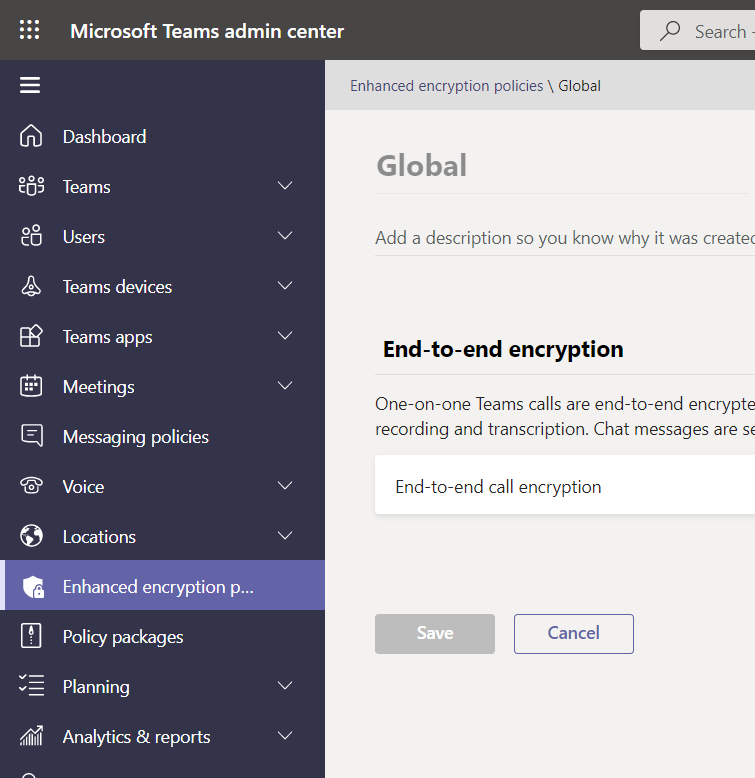
Under End-to-end encryption, select “Users can turn it on”

Graphical user interface, text, application

Description automatically generated

Click on “Save”

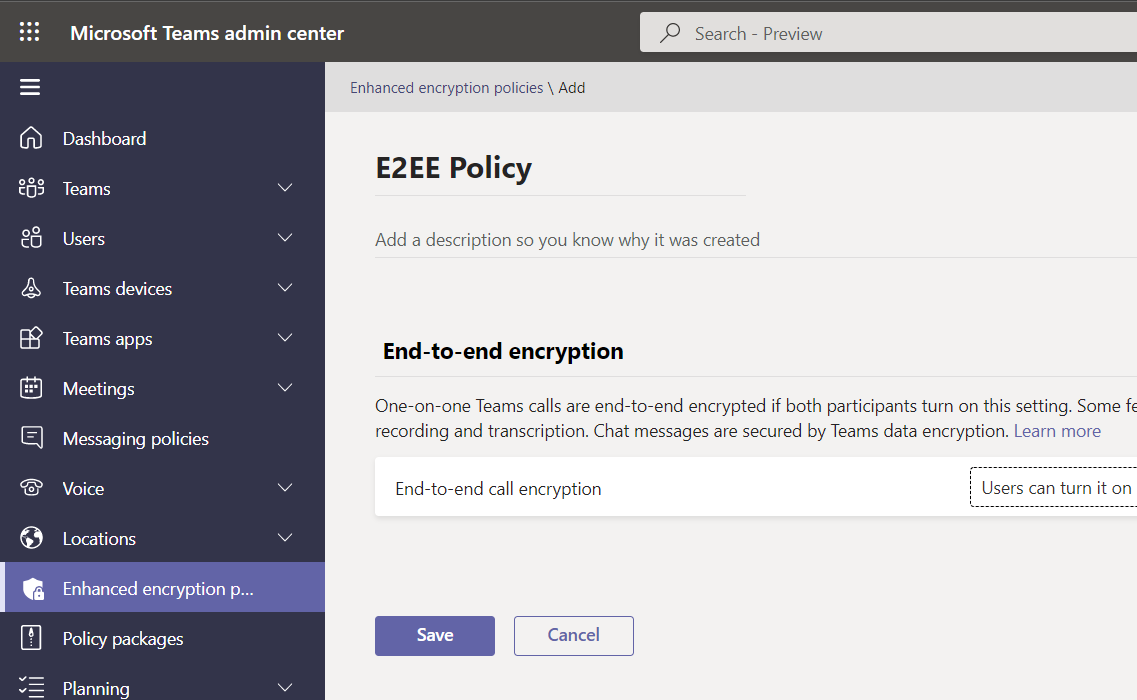
Creating A Custom E2EE Policy Using Admin Center

Just like any other policy, you can make your custom policy and assign it to a specific set of users
Assigning A E2EE Policy to A User Using Admin Center
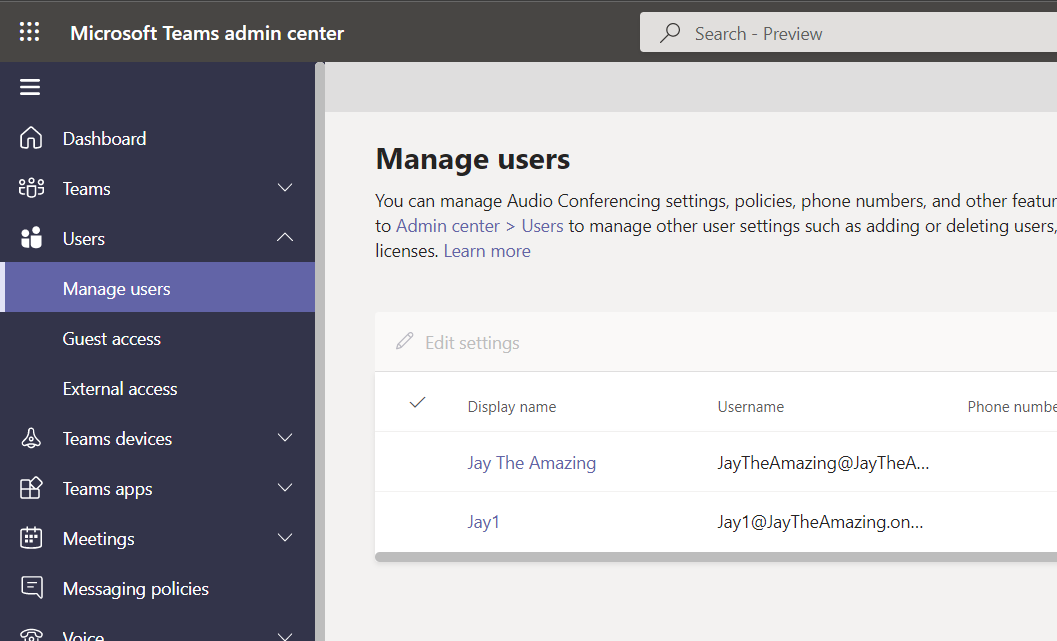
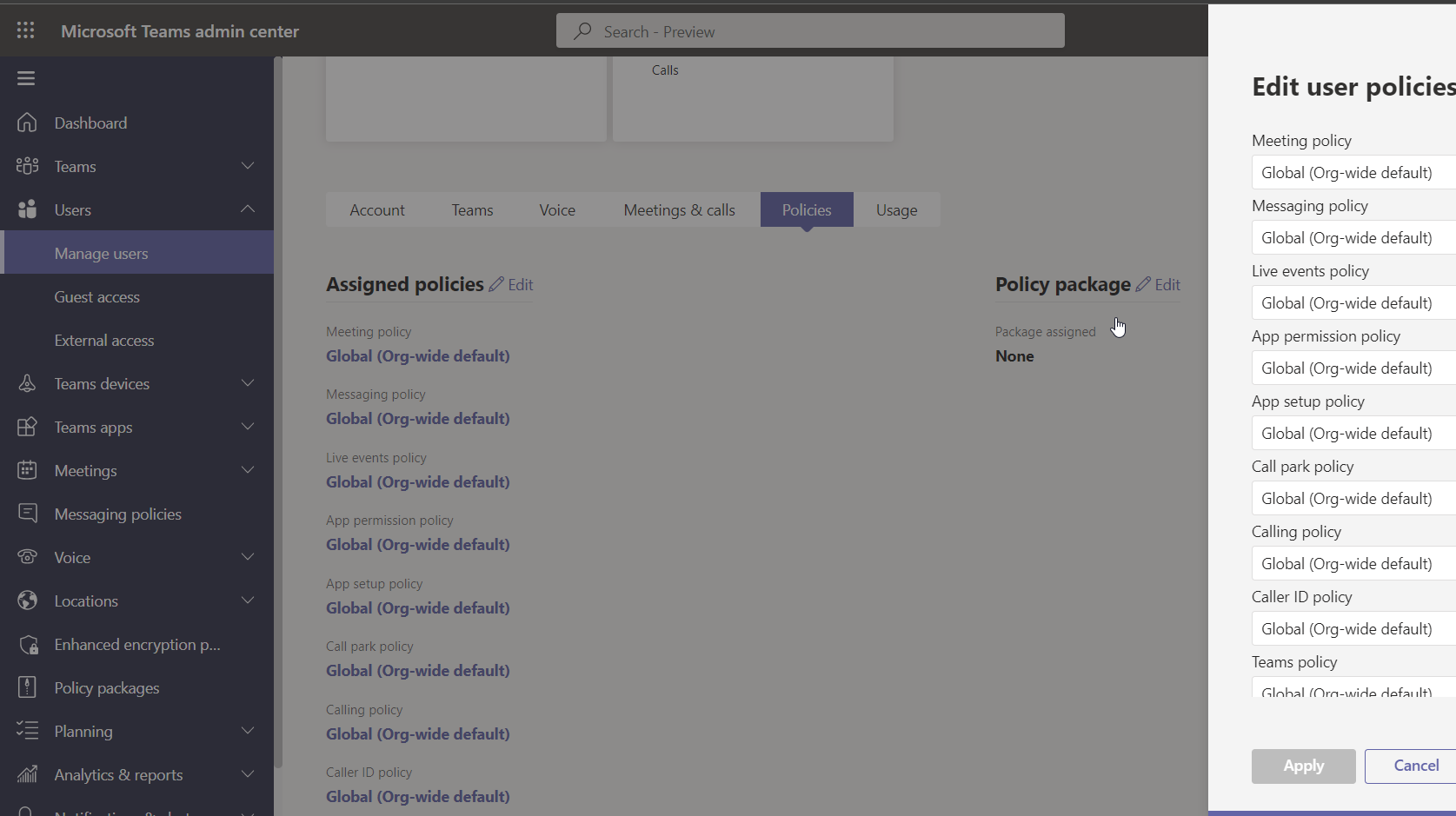
Click on Policies

Next to Assigned policies, click on Edit

This will show you the list of the policies that are assigned to the user
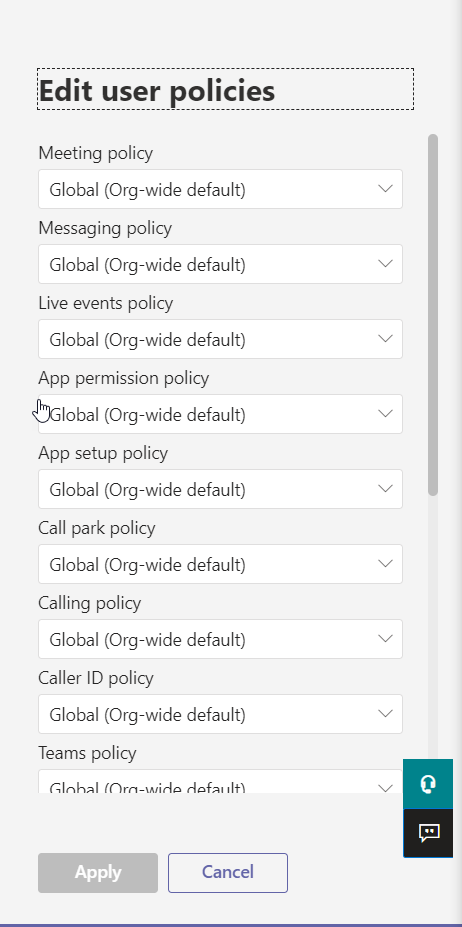
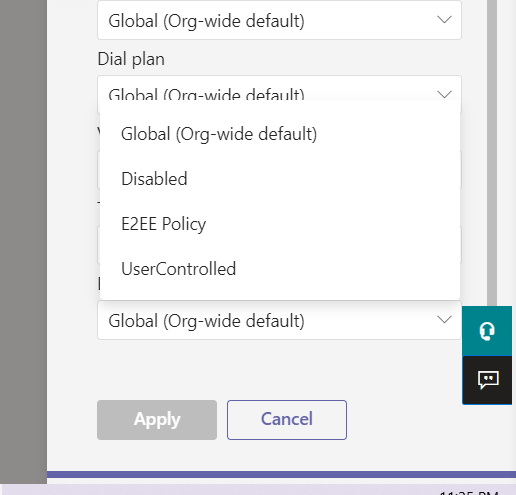
Scroll down “Enhanced encryption policy” and then, select the newly created policy
The following image is showing the newly created policy is selected
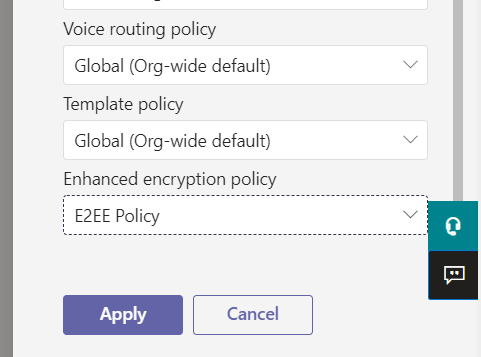
Click on the “Apply” button

Creating A Custom E2EE Policy Using PowerShell

Updating Teams PowerShell Module

I tried to create the commandlet New-CsTeamsEnhancedEncryptionPolicy for creating a new policy using PowerShell, but the Teams PowerShell Module installed on my PC is old. I had to update my Teams PowerShell Model
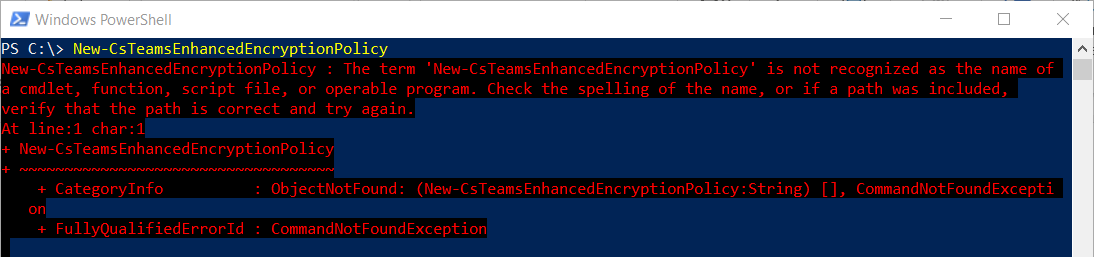
To update Teams PowerShell Model, first I started Windows PowerShell as an Administrator
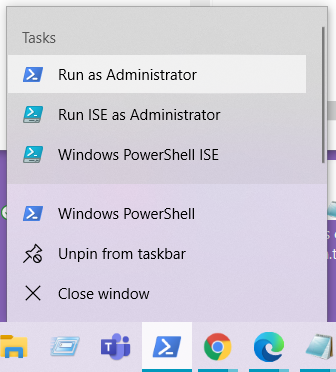
I run the commandlet Update-Module MicrosoftTeams

A picture containing shape

Description automatically generated

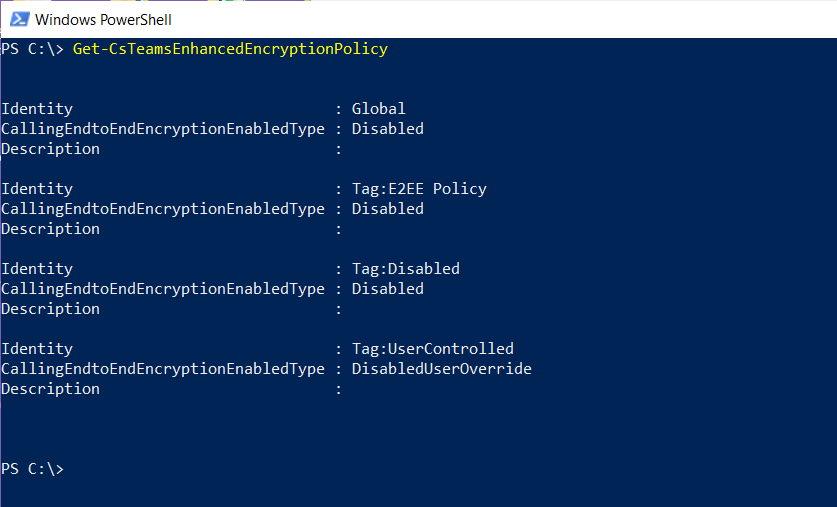
Then, I tried the command Get-CsTeamsEnhancedEncryptionPolicy to verify that the new module supports Enhanced Encryption Policy
Creating The Policy

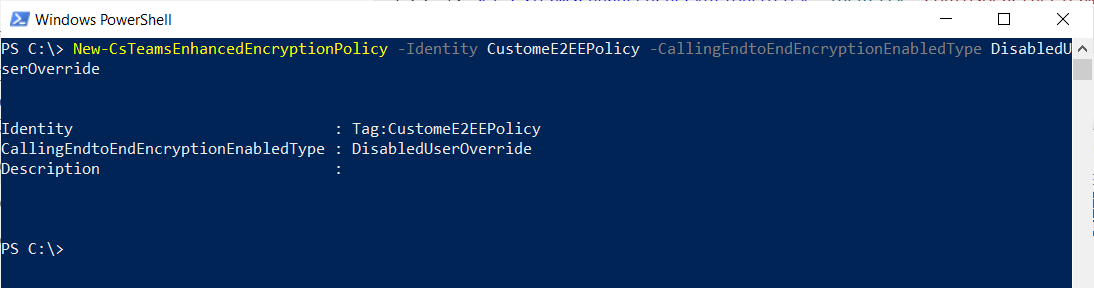
I have used the following commandlet to create the customer policy

New-CsTeamsEnhancedEncryptionPolicy -Identity CustomeE2EEPolicy -CallingEndtoEndEncryptionEnabledType DisabledUserOverride
Grant-CsTeamsEnhancedEncryptionPolicy -Identity Jay1@JayTheAmazing.onmicrosoft.com -PolicyName CustomeE2EEPolicy

Assigning A E2EE Policy to A User Using PowerShell

I have used the commandlet Grant-CsTeamsEnhancedEncryptionPolicy to assign the policy to the user as follows:

Grant-CsTeamsEnhancedEncryptionPolicy -Identity Jay1@JayTheAmazing.onmicrosoft.com -PolicyName CustomeE2EEPolicy

Configuring Teams Windows Client to Support E2EE

Click on the … on the upper right corner to show the menu and select Settings

The setting page (dialog box) will be shown

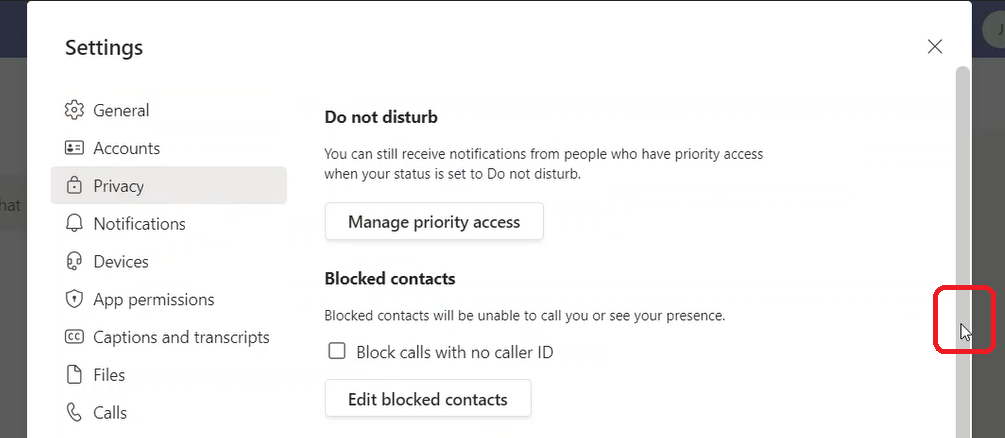
Click on “Privacy”
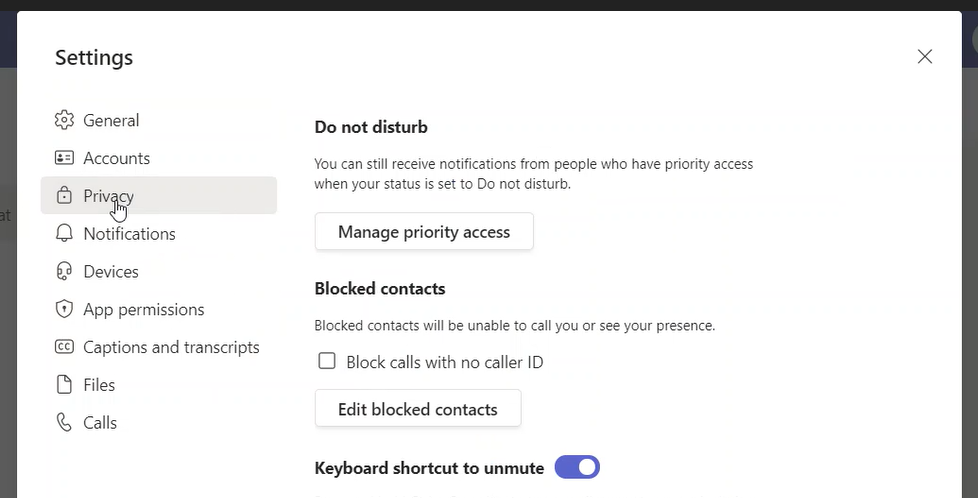
Scroll down
Until you reach “End-to-end encrypted calls”
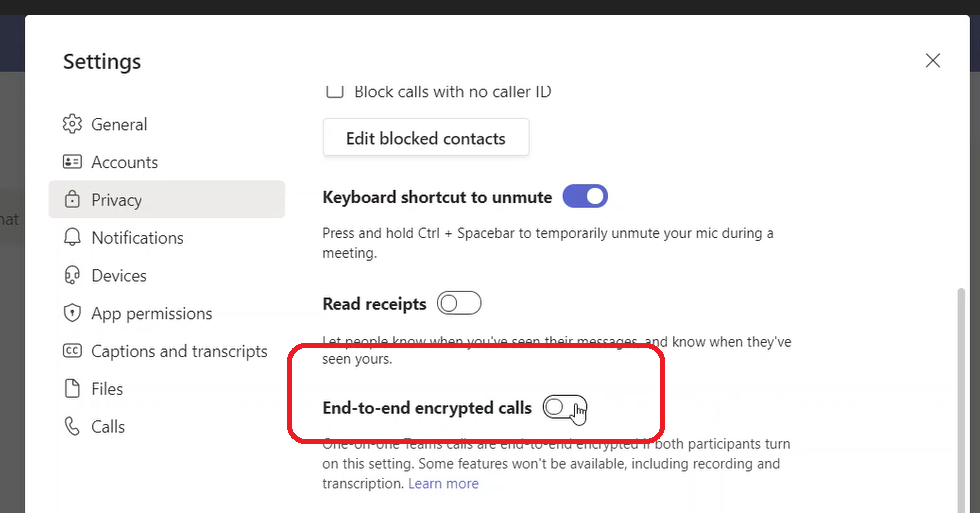
Enable “End-to-end encrypted calls” and exit the page (dialog box)

Configuring Teams Mobile Client to Support E2EE

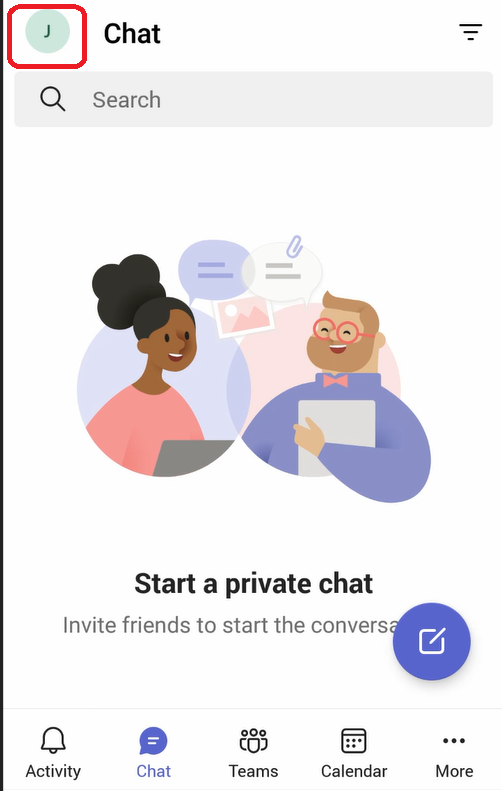
On the client app, click on the upper left corner where it mentions the initials of the name of the user
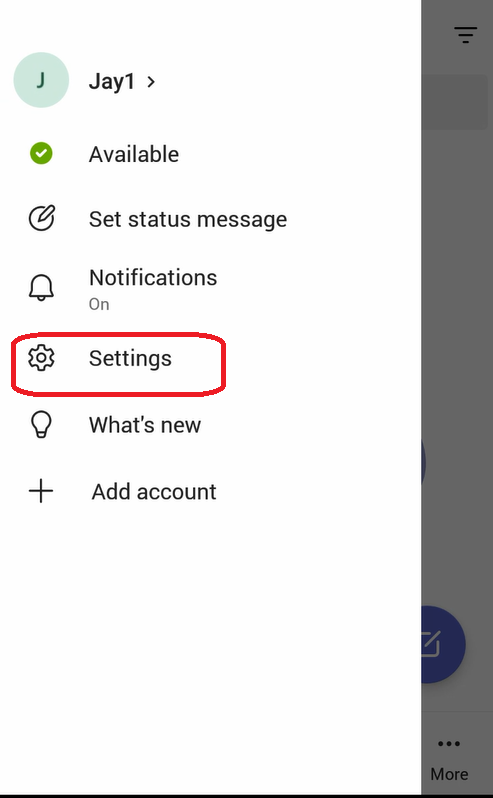
On the menu that got opened, click on “Settings”
On the “Settings” menu, select “Calling”
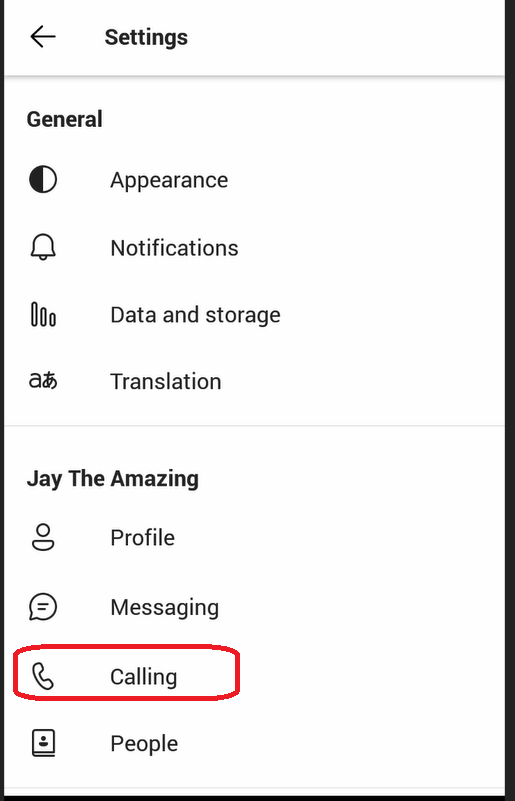
Under the “Calling” menu, you will see the option “End-to-end encrypted calls”

Note:

If the option “End-to-end encrypted calls” doesn’t appear in the “Calling” menu, this means that the user doesn’t have “Enhanced Encryption Policy” assigned to it. You need to assign this policy using Web Interface or PowerShell as explained above

Enable the option “Enhanced Encryption Policy” and exit all the menus

To Verify that the call is using E2EE on Teams Windows Client

The following image shows that the call is secured
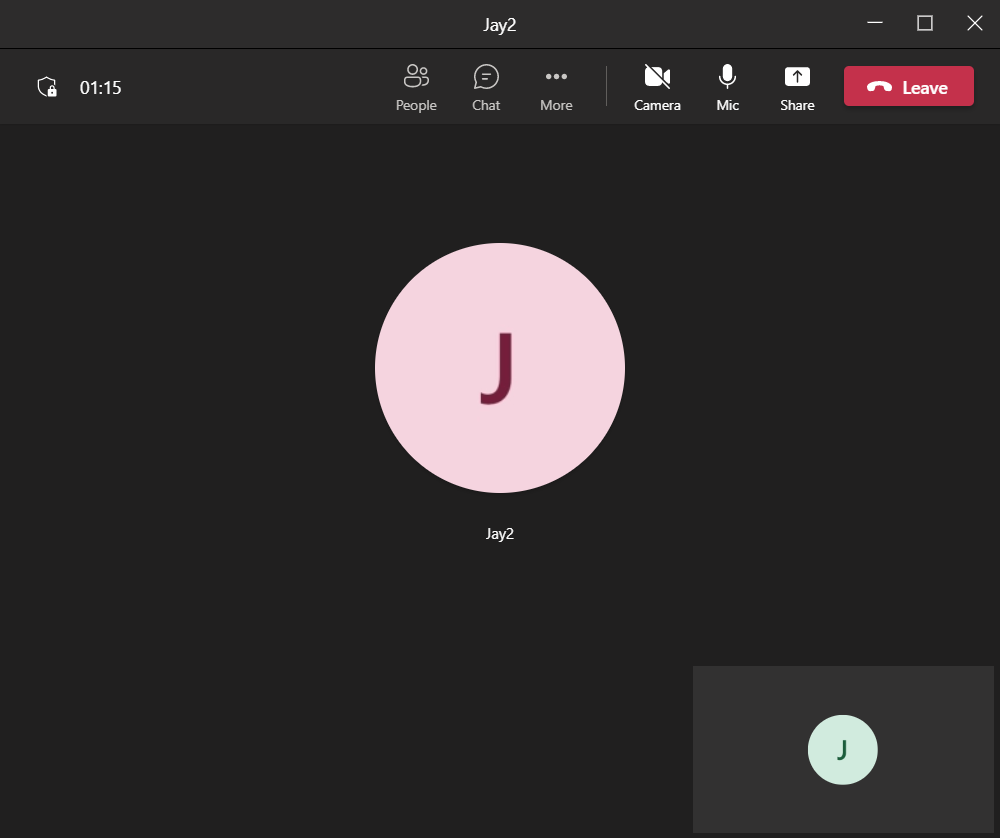
In the upper left corner, you will see an armor image with a lock next to the time spent on the call. The following is a magnified image


To View The 20-Digit Security Code on Teams Windows Client

If you click on the armor image and it will show you a box saying, “End-to-end encryption enabled for this call” and it will show you the “the 20-digit security code” of this call. Note that this code will be the same in both parties of the call

To Verify that the call is using E2EE on Teams Windows Client

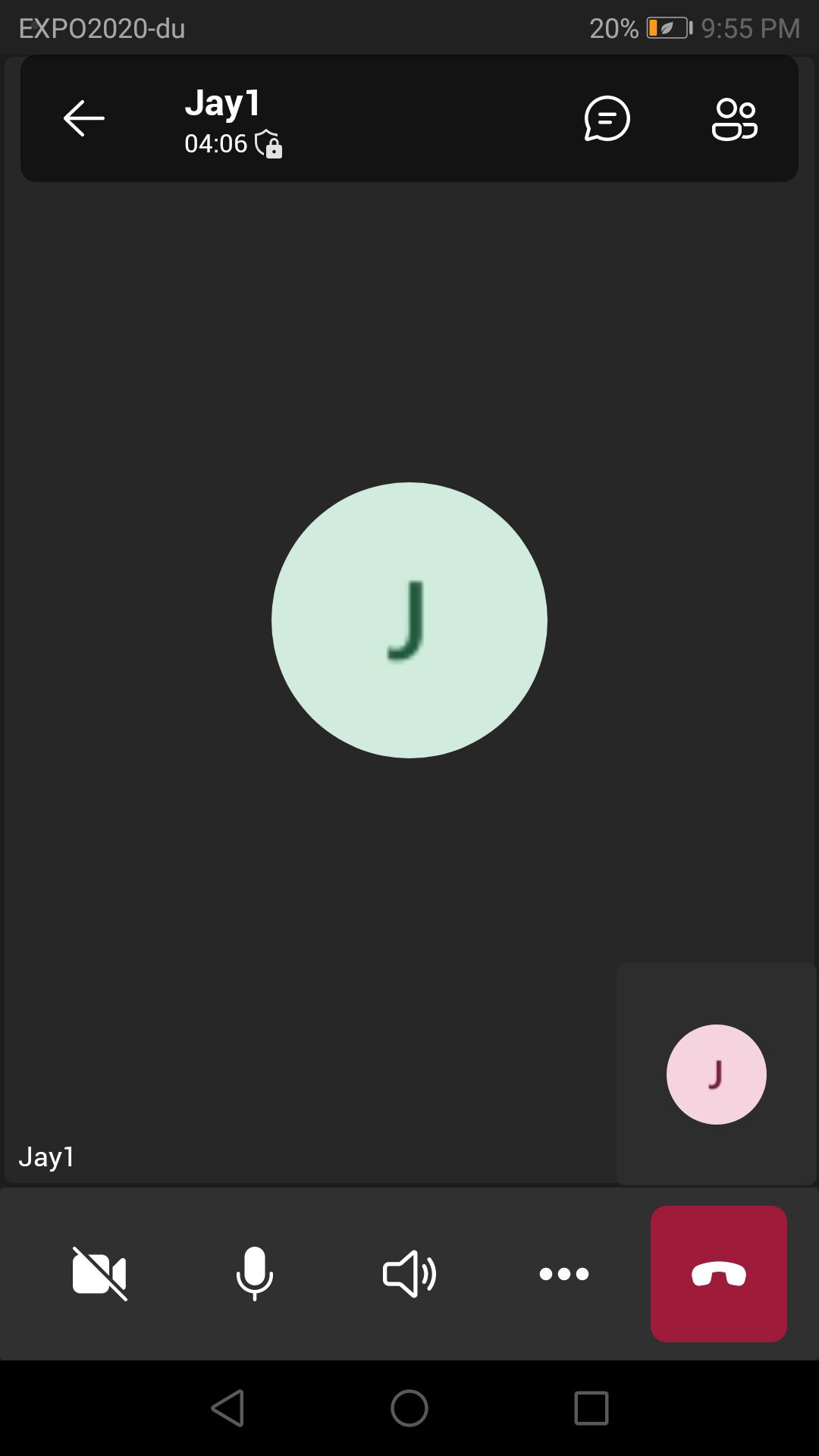
During a call on the mobile app, you will notice the same an armor image with a lock on top of it.
A screenshot of a phone

Description automatically generated with low confidence

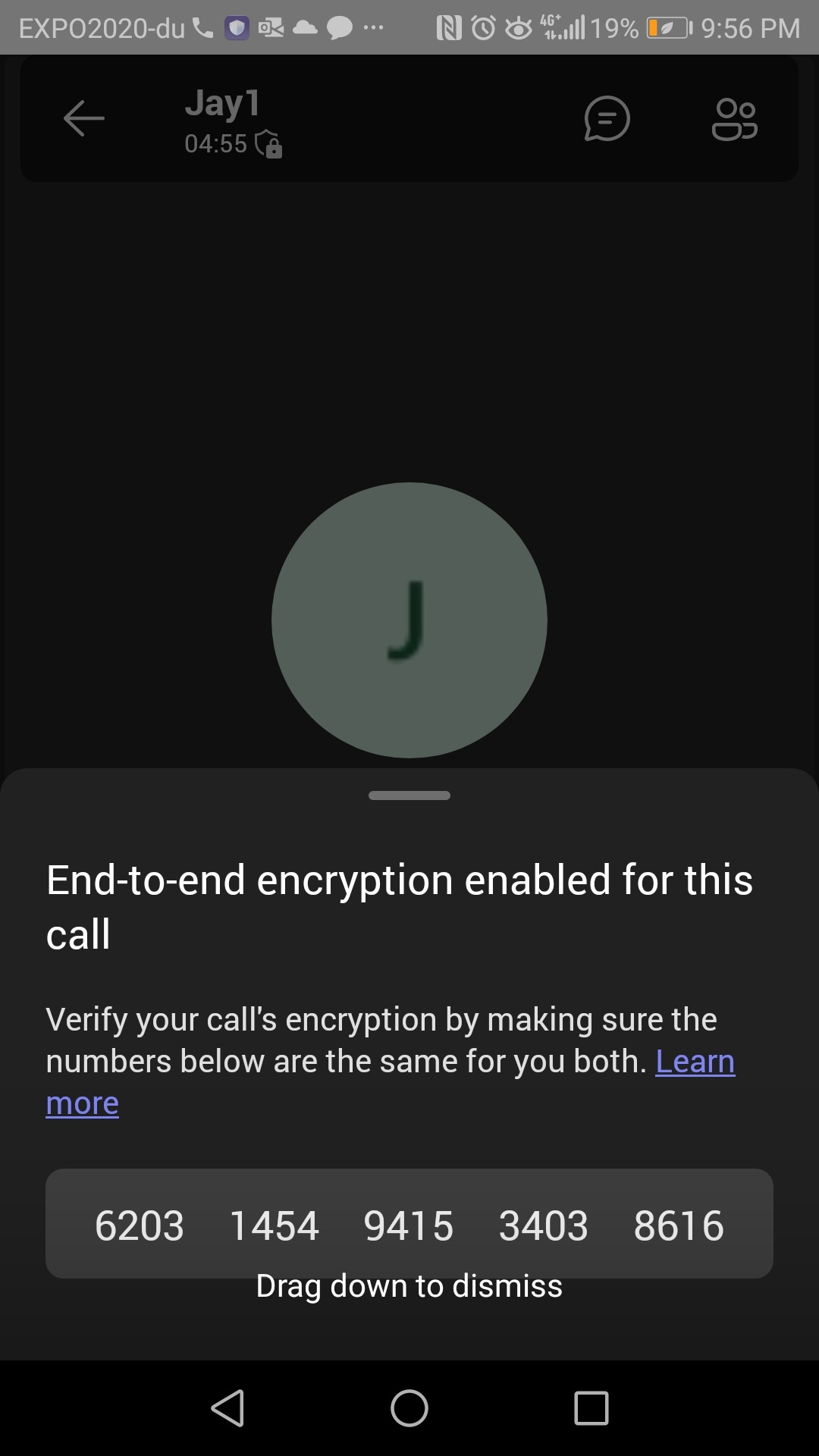
To View The 20-Digit Security Code on Teams Windows Client

Click on this armor image. This will show you the box that says “End-to-end encryption enabled for this call” and it will show you the “20-digit security code” of this call. The following image shows the same security code that is shown above in the Windows client (it is the same call, so both parties will have the same code)

Graphical user interface, application

Description automatically generated

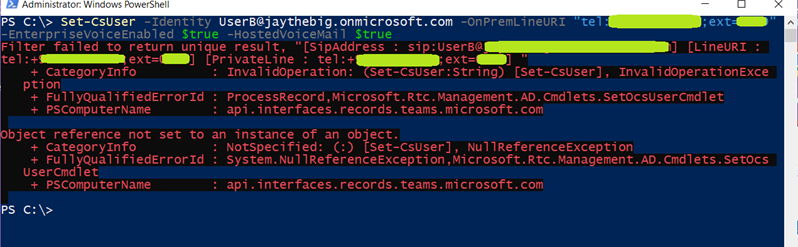
Filter failed to return unique result

When you try to enable a user for Teams DirectRouting and assign a LineURI to a user using a command such as the below

Set-CsUser -Identity user@domain.com -OnPremLineURI “tel:+xxxxxxxxxxxx;ext=xxxx” -EnterpriseVoiceEnabled $true -HostedVoiceMail $true

And you get the following error:

Filter failed to return unique result

This might mean that the LineURI is already assigned to another user, Call Queue

You need first to remove the LineURI from the other users

To remove the Line LineURI (which represents the phone number that is assigned to the user) from a user

Removing the licensing of Office 365 is not enough. It would disable users on Teams, but the LineURI will remain unusable

To solve the issue, you simply need to run the following on the old user

Set-CSUser olduser@domain.com -OnPremLineURI $null

The would set LineURI and the number will be free to be assigned to another

Now, you can run Set-CsUser to assign the LineURI to the new user

Set-CsUser -Identity user@domain.com -OnPremLineURI “tel:+xxxxxxxxxxxx;ext=xxxx” -EnterpriseVoiceEnabled $true -HostedVoiceMail $true


Teams External Access – Allowing and Disallowing Communicating with Other Domains

You can manage to allow or block communication of your Teams users with other Teams or Skype for Business (online or on-premise) domains by accessing

Teams Admin Center > Org-wide settings > External access

Although it is clearly written on the top of the page, some might not notice it.

As it says, all domains are allowed to be communicated with by default.

Simply, when you add a domain (as allowed) to the list, all the other domains will be blocked and any domain you need to communicate with you have to add to the list as allowed.

And when you add a domain to the list as blocked, it means only this domain is blocked and all other domains will be allowed.

This would simplify the configuration and there is less need to have a mix of allowed and blocked domains although it is possible to have such a mixed list.