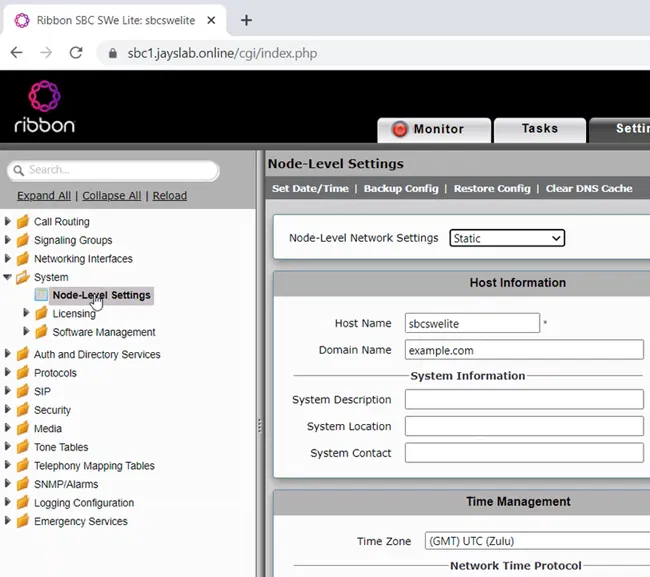
In this step, we will configure the SBC to support Teams Direct Routing. The configuration will be done with the help of “Easy Config Wizard”
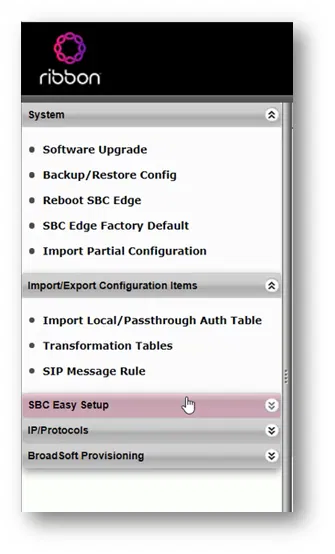
On the Tasks tab of the Web Interface of the SBC, expand “SBC Easy Setup” and click on “Easy Config Wizard”

The Wizard will start and Step 1 will be shown

Make sure “SIP Trunk <-> Microsoft Teams” is selected as “Application” (on the current version of SBC it is the default option)
Type a name for the “Scenario Description”. Configuration elements that will be created, some of them will start with the name of the scenario
Select “Telephone Country” of your SIP Trunk
Unser SIP Sessions, type the number of SIP sessions that you have purchased from the SIP Trunk provider (for me it is just 4 sessions)
Click on the “Next” button

This will take you to “Step 2”

Under “User Secondary Border Element Server” I selected “Disabled”. You can enable this if your SIP Trunk provider has more than one SIP Server


Under “Border Element Server”, type the FQDN or the IP of the SIP Server of your SIP Trunk provider
You can change the “Protocol” or/and the “Port Number” to match the ones that your SIP Trunk provider use
Under NAT Public IP (Signaling/Media), type the public IP of the Signaling/Media interface (second interface) of the SBC/VM
Click on the “Next” button

In “Step 3”, the wizard will show you the summary of your choices and settings of the previous two steps. Of course, you can go back and change them.

Click on “Finish”

A message will be shown asking if you want to continue applying the settings

Click on the “OK” button

The wizard will work on applying the settings

After applying the settings, you can check the “Monitor” tab to check if the signaling groups are up (they will be shown as green)

Remember that you need to have the following in order to “Teams Direct Routing” signaling group up:
- A valid certificate installed on the SBC that matches
- A correct DNS record of type A that points to the SBC
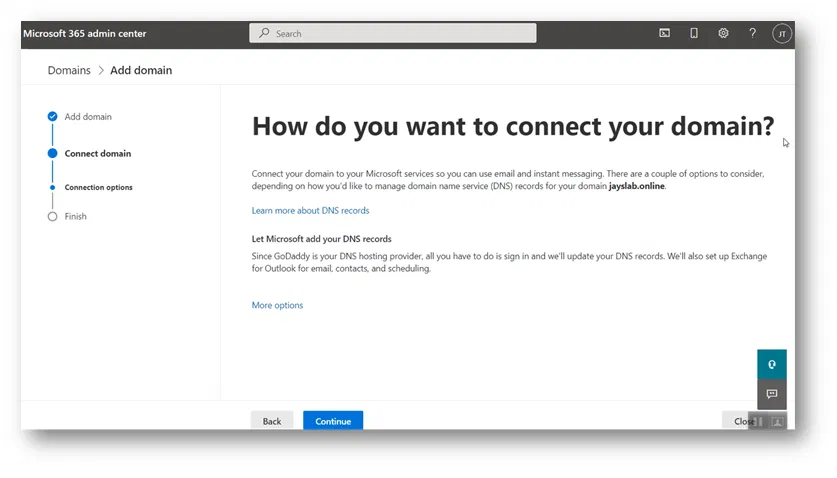
- Register the Domain Name of the SBC as a domain on Microsoft 365 and created a user with Telephony License
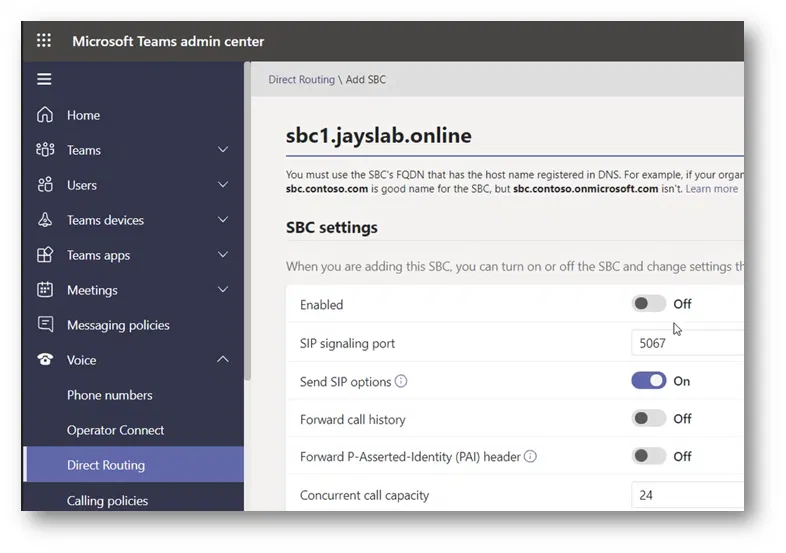
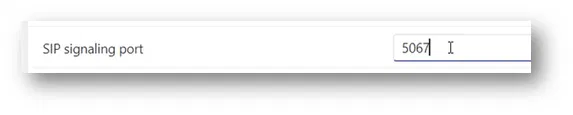
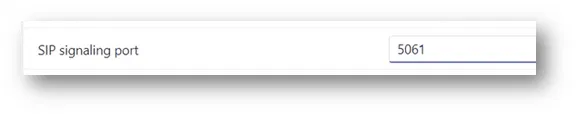
- Connected the SBC to Teams Direct Routing (using PowerShell or Teams Admin Center)
- The required ports are opened
The signaling group for “Teams Direct Routing” might appear as down as shown below

In that case, you need to troubleshoot and find the reason why it is down and fix it
About “Transformation Tables”
The wizard configured the SBC to pass the called number and the calling number as they are
My SIP Trunk provider accepts E.164 format which is the same format Teams Direct Routing uses.
However, the ending part of LineURI of the user “;ext=xxx” (which is the extension of the user) cannot be used as the calling number when sent to my SIP Trunk (“;ext=xxx” is not E.164 format)
(LineURI represents the number the telephone number of the user)
That is why I made a change is my Transformation Table of outgoing calls to remove the “;ext=xxx” in order to make my outgoing calls accepted by my SIP Trunk provider

The following image shows the transformation table entry in more clear way

The settings:
For “Input Filed Type” select “Calling Extension”
For “Input Filed Value” type (.*) to catch all
For “Output Filed Type” select “Calling Extension”
Keep “Output Filed Value” empty to remove the extension
As I explained, this will make the calling number go to the SIP Trunk without the “;ext=xxx” part
Note:
The calling number should be part of the numbers that are allocated by the SIP Trunk provider to be used by you like the telephone numbers of the users. If you use any number that is not part of these numbers, the outgoing call will be rejected by the SIP Trunk (the call will fail).