SBC 1000

Checking SIP Messages to Verify the Local Media Optimization Between Teams Client and SBC

Why Do You Need to Check SIP Messages

After configuring Direct Routing with Local Media Optimization, you need to check that Local Media Optimization is working correctly

One way to verify that Local Media Optimization is working correctly is to check the headers in the invite SIP message to examine whether the headers contain the correct values.

Tool Used to Capture SIP Messages (LX Tool from Ribbon)

Ribbon SBC Edge family of products sends the logs using the Syslog protocol.

These logs can include SIP messages and other types of logs depending on the level and settings of logging.

To capture the logs from my Ribbon SBC 1000 (a member of the SBC Edge family), I am using the LX Tool from Ribbon to capture the SIP messages

The LX tool captures the logs by acting as a Syslog server to capture the logs.

After capturing the logs, I have used this tool to verify the header of the invite message

Teams Client Detects That It Is External

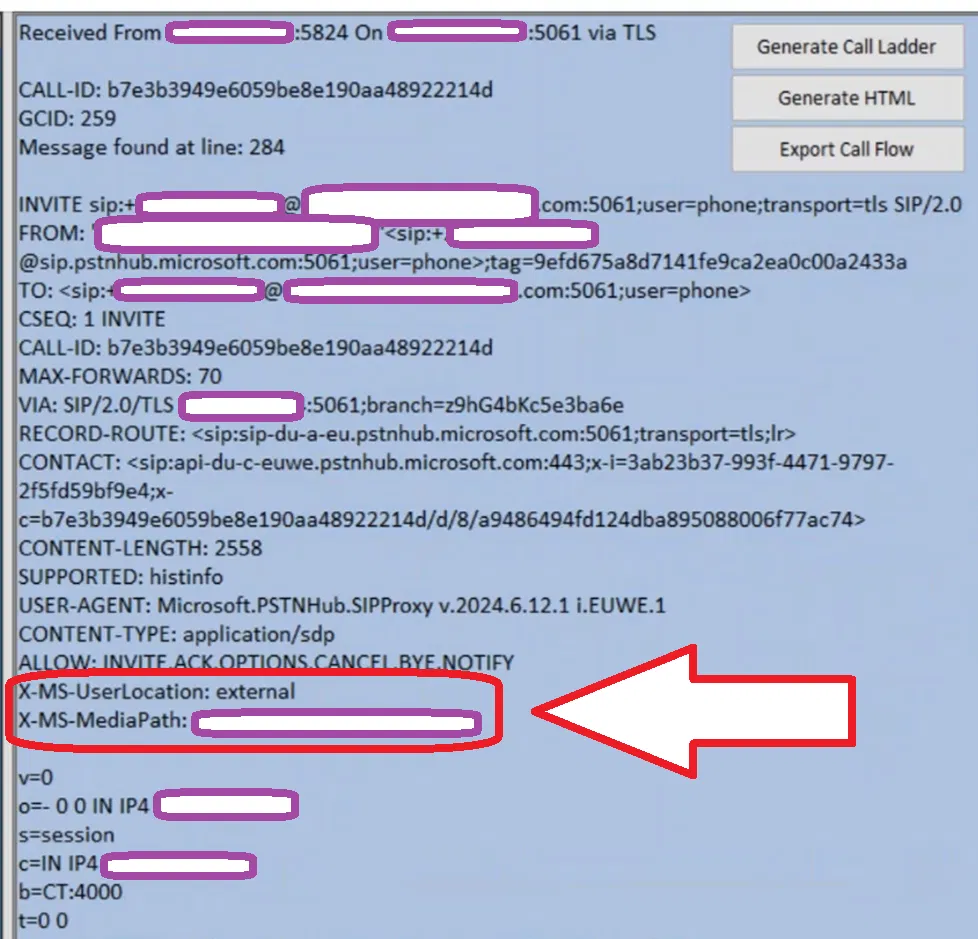
When Teams Client is inside the internal network, but the Direct Routing with Local Media Optimization is not configured correctly (or the Teams Client is external)

  • The X-MS-UserLocation header is set to external. In the invite message (as the image below shows)
  • X-MS-MediaPath is set to the SBC FQDN (this is a single SBC setup)

Note:

When Teams Client is really in the external network, the X-MS-UserLocation is set to external (which is the correct setting)

The image below shows the invite message between Teams Client and Ribbon SBC 1000 captured using the LX tool (Ribbon tool to capture Syslog we discussed above). The headers mentioned above are in a red box.
Teams Client Detects That It Is Internal

When the Teams client is inside the internal and Direct Routing with Local Media Optimization is configured correctly,

  • The Invite message will have the X-MS-UserLocation header set to internal.
  • X-MS-UserSite header will appear in the invite message and will be set to the site of the Teams Client
  • X-MS-MediaPath is set to the SBCs FQDN in the correct order (In the example below, X-MS-MediaPath shows only one SBC, since we have only one SBC in our setup)

The image below shows the invite message between Teams Client and Ribbon SBC 1000 captured using the LX tool. It contains the three headers we mentioned (The headers are in a red box)

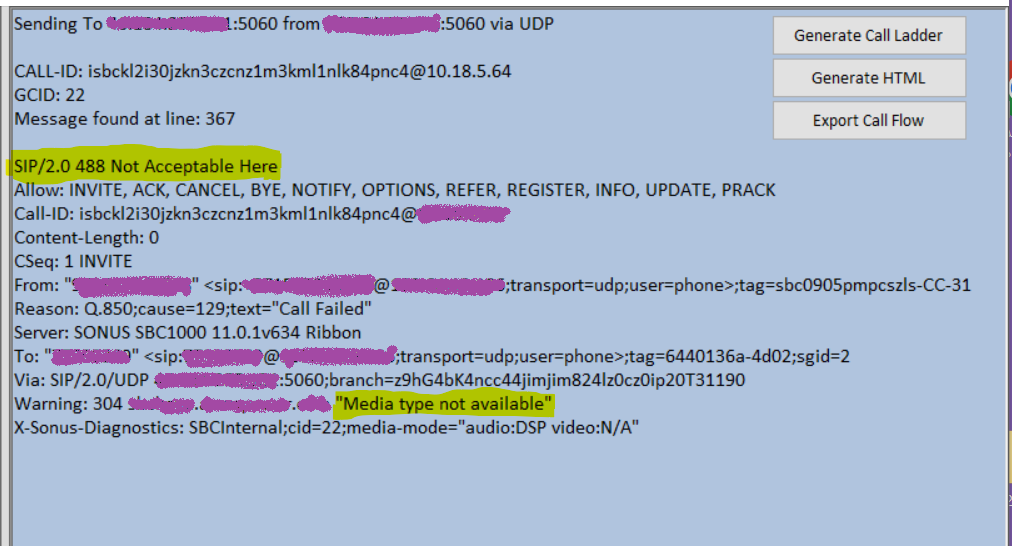
SIP/2.0 488 Not Acceptable Here – Warning: 304 sbc1.example.com “Media type not available” (adding additional codec/media profile on Ribbon SBC Edge (SBC 1000 / SBC 2000 / SBC SWe Lite))

With one of our clients, we are integrating an SBC 1000 with Direct Routing and a SIP Trunk (the SIP Trunk provides PSTN connectivity and is connected to the telephone company).

The issue we faced was that incoming calls were failing

After checking the logs, we found out that the calls are being rejected with “SIP/2.0 488 Not Acceptable Here” and also, a warning saying that “Media type not available”. This indicates that there is a possible problem with the codecs.

(For convenience, I am providing both an image containing the logs and also the text of the logs)

SIP/2.0 488 Not Acceptable Here
Allow: INVITE, ACK, CANCEL, BYE, NOTIFY, OPTIONS, REFER, REGISTER, INFO, UPDATE, PRACK
Call-ID: isbckl2i30jzkn3czcnz1m3kml1nlk84pnc4@X.X.X.X
Content-Length: 0
CSeq: 1 INVITE
From: “XXXXXXXXXXXX” <sip:+ XXXXXXXXXXXX@X.X.X.X;transport=udp;user=phone>;tag=sbc0905pmpcszls-CC-31
Reason: Q.850;cause=129;text=”Call Failed”
Server: SONUS SBC1000 11.0.1v634 Ribbon
To: “XXXXXXXXXXXX” <sip: XXXXXXXXXXXX@X.X.X.X;transport=udp;user=phone>;tag=6440136a-4d02;sgid=2
Via: SIP/2.0/UDP X.X.X.X:5060;branch=z9hG4bK4ncc44jimjim824lz0cz0ip20T31190
Warning: 304 sbc1.example.com “Media type not available”
X-Sonus-Diagnostics: SBCInternal;cid=22;media-mode=”audio:DSP video:N/A”


G.729 Codec Is Needed

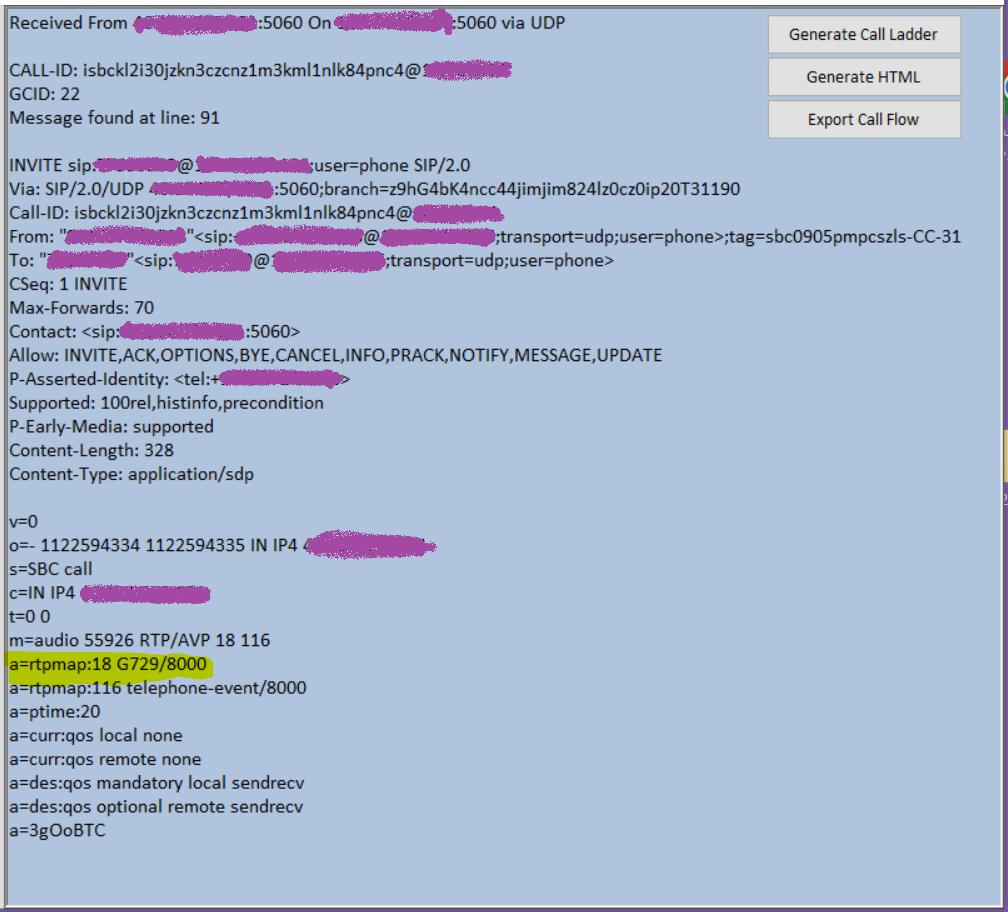
We also found out inside the invite message that SIP Trunk of the telephone company is using codecs G.729 as shown below. (Easy Config Wizard of the SBC configure only G. 711)

INVITE sip: XXXXXXXXXXXX@X.X.X.X;user=phone SIP/2.0
Via: SIP/2.0/UDP X.X.X.X:5060;branch=z9hG4bK4ncc44jimjim824lz0cz0ip20T31190
Call-ID: isbckl2i30jzkn3czcnz1m3kml1nlk84pnc4@X.X.X.X
From: “XXXXXXXXXXXX”<sip:+ XXXXXXXXXXXX@X.X.X.X;transport=udp;user=phone>;tag=sbc0905pmpcszls-CC-31
To: “XXXXXXXXXXXX”<sip: XXXXXXXXXXXX@X.X.X.X;transport=udp;user=phone>
CSeq: 1 INVITE
Max-Forwards: 70
Contact: <sip: X.X.X.X:5060>
Allow: INVITE,ACK,OPTIONS,BYE,CANCEL,INFO,PRACK,NOTIFY,MESSAGE,UPDATE
P-Asserted-Identity: <tel:+ XXXXXXXXXXXX>
Supported: 100rel,histinfo,precondition
P-Early-Media: supported
Content-Length: 328
Content-Type: application/sdp

v=0
o=- 1122594334 1122594335 IN IP4 X.X.X.X
s=SBC call
c=IN IP4 X.X.X.X
t=0 0
m=audio 55926 RTP/AVP 18 116
a=rtpmap:18 G729/8000
a=rtpmap:116 telephone-event/8000
a=ptime:20
a=curr:qos local none
a=curr:qos remote none
a=des:qos mandatory local sendrecv
a=des:qos optional remot
X.X.X.X:60238 <==> <134>[2022-12-29 17:01:24,566] 5667 001d
e sendrecv
a=3gOoBTC

Adding G.729 Codec to Media List

Notes: These steps were done on SBC 1000. They are valid for all of Ribbon SBC Edge (SBC 1000 / SBC 2000 / SBC SWe Lite)

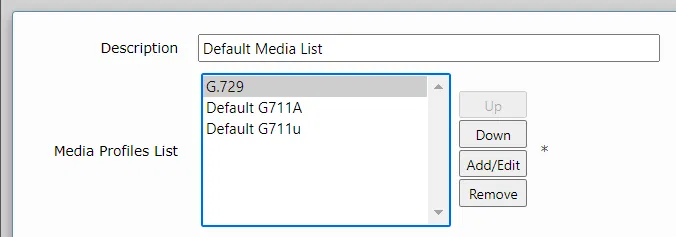
The list of codecs being used was configured by the Easy Config Wizard and it didn’t include G.729. The image below shows the details of the media list used. Somethingsfsdfsdf

So, I clicked on Add/Edit button and added G.729 to the media list

Graphical user interface, text, application, email

Description automatically generated

And moved G.729 to up to make it the first

Graphical user interface, text, application

Description automatically generated

(I kept both G711 a-law and μ-law but with less priority)

And I clicked on the “Apply” button

After that, the incoming calls wear reaching Teams Direct Routing users successfully (calls were ringing, connected and voice is heard)

How To Find the Media List Being Used

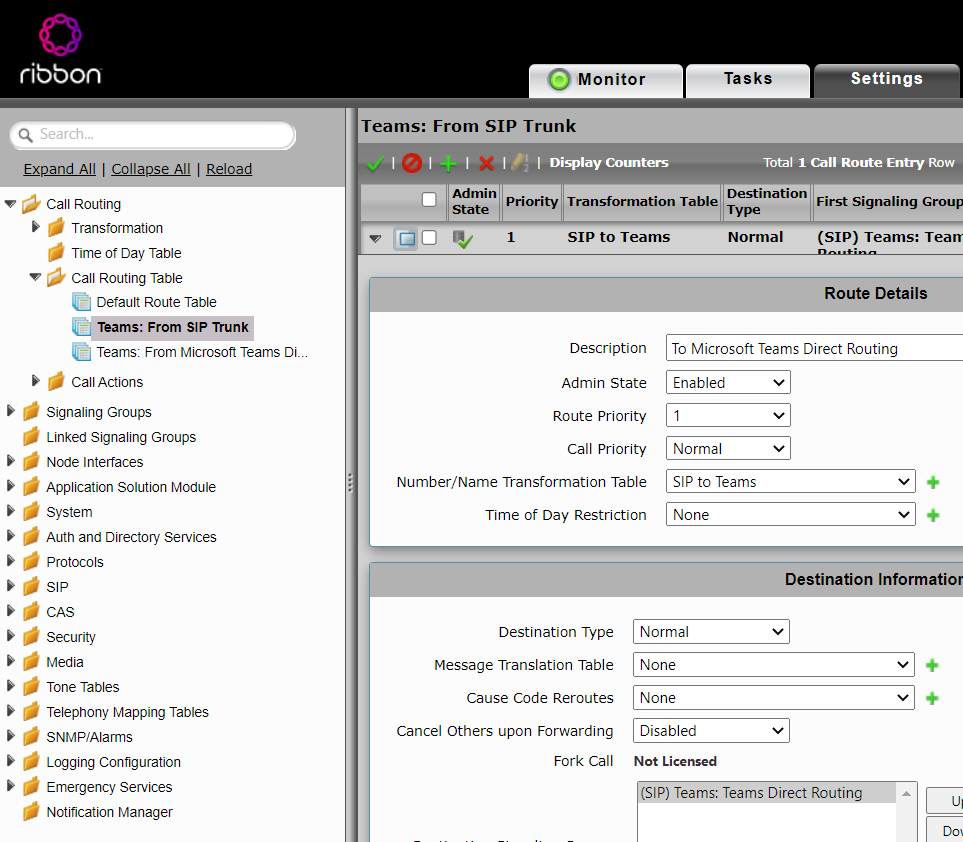
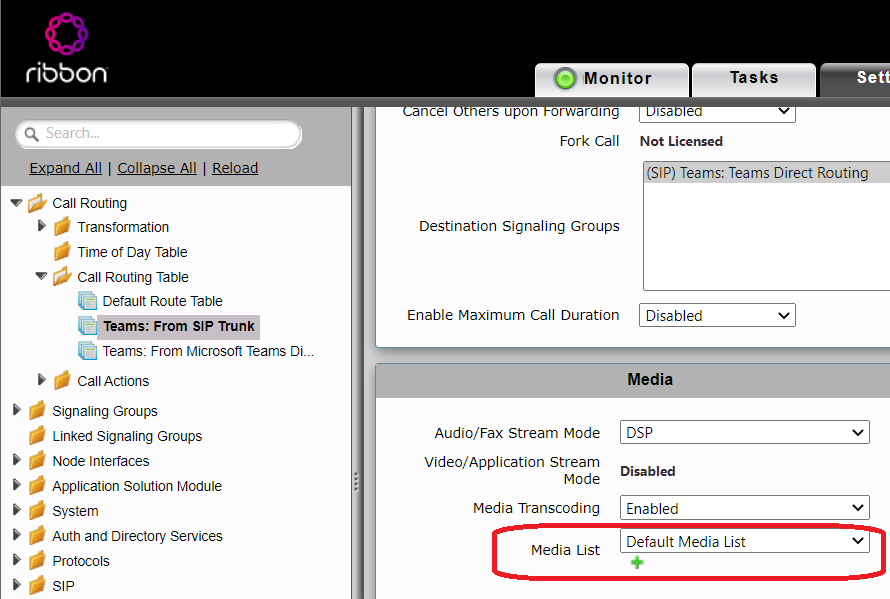
For simplicity, in the upper steps, I showed how to change the media list. To know which Media List is used you need to check the route from SIP Trunk to Teams Direct Routing as shown below

Scroll down to find the Media List being used:

Then, you can modify this media list as explained in the steps above.

SIP-TLS Server Handshake Failure/SIP-TLS Handshake Negotiation Start Failure warnings/errors on Monitor Tab of SBC Edge

If you are using Ribbon SBC Edge (SBC 1000 / SBC 2000 / SBC SWe Lite) that is integrated with Teams Direct Routing, you noticed on your SBC Edge repeated warnings/errors under the Alarm View on the Monitor tab like the following:

SIP-TLS Server Handshake Failure

SIP-TLS Handshake Negotiation Start Failure

You might have different causes of the alarm (the cause is inside the description of the alarm)

Graphical user interface, text, application

Description automatically generated

Graphical user interface, text, application

Description automatically generated

Reason for these Warnings and Errors:

The reason for these warnings and errors is that there are many machines on the net that keeps scanning SIP servers on well know SIP ports trying to hack them to make calls.

To avoid these machines from scanning your SBC, you need to limit SIP communication only with Microsoft Teams server (SIP Proxy) which consists of these two ranges (52.112.0.0/14 and 52.120.0.0/14) as explained in the link:

https://learn.microsoft.com/en-us/microsoftteams/direct-routing-plan-media-bypass

Under the section “SIP Signaling: Ports”

The following is from the above link

Graphical user interface, text, application, email

Description automatically generated

Using Firewall

If your SBC is behind a firewall, you can simply configure the firewall to limit SIP communication to only (52.112.0.0/14 and 52.120.0.0/14)

Using SBC Edge Access Control List (ACL)

Another method is to utilize applying Access Control List (ACL) on the “Logical Interface” of SBC that is connected to the internet.

You can create your own ACL or you can utilize the existing ACL created by running “Easy Config Wizard” and selecting Teams as a scenario

Notes About Using Access Control List (ACL):

  • You need to allow HTTPS allowed on the interface to control the SBC if you have the same interface for both managing the SBC and for SIP and Media communication
  • If you configured allowing HTTPS incorrectly in the ACL, you will lose access to the Web Interface of the SBC
  • It is better to have an additional interface enabled with the correct IP and connected to the network. This would help in case you have applied an ACL that is incorrectly not allowing HTTPS. This way, you will not end up with your SBC Web Interface inaccessible
  • In the case of SBC 2000, the Admin Port is usually configured by default and has the default IP of 192.168.128.2.
  • Do a backup of your SBC before applying changes