Local Media Optimization

Checking SIP Messages to Verify the Local Media Optimization Between Teams Client and SBC

Why Do You Need to Check SIP Messages

After configuring Direct Routing with Local Media Optimization, you need to check that Local Media Optimization is working correctly

One way to verify that Local Media Optimization is working correctly is to check the headers in the invite SIP message to examine whether the headers contain the correct values.

Tool Used to Capture SIP Messages (LX Tool from Ribbon)

Ribbon SBC Edge family of products sends the logs using the Syslog protocol.

These logs can include SIP messages and other types of logs depending on the level and settings of logging.

To capture the logs from my Ribbon SBC 1000 (a member of the SBC Edge family), I am using the LX Tool from Ribbon to capture the SIP messages

The LX tool captures the logs by acting as a Syslog server to capture the logs.

After capturing the logs, I have used this tool to verify the header of the invite message

Teams Client Detects That It Is External

When Teams Client is inside the internal network, but the Direct Routing with Local Media Optimization is not configured correctly (or the Teams Client is external)

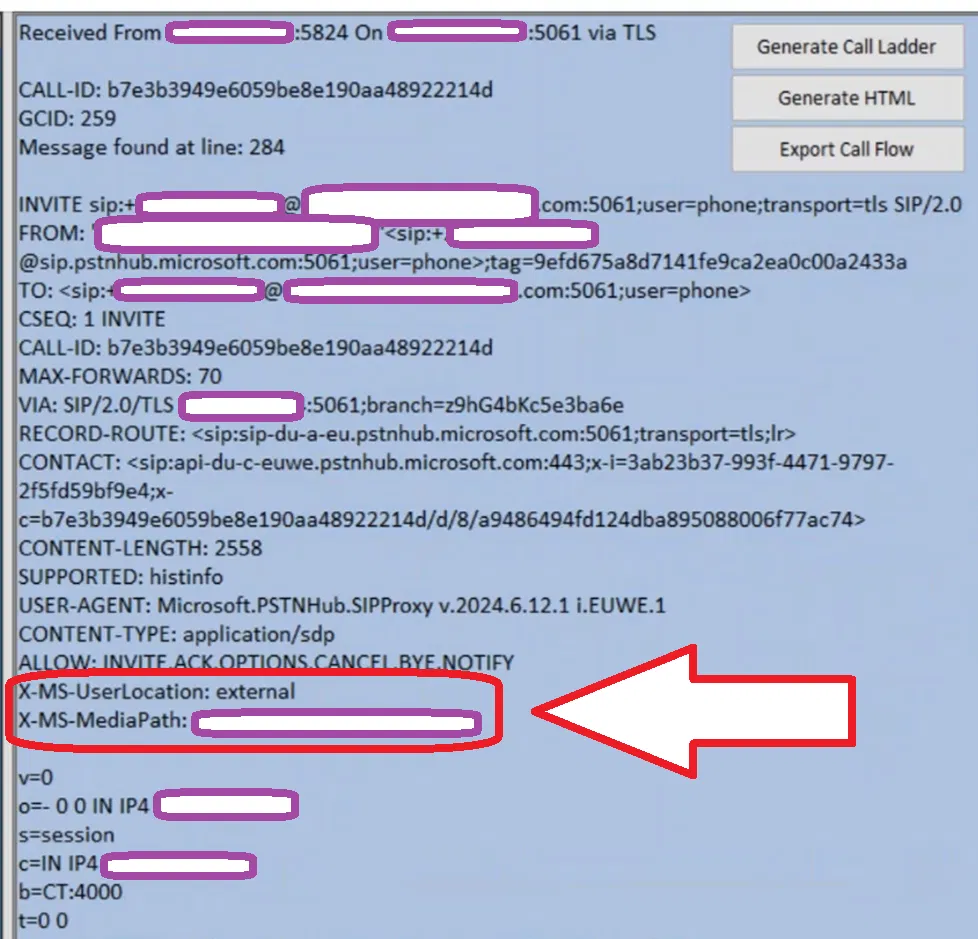
  • The X-MS-UserLocation header is set to external. In the invite message (as the image below shows)
  • X-MS-MediaPath is set to the SBC FQDN (this is a single SBC setup)

Note:

When Teams Client is really in the external network, the X-MS-UserLocation is set to external (which is the correct setting)

The image below shows the invite message between Teams Client and Ribbon SBC 1000 captured using the LX tool (Ribbon tool to capture Syslog we discussed above). The headers mentioned above are in a red box.

Teams Client Detects That It Is Internal

When the Teams client is inside the internal and Direct Routing with Local Media Optimization is configured correctly,

  • The Invite message will have the X-MS-UserLocation header set to internal.
  • X-MS-UserSite header will appear in the invite message and will be set to the site of the Teams Client
  • X-MS-MediaPath is set to the SBCs FQDN in the correct order (In the example below, X-MS-MediaPath shows only one SBC, since we have only one SBC in our setup)

The image below shows the invite message between Teams Client and Ribbon SBC 1000 captured using the LX tool. It contains the three headers we mentioned (The headers are in a red box)

Configuring Direct Routing Local Media Optimization for Single-Site and Single SBC (Using Teams Admin Center)

You can use Local Media Optimization with a single site with a single SBC only. This is useful for keeping media traffic inside the internal network (without using Media Bypass). In a previous post, I explained how to configure such a setup using PowerShell. In this post, I will show how to do such configurations using the Teams Admin Center.

My previous post is found on:

Direct Routing Local Media Optimization for Single-Site and Single SBC – Jay’s Lab (jayslab.online)

How Teams Client Determines Whether It Is Going To Use Local Media Optimization

When a Teams Client starts, it will do the following:

  • It will try to determine if it is external or internal by checking if its public IP is in the list of Trusted IPs
  • If it is internal, it will try to determine to which site it belongs to based on its subnets
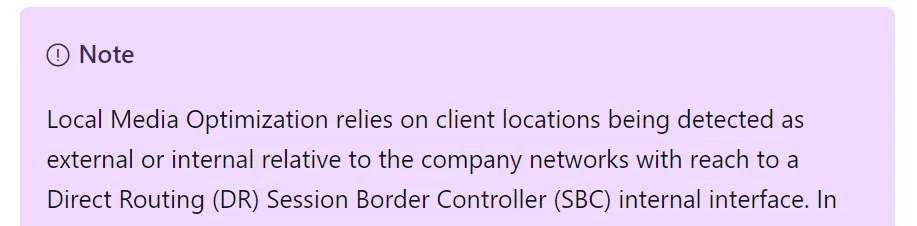
  • It will communicate with the internal interface of the SBC for the audio of PSTN calls

The last is based on the following note:

Which is from the following Microsoft link:

Configure Local Media Optimization for Direct Routing – Microsoft Teams | Microsoft Learn

Network Topology Page

Configuring Trusted IP, Region, Site, and Subnet is done under the Network Topology page.

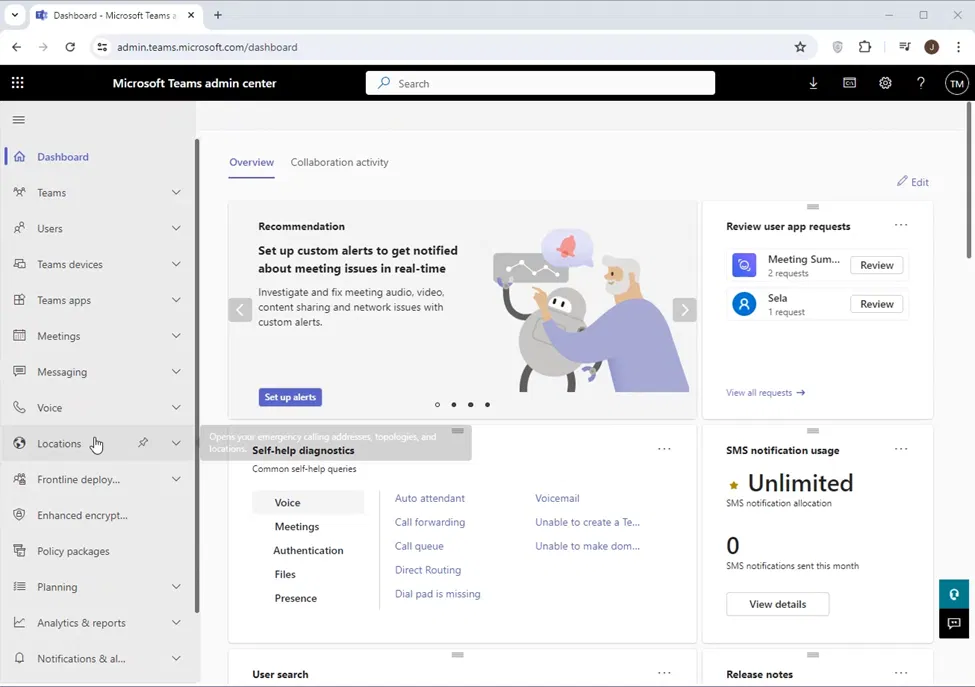
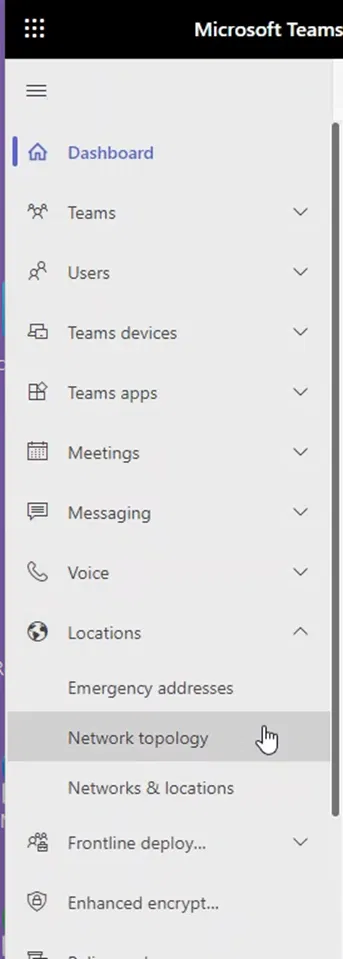
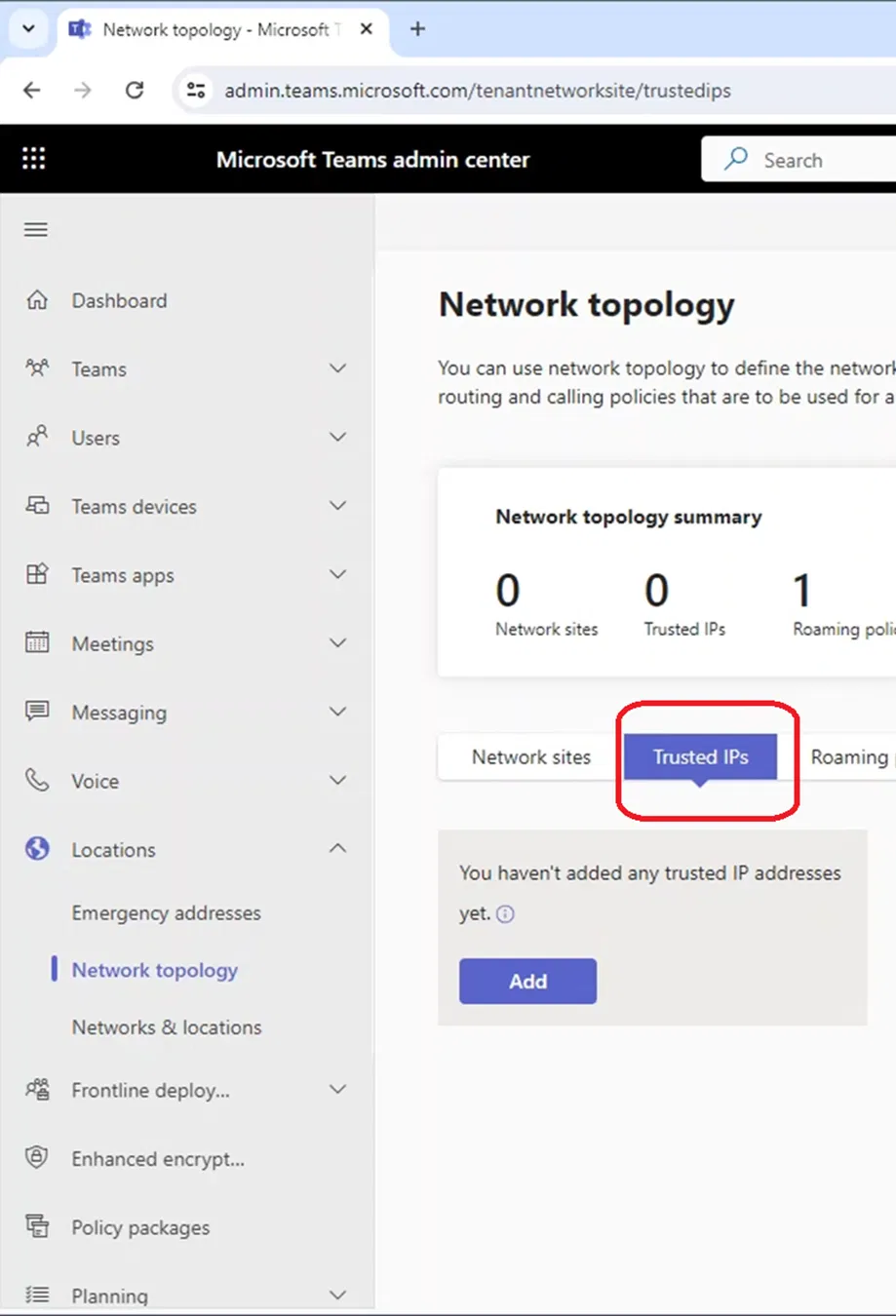
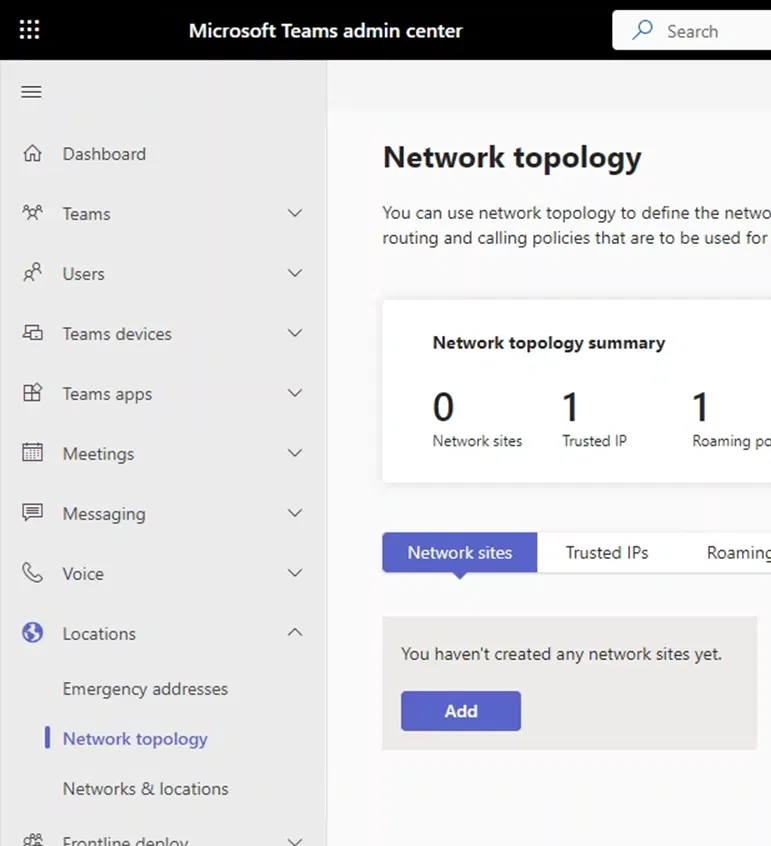
Network Topology page can be accessed through Teams Admin Center > Location > Network Topology.

Go to Location > Network topology.

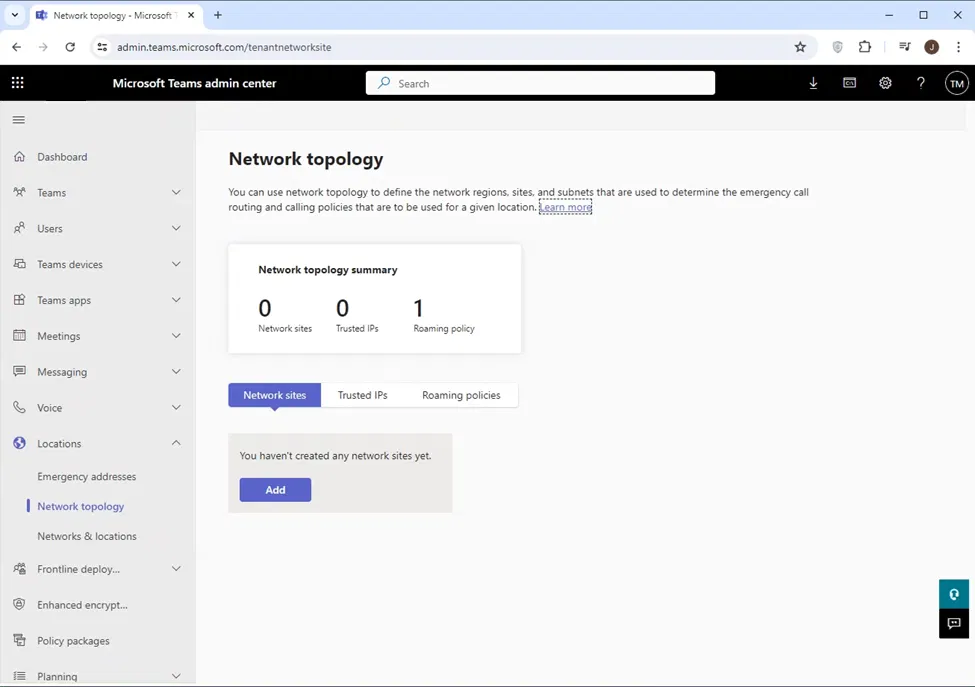
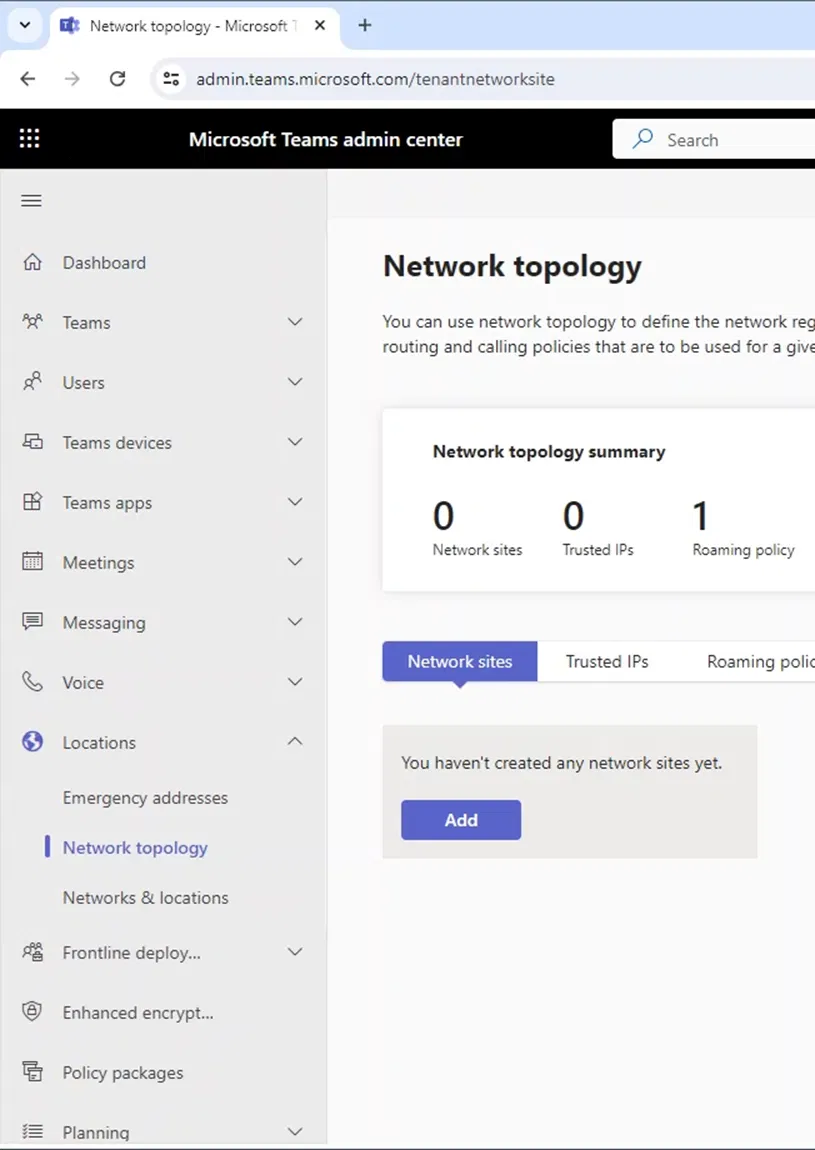
The following shows the Network topology page.

Adding a Trusted IP

Trusted IP is the fixed IP that clients use to access the internet. It is used by Teams to determine if the client is inside the internal network. Local Media Optimization will be utilized by the client when it determines that it is connected to Microsoft servers using a Trusted IP. If you cannot have a fixed IP to access the internet, you will not be able to configure a Trusted IP and in this case you can use Local Media Optimization.

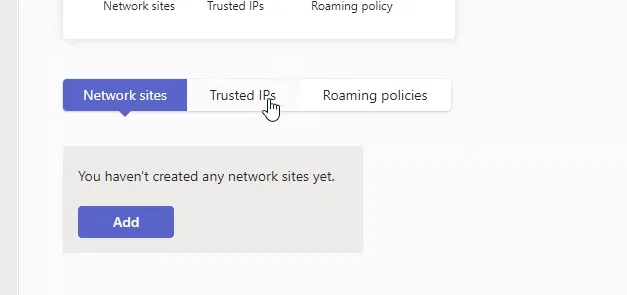
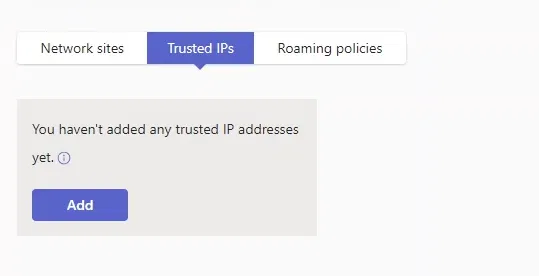
To configure a Trusted IP, on Teams Admin Center go to Location > Network topology and click on Trusted IPs

Click on Add

`

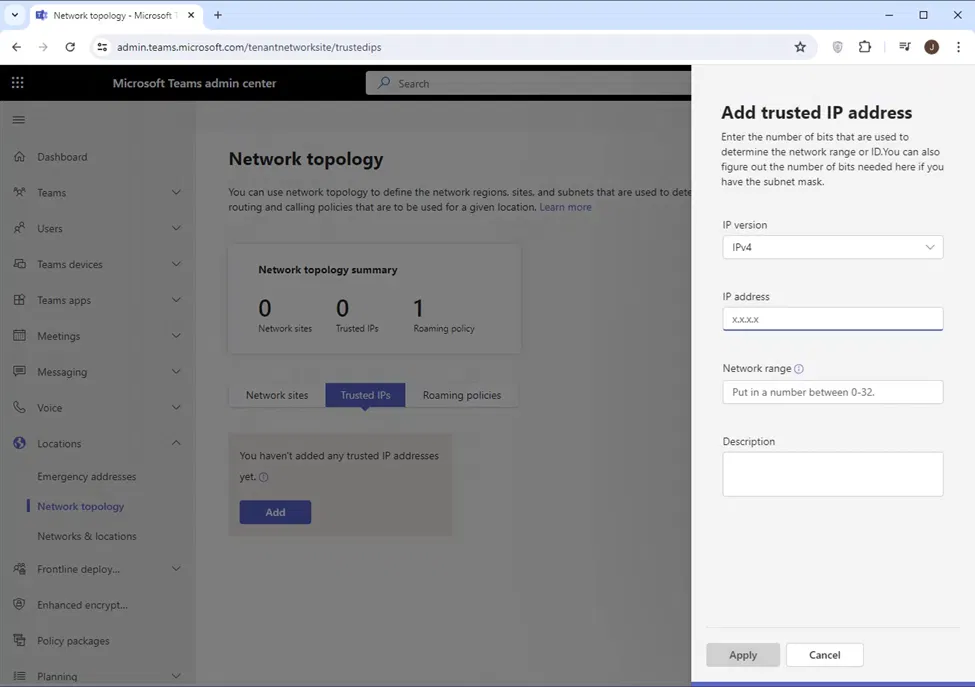
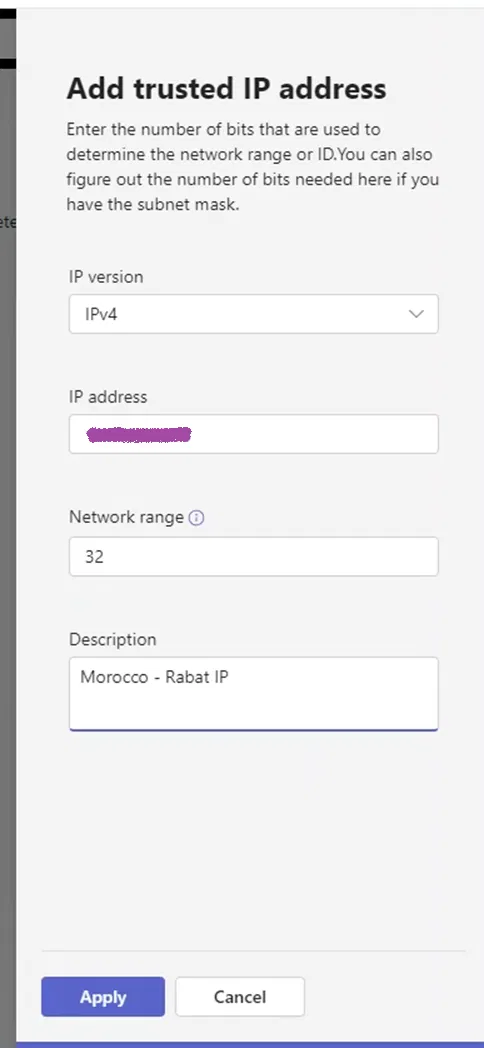
The “Add trusted IP address” pane will appear on the right side

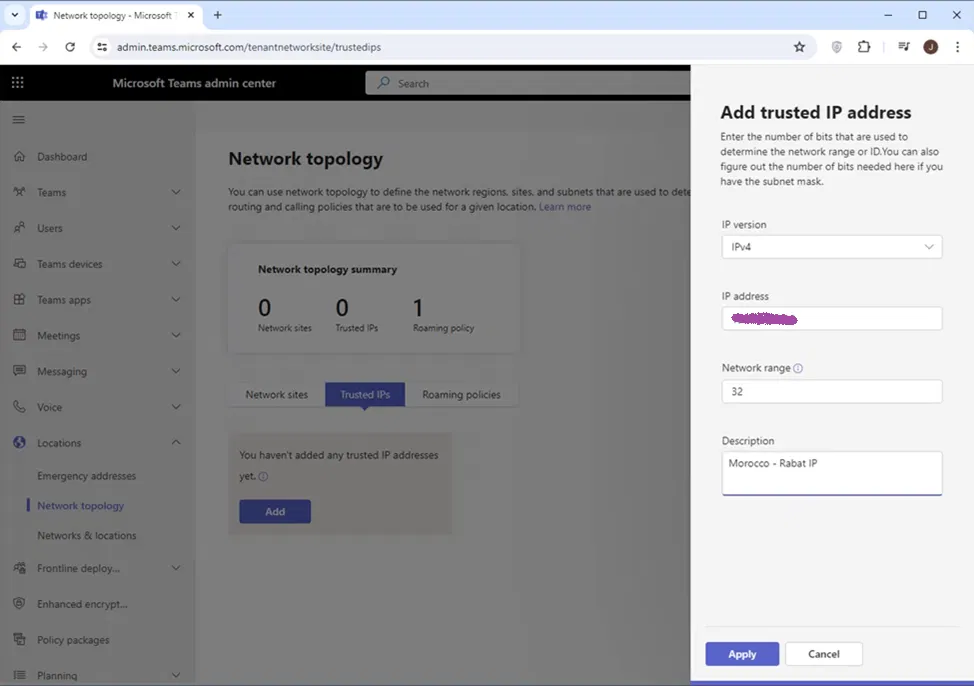
Add the IP address, network range (number of network bits), and description for this IP. Note that the network range is 32 if it is a single IP (which is more of the cases)

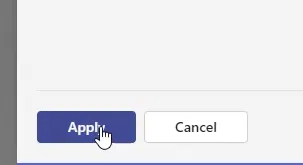
Click on Apply

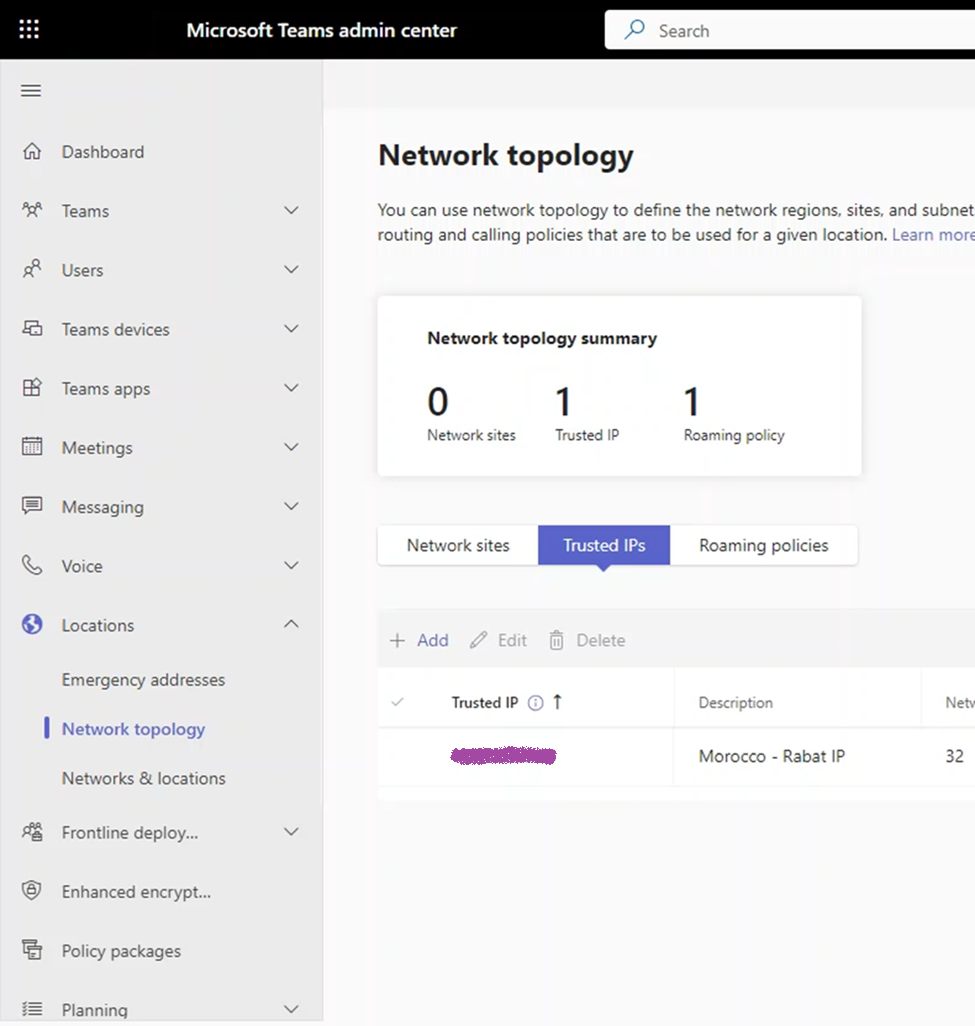
The newly configured Trusted IP will be under the list of Trusted IPs

Adding and a Network Site

When Teams Client stats and it notices that it is internal (communicating with Teams servers using a Trusted IP), it will try to determine to which sites it belongs to (by checking it is in one of the subnets of that site)

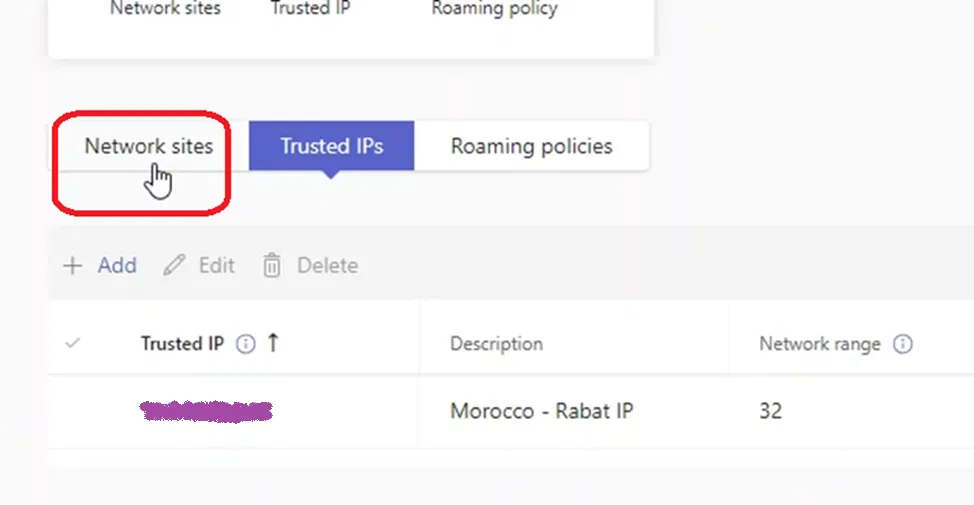
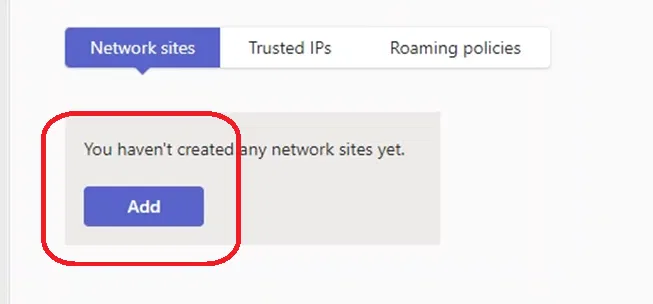
To configure a Trusted IP, on Teams Admin Center go to Location > Network Topology, and click on “Network sites”

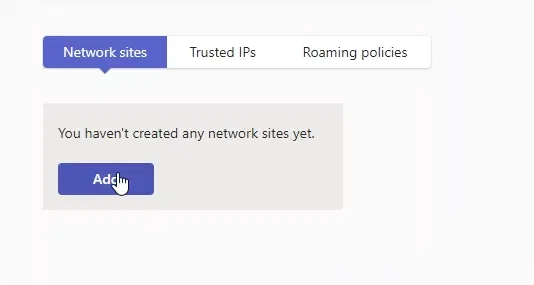
Click on “Add”

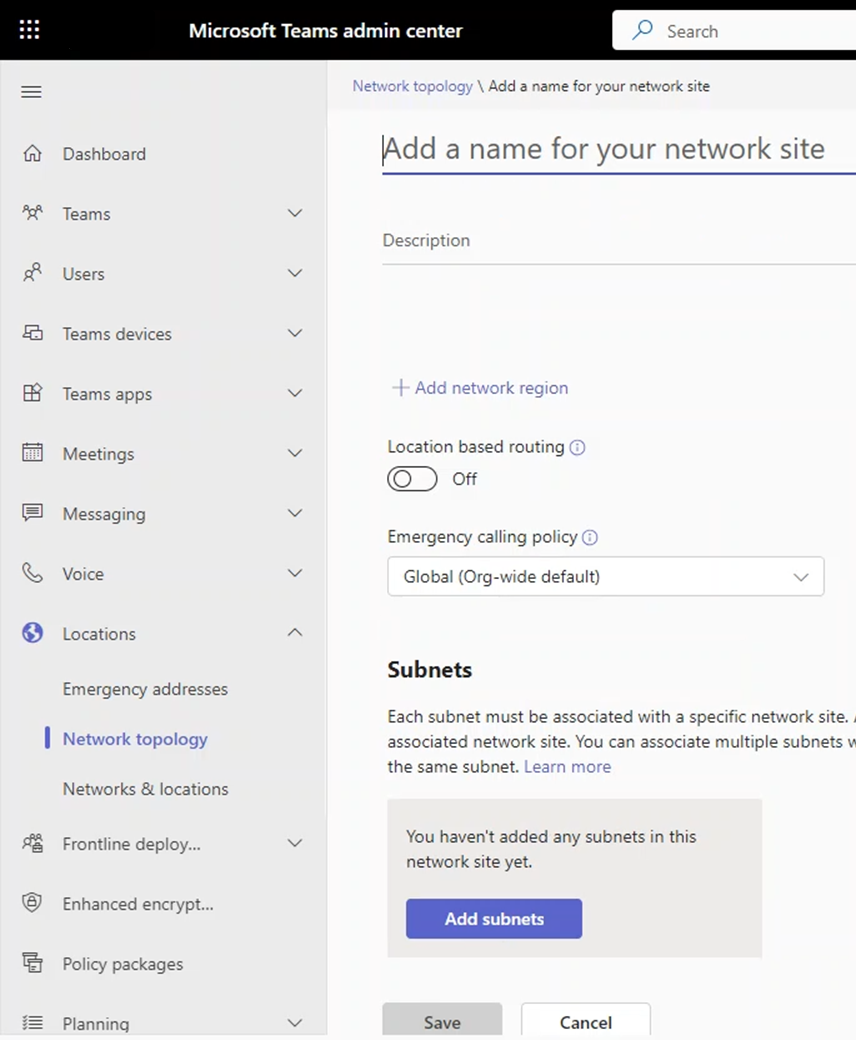
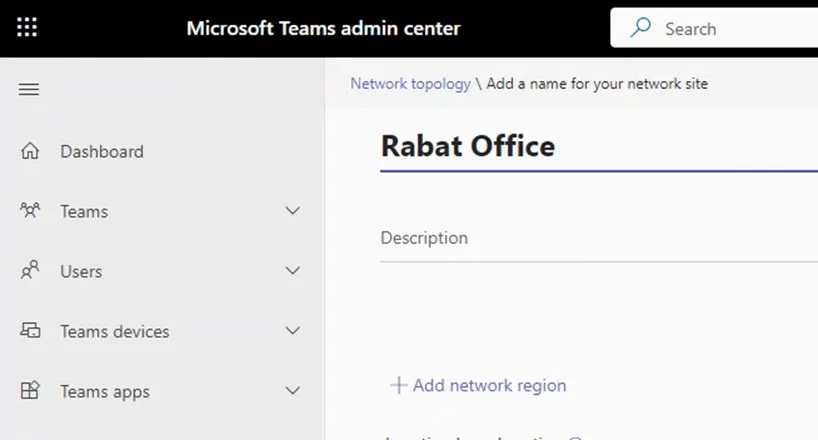
Type the name for the network site you ar creating

Adding A Region and Linking It to The Site

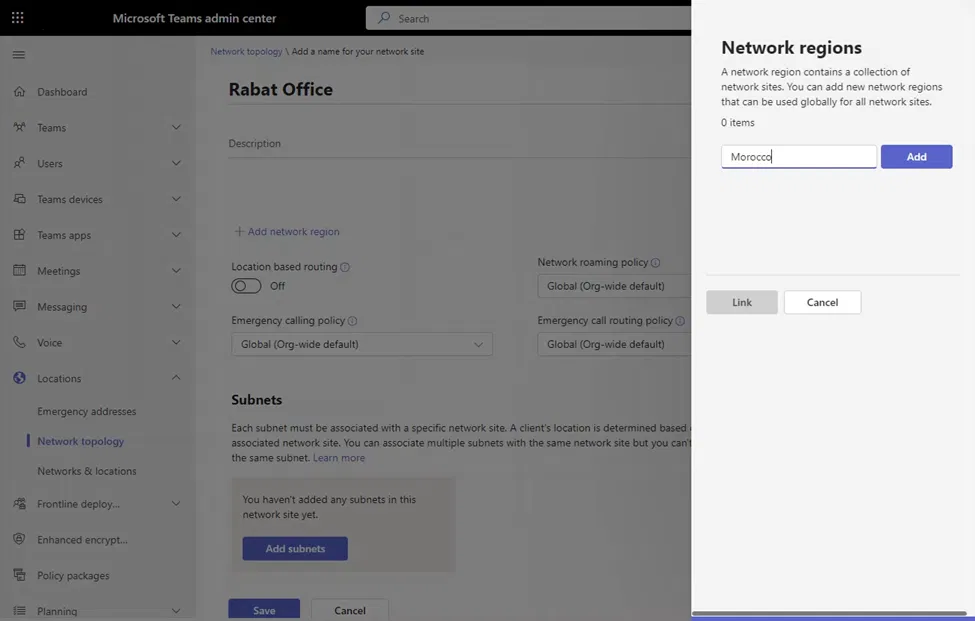
Each site should belong to a region. A region is a geographical location that contains multiple site. You can associate the site you are creating to a region or add a new region as shown below

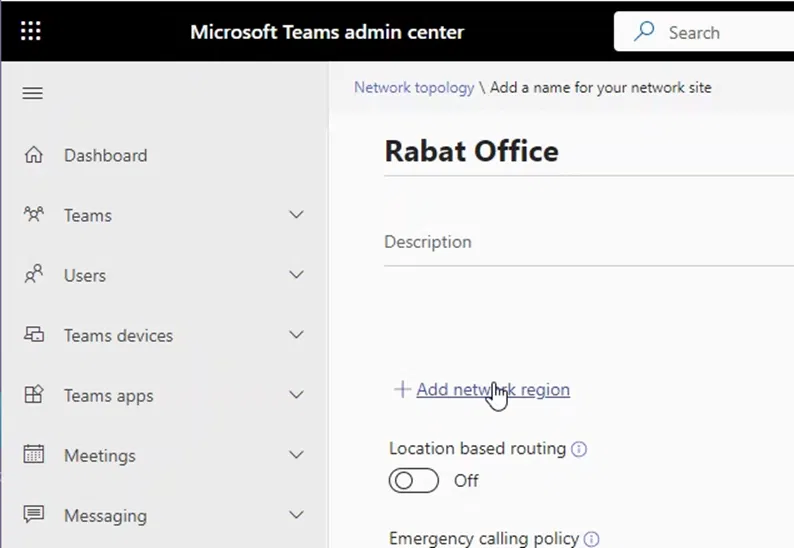
To add a new region to the network site, click on “+Add network region”

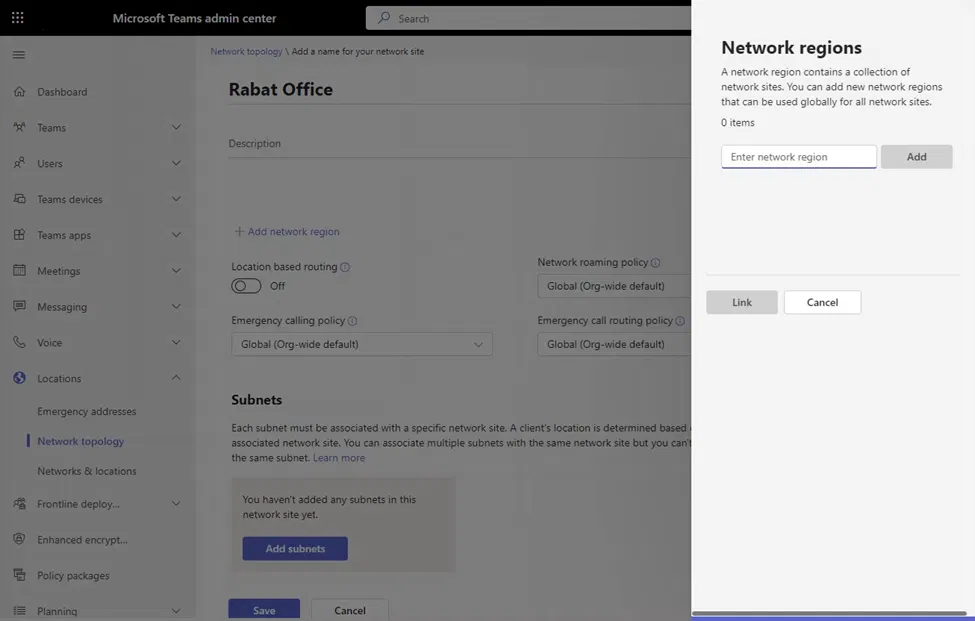
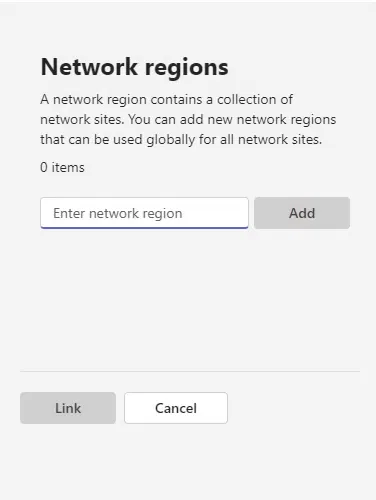
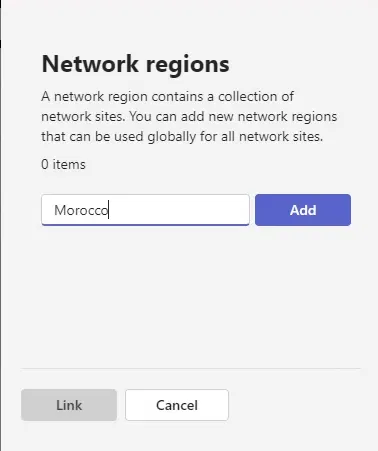
The “Network regions” pane will appear on the right side

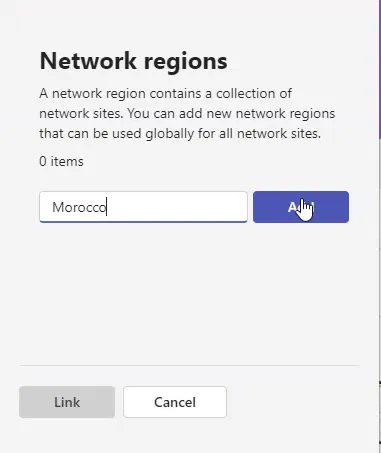
Type the name of the region

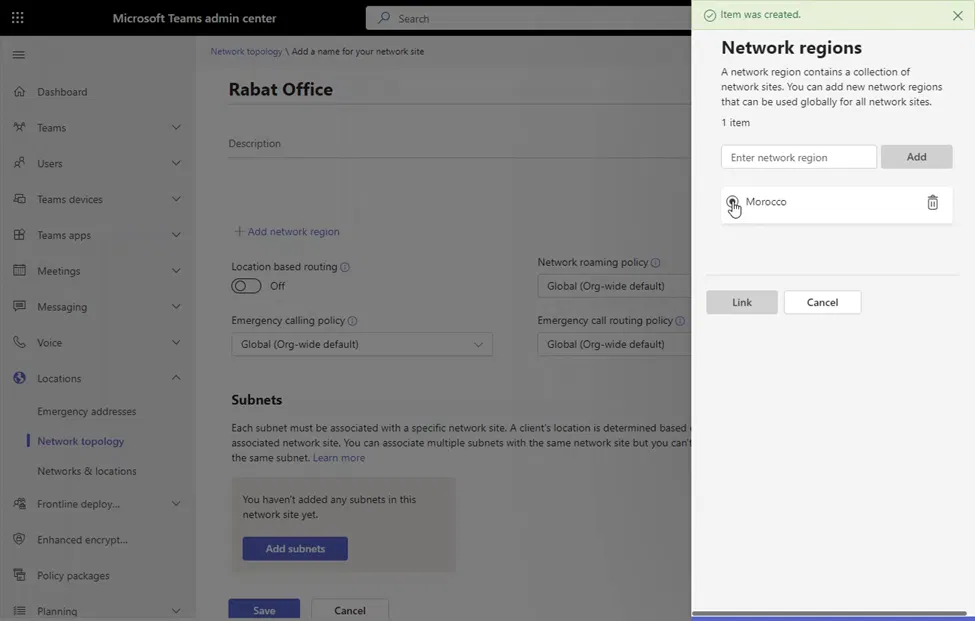
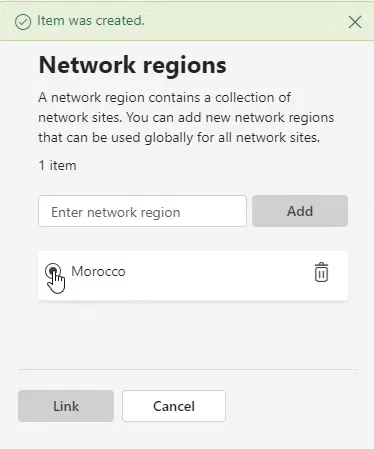
Click on “Add”

After that, you will see the name of the newly added region. Click on it to select it (this is the list of all network regions in the environment)

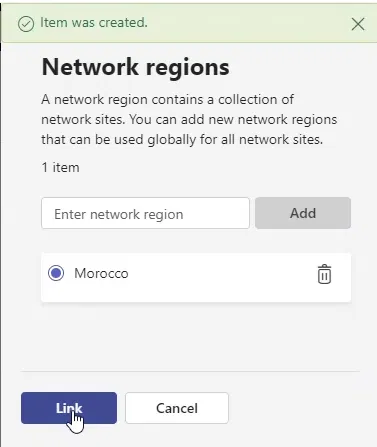
After making sure that you have selected the region, click on “Link” and that will link your site to the region and close the “Network regions” pane

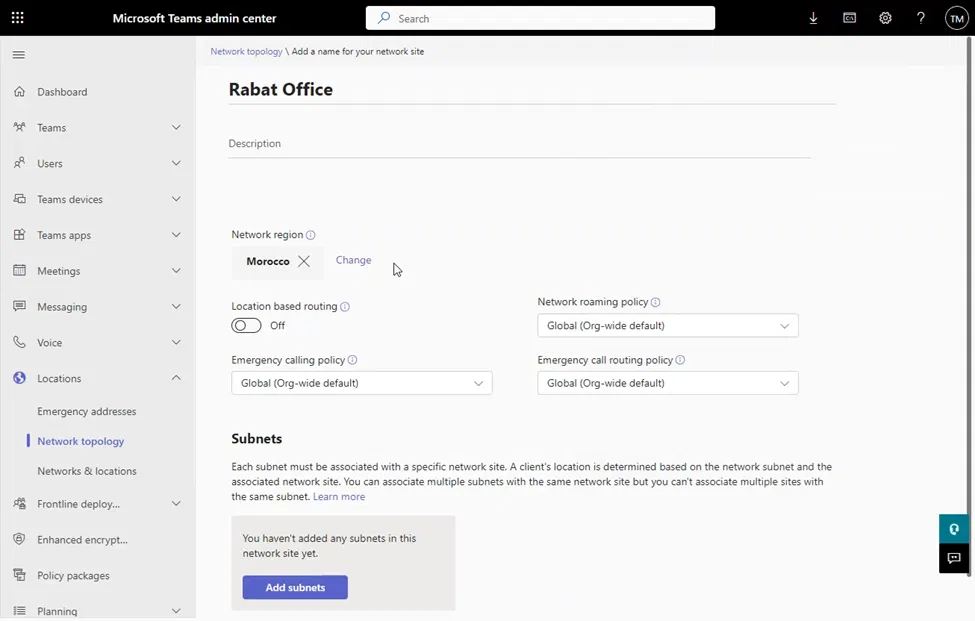
The newly linked network region will be shown under the details of the site

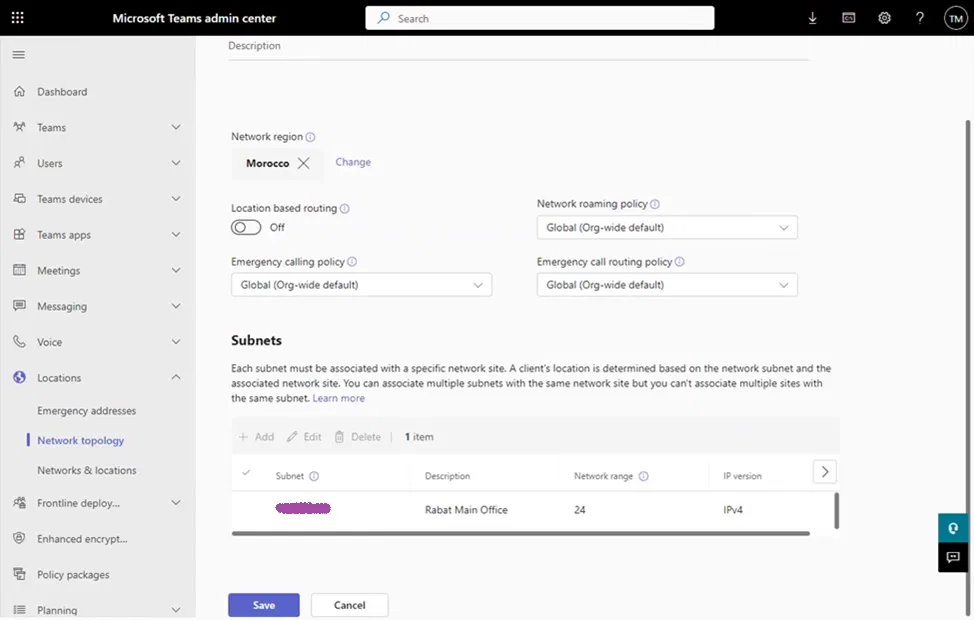
Adding a Subnet to The Site

Each site has subnets that belong to it. When a Teams Client starts and finds out that it is internal (based on Trusted ID), it will try to search to which subnet it belongs, and from that it will determine to which site it belongs

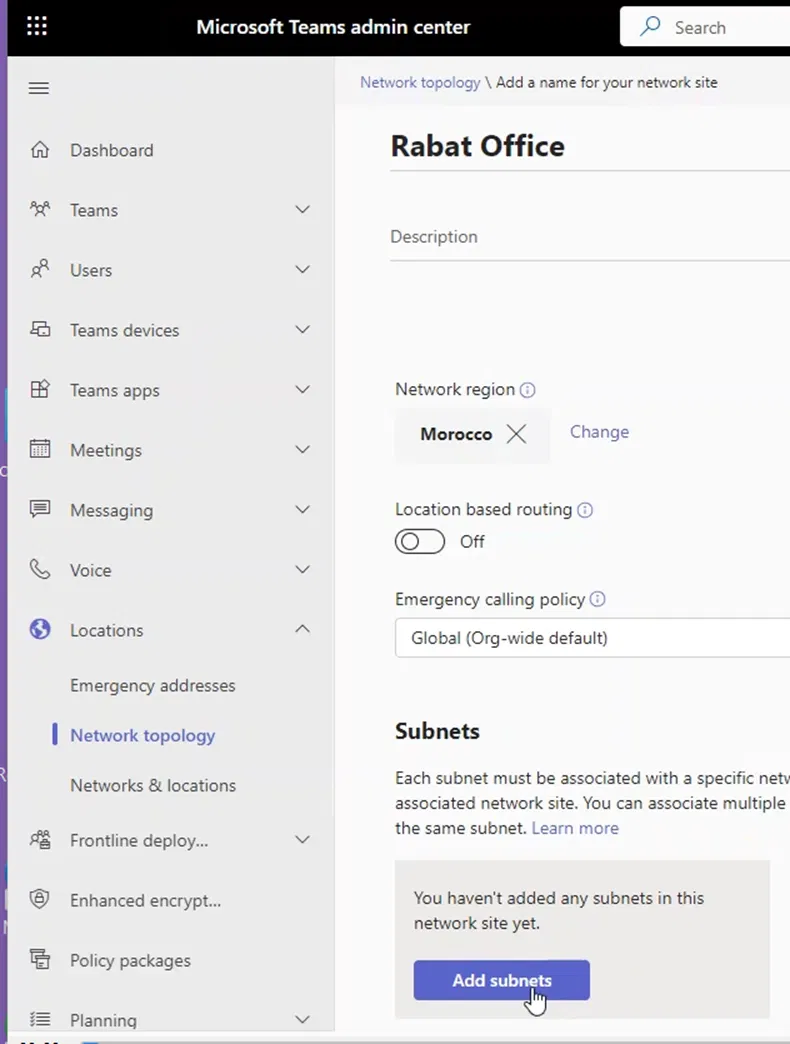
On the site properties page, under “Subnets”, click on “Add subnets”

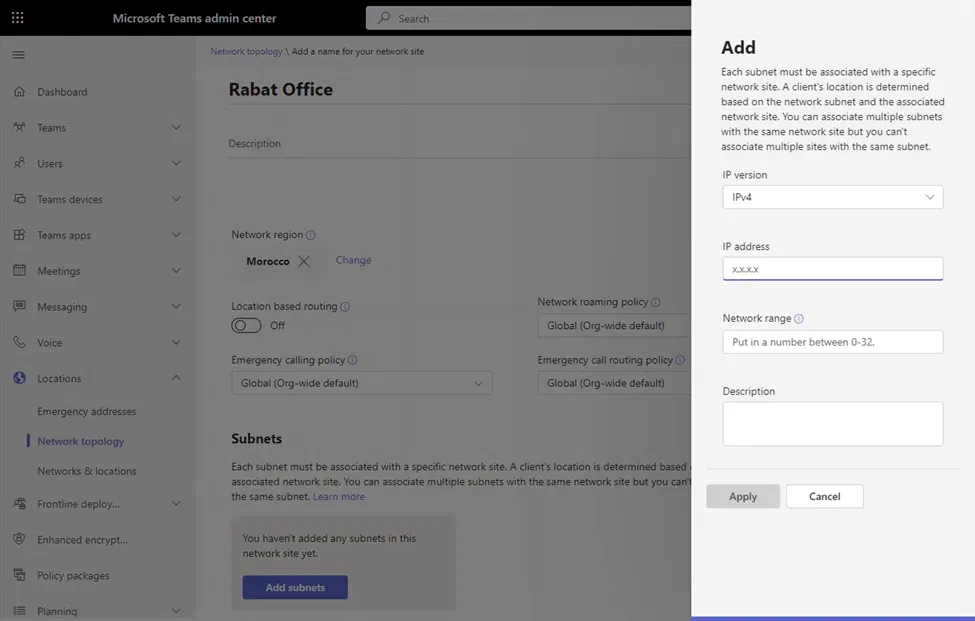
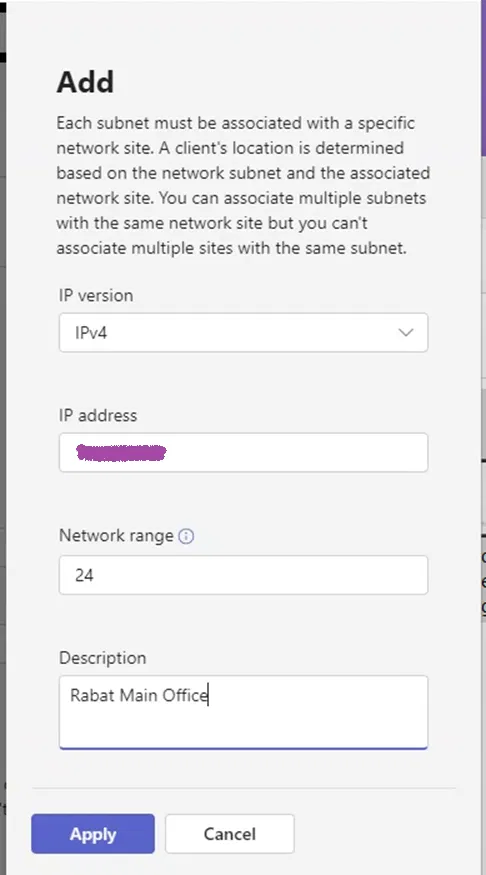
A pane will appear on the right side that allows you to add a subnet

Add the IP address, network range (number of network bits), and description for this subnet

Click on Apply

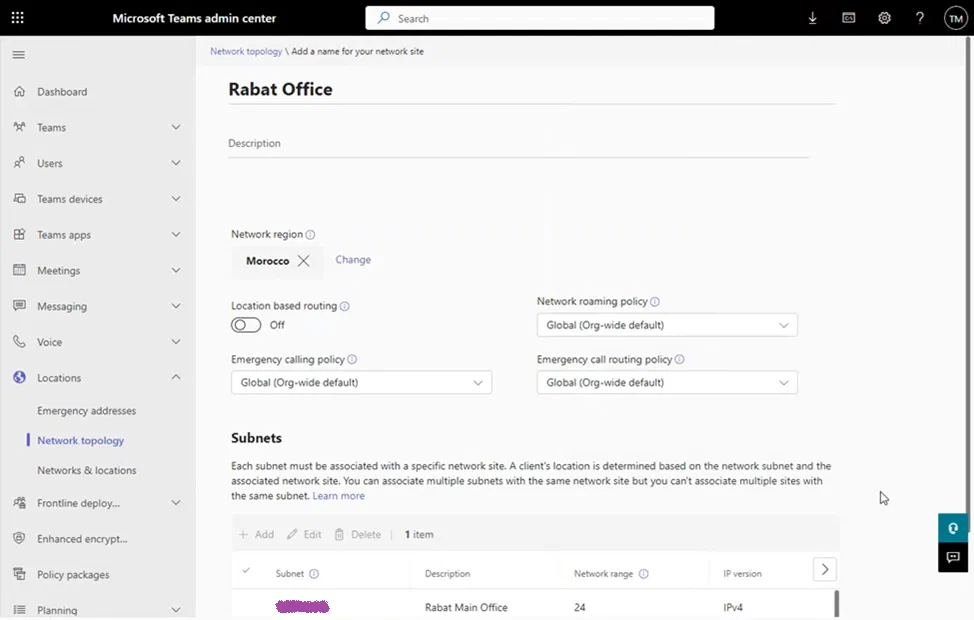
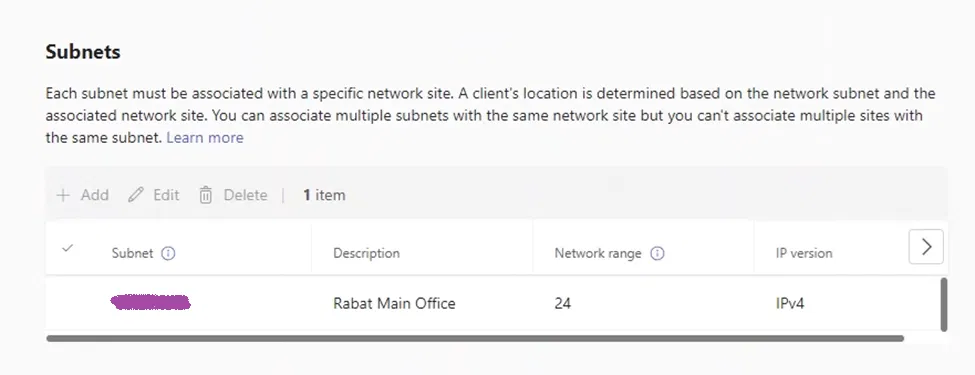
The site properties page will show the newly added subnet

Click on “Save” on the Site properties page

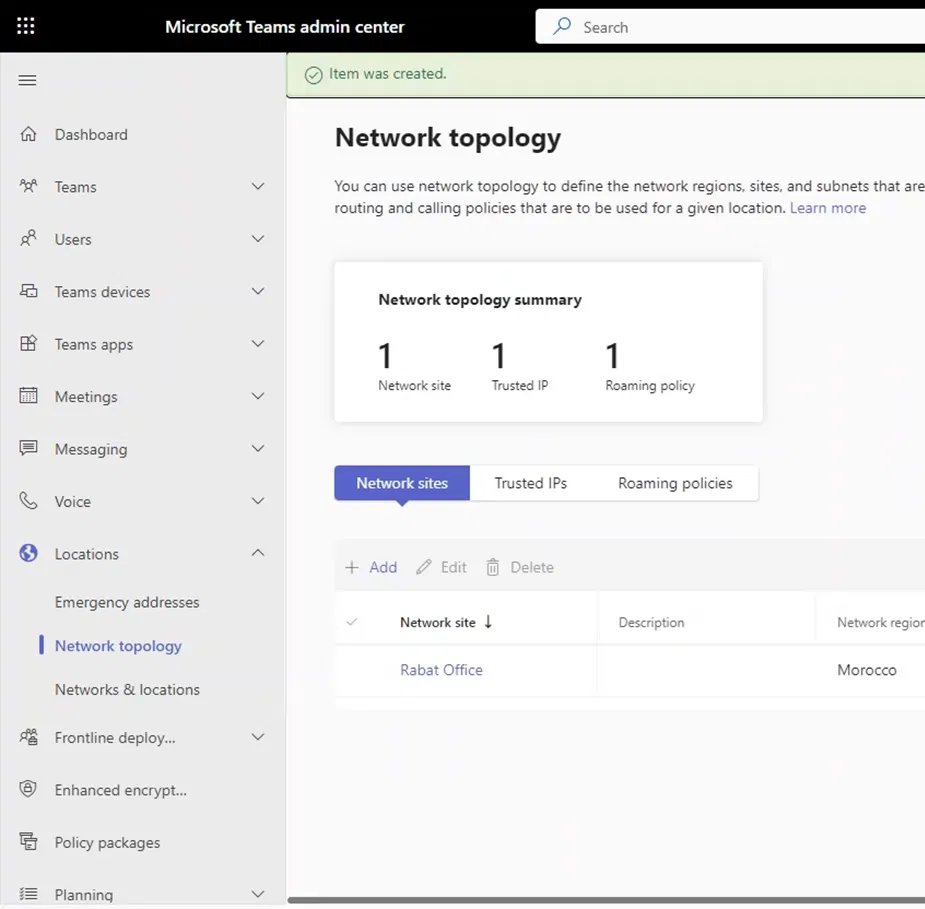
You will get back to the main Network topology page and it will show the newly created network site

Teams Local Media Optimization – Verifying that Teams Client is Connected Through a Trusted IP

One of the common issues when configuring Local Media Optimization is that the Teams client is not detecting that it is inside the internal network. In this article, I am explaining how to check the logs to see if the Teams Client knows that is internal.

The reason for the client not knowing that it is internal is that it doesn’t find its own Public IP in the list of Trusted IPs (the list is configured on the tenant). And that makes it behave as if it is external and not internal (when a client starts, it will detect its Public IP and compares it to the list of Trusted IPs).

Since the client thinks that it is external and not internal it will not try to connect to the internal interface of Central SBC or downstream SBC at its site for media traffic. Instead, it will try to pass the media traffic through the Public IP of the SBC of the Central SBC or Proxy SBC. Finally, when that connection is not passable, it will try to connect to Microsoft Phone System (Teams servers on the cloud).

Based on my experience, even if you have configured the Trusted IP correctly on the tenet, it takes some time for that change to be reflected on the Teams client. (Although Microsoft documentation says it requires 30 minutes or just restarting the client will make the change to be reflected)

Usually, I don’t enable Local Media Optimization on the SBC device until I am sure that the clients are detecting that they are coming from a Trusted IP by checking the logs (as explained below)

Below I am explaining how to check the logs to verify that the client is detecting that it is coming from a Trusted IP.

Downloading the Logs

To download the logs of Teams Client, click on the keys Ctrl + Alt + Shift + 1 together while Teams client is in focus

On the right side of the screen, you will see some messages that indicate that the downloading started

Opening the log file

To access the log files, open the “Downloads” folder on the computer

Inside it, you see a folder that started with MSTeams Diagnostics Log [Date]__[Time]_

Inside it, you will find a folder named “web”. Open the “web” folder

You will find some logs files, open the file that ends with the word “calling” the file name will be in the format MSTeams Diagnostics Log [Date]__[Time]_calling.txt

Checking The Contents of The Log File

This is how the file would appear

The log file shows Public IP detected doesn’t match any Trusted IP

The following is the log file section that shows that the client’s public IP is detected and it also shows that this IP doesn’t match any of the IPs of the trusted IP list (“reason”: “NotMatched”)

The log file shows that Public IP is matching a Trusted IP

The log file is showing public IP is matching the Trusted IP (“reason”: “Matched“) and it also shows the detected Network Site. With this, we are sure that the client detected that it is internal, and it is ready to utilize your Local Media Optimization settings

Direct Routing Local Media Optimization for Single-Site and Single SBC

In this article, I am showing how to configure Local Media Optimization for Single Site with Single SBC which is good for:

  • Simply keeping the media traffic inside the internal network
  • To avoid sending the media traffic between the internal network and the public IP address (usual configuration of Media Bypass)
  • Avoid the complex configuration of the firewall

Most of the documents available right now are explaining how to configure Local Media Optimization for multiple sites and it might be hard to figure out how to just simply configure LMO for a single site

Creating a Trusted IP

The trusted IP is the Public IP that your internal clients are using to access the internet. It is the IP that is configured on the NAT setting on your firewall. You might find this IP by searching “what is my IP” on the web browser of your client. But it is better to get the help of the network team or security team. After all, they are the ones who have configured the firewall.

When Teams client starts up, it will contact Teams servers and if the client is connecting these servers using a Trusted IP, the client will be considered as internal, and the client will try to determine to which site it belongs to. During the PSTN calls, the media traffic will be travel between the client and the internal IP (Signaling/Media Private IP) of the SBC (PSTN Gateway).

If the client connects Teams servers using a Public IP that is not in the list of Trusted IPs, it will consider itself as an external client. And in that case, the media traffic (the voice) will be between the Public IP of the SBC (PSTN Gateway) and the client.

Notes:

  • When the client is accessing the internet from an IP that is not in the list of Public IPs, after it considers itself as external (as explained above), it will try to access the public IP of the SBC (PSTN Gateway). The thing to watch for is that it is not possible in most cases because the firewall will not allow such traffic.

(From what I have seen, if the firewall is not allowing such traffic, the call will ring normally, but the moment the call is answered, the call might not get established or there is a delay in establishing the call)

  • The clients might be using different Public IP to access the internet. In that case, you need to add all these IPs as Trusted IPs

The following command shows how to add one Trusted IP:

New-CsTenantTrustedIPAddress -IPAddress x.x.x.x -MaskBits 32 -Description “City1 Public IP”

(In the example above, I am putting the IP as x.x.x.x as an example. Replace it with your trusted public IP)

Creating a Region

A region is defined in Microsoft documentation as “A network region contains a collection of network sites. It interconnects various parts of a network across multiple geographic areas”. You can define your region as a country, part of a country, or any sort of geographical area. Sites always need to belong to a region.

The following command shows how to define a region:

New-CsTenantNetworkRegion -NetworkRegionID “Country1”

Creating a Site and Associating It with a Region

When Teams client designates itself as internal (after the client starts up, it will try to determine to what site it belongs to (it checks if it belongs to the subnets of that site).

And based on the Bypass mode settings of the SBC (PSTN Gateway) (the settings of the SBC that are defined on the Tenant), the client will send the media traffic internally or to Teams servers (explained below in the section “Creating Subnets and Associating them with a Site”).

The following command shows how to define a new site and to which Region it belongs too:

New-CsTenantNetworkSite -NetworkSiteID “City1” -NetworkRegionID “Country1”

Creating Subnets and Associating them with a Site

Internal Teams client will know to which Site it belongs to based on its subnet

The following command shows how to define a subnet, and to which site this subnet is associated with

New-CsTenantNetworkSubnet -SubnetID 10.1.1.0 -MaskBits 24 -NetworkSiteID “City1”

Associating the SBC (PSTN Gateway) with a Site

The following command shows an example of how to set the SBC (PSTN Gateway) Local Media Optimization settings and associate it with a site

Set-CsOnlinePSTNGateway -Identity sbc1.example.com -GatewaySiteId “City1” -MediaBypass $true -BypassMode “Always” -ProxySbc $null

Bypass Mode Parameter

When Bypass Mode is set to Always, even if they are not in the same site as the SBC (PSTN Gateway), the internal client will always try to establish media traffic with the internal IP of the SBC (PSTN Gateway)

If Bypass Mode is set to OnlyForLocalUsers, the internal client will establish media traffic with the internal IP of the SBC (PSTN Gateway) only if the internal client is at the same site as the SBC (PSTN Gateway). If the client is not in the same site as the SBC (PSTN Gateway), the Media Traffic will be with Teams Servers.

ProxySbc Mode Parameter

ProxySbc is set to $null because we are using Single Site and Single SBC. $null means that this SBC is not a “downstream SBC”.

Ribbon SBC Edge (SBC 1000 / SBC 2000 / SBC SWe Lite) Settings

Single Site – Single SBC:

If you want to only configure your SBC as a standalone SBC (Single Site – Single SBC), you don’t need to worry about the option of LMO while running the wizard.  You simply need to complete the Easy Config Wizard with the Teams Direct Routing option (without selecting Local Media Optimization options when running the “Easy Config Wizard”). After that, you add the configuration for Local Media Optimization as I am showing below.

I Usually Complete Implementing Teams Direct Routing First

What I usually do during my implementations is that I complete configuring, testing, and troubleshooting of Teams Direct Routing without Local Media Optimization (Usually, I face issues, especially with firewall settings). After verifying that Direct Routing is working fine, I add the settings related to Local Media Optimization

Network Interfaces Needed

You need to have two network interfaces:

  • One network interface for “Signaling/Media Private IP”
  • Additional network interface for “Private Media Source IP”

Usually, you already have a network interface for “Signaling/Media Private IP” that is enabled for the command Teams Direct Routing. You need to enable an additional network interface “Private Media Source IP”.

Steps To Add “Local Media Optimization” To an Existing Setup

The following is how to modify an existing Teams Direct Routing Configuration to make with Local Media Optimization with one SBC (not Proxy SBC nor “Teams Downstream SBC”)

On the Settings tab, expand Signaling Groups

Expand the “Teams Direct Routing” Signaling Group (this is the usual name that is created by Easy Config Wizard)

Scroll down until your reach the “SIP IP Details” section


Under “Teams Local Media Optimization”, select “Enable”

Under “Signaling/Media Private IP”, make sure that the network interface that is facing the internet is selected (used to get connected to the internet, the same subnet as the Default Gateway and has the Public IP mapped to it)

Under “Private Media Source IP”, make sure that the network interface that is facing the internal network is selected (you need to remember to add a route to the internal network that goes through the gateway of the subnet of this IP)

Scroll down and click on Apply

This is how the “SIP IP Details” section of the Signaling Group would appear after completing the configuration