Enterprise Voice

Step by Step Walkthrough Creating an Ribbon SBC SWe Lite VM on Azure and fully Deploying it with Teams Direct Routing

In the following series of articles, I will demonstrate how I have created a fully working Ribbon SBC VM (SBC SWe Lite) on Azure. I will also show how to integrate it with Teams Direct Routing and SIP Trunk

Such setup can be used to fully test and practice:

  • Configuring Teams Direct Routing with Ribbon SBC
  • Configuring Ribbon SBC
  • Integrating a SIP Trunk with Ribbon SBC

Also can be used to demonstrate a proof of concept

Or you can even use it as a production. It is a fully working setup

Some of the advantages of such a setup:

  • You don’t need to have a hardware SBC
  • You don’t need to have your own Public IP to have integration with Direct Routing
  • You don’t need to set up a firewall and other network equipment
  • You can easily have integration with any SIP Trunk

The following are the links to the articles:

Part 1: Creating a Ribbon SBC SWe Lite VM using Quick Launch Template from Azure Marketplace – Jay’s Lab (jayslab.online)

Part 2: Checking the resulting VM and Accessing the Web Interface of the SBC – Jay’s Lab (jayslab.online)

Part 3: Adding a Domain to Microsoft 365 – Jay’s Lab (jayslab.online)

Part 4: Adding A User Account to The Domain That Will Be Used for the SBC – Jay’s Lab (jayslab.online)

Part 5: Connecting the SBC SWe Lite to Teams Direct Routing – Jay’s Lab (jayslab.online)

Part 6: Changing the Host Name and Domain Name of SBC – Jay’s Lab (jayslab.online)

Part 7: Installing Certificates on the SBC – Jay’s Lab (jayslab.online)

Part 8: Running Easy Config Wizard – Jay’s Lab (jayslab.online)

Part 9: Teams Direct Routing Call Routing – Jay’s Lab (jayslab.online)

Part 10: Enable users for Direct Routing, voice, and voicemail – Jay’s Lab (jayslab.online)

Part 11: Testing Outgoing and Incoming Calls – Jay’s Lab (jayslab.online)

Microsoft Teams Direct Routing – sip-all FQDNs will not be supported starting June 1st, 2022

sip-all.pstnhub.microsoft.com FQDNs will not be valid anymore

Microsoft has sent a message to its customers alerting that sip-all.pstnhub.microsoft.com FQDNs cannot be used anymore in SBC configuration for Teams Direct Routing (starting from the 1st of March) and it should be removed. Instead, all SBCs should be configured to communicate with the subnets (52.112.0.0/14 and 52.120.0.0/14).

This can be found clearly on the link:

Filipp Seljanko on LinkedIn: #microsoft #directrouting #microsoftteams | 12 comments

This is reflected in Microsoft documentation:

Plan Direct Routing – Microsoft Teams | Microsoft Docs

There is no mention of sip-all.pstnhub.microsoft.com anymore. It is replaced with subnets (52.112.0.0/14 and 52.120.0.0/14).

On Ribbon SBC Edge (SBC 1000, SBC 2000, and SBC SWe. Lite)
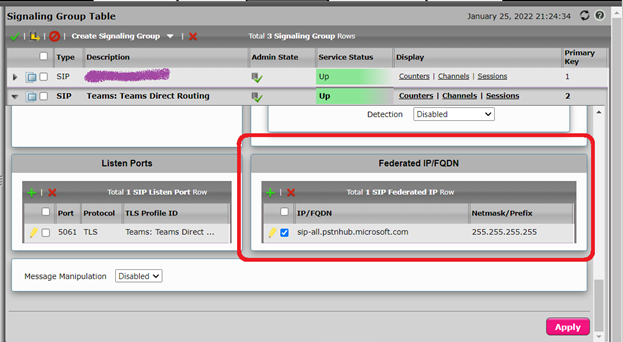
On the Ribbon SBC Edge family of SBCs (SBC 1000, SBC 2000, and SBC SWe. Lite), you need to change the Federated IP/FQDN as follows:

  1. Go to Settings Tab. On the left pane, expand Signaling Groups. Select Direct Routing Signaling Group (it is named by the wizard (ScenarioName: Teams Direct Routing)

  2. This will show the details of the Signaling Group on the right pane

  3. Scroll down the details until you reach Federated IP/FQDN

  4. Select the check box next to sip-all.pstnhub.microsoft.com and click on the red X to delete this entry
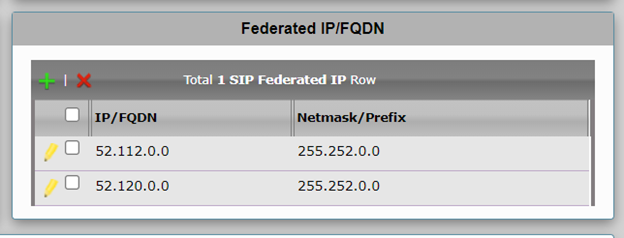
  5. Click on the green + to add (IP/FQDN 52.112.0.0 with the mask 255.252.0.0) and then click on OK. With the same method add (IP/FQDN 52.120.0.0 with the mask 255.252.0.0)

  6. On the details of the Signaling Group, click on the “Apply” button

    I assume this will be reflected in the “Easy Config Wizard” in the future versions of the firmware of the SBCs.

Using Supplementary Certificate of SBC 1000 / SBC 2000 / SBC SWe Lite for Teams Direct Routing

With the newer firmware versions of SBC 1000 /2000 and even SWe Lite, you can add a supplementary certificate that is different from the main certificate of the device.

This is helpful if you want to keep the main certificate intact while adding an additional certificate to be used with other services. The only thing you need to do after adding the supplementary certificate is to configure the TLS profile that is associated with the service to use that certificate.

You can have multiple supplementary certificates and use each certificate for a different service. All you need to do is to assign each certificate to the TLS profile of that service.

In my experience, this is useful mostly if you have an SBC that is configured and associated to work with Skype for Business (on-premise) and you want to configure the same device to be integrated with Teams Direct Routing.

Importing a supplementary certificate

On the SBC web interface select the Task tab

Under “SBC Easy Setup”, select certificate

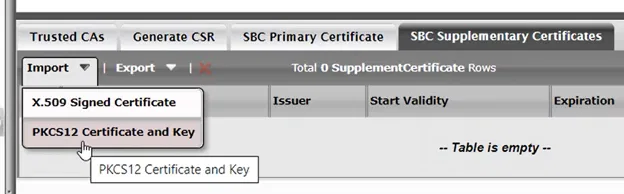
Click on “SBC Supplementary Certificates” Tab

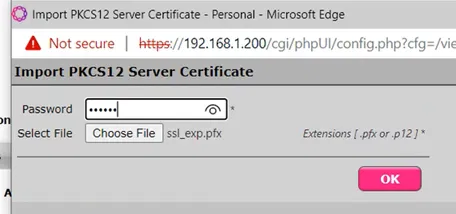
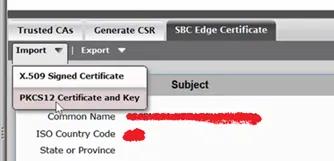
Click on “Import” > “PKCS12 Certificate and Key” to import a certificate with its private key

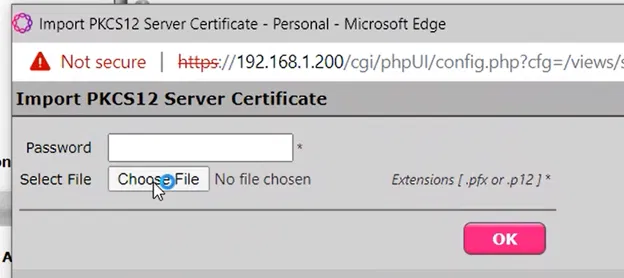
Click on “Choose File”

Select the file that contains the certificate

And click on Open

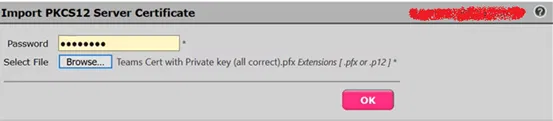
Supply the password for PFX file (remember that each PFX contains a password to protect the Private Key. The password was set during the export of the certificate to PFX)

And click on OK

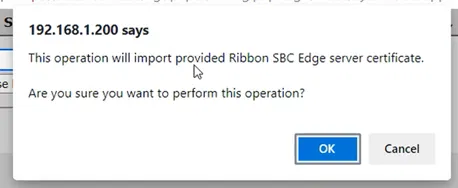
A warning about importing a new certificate will appear. Click on OK

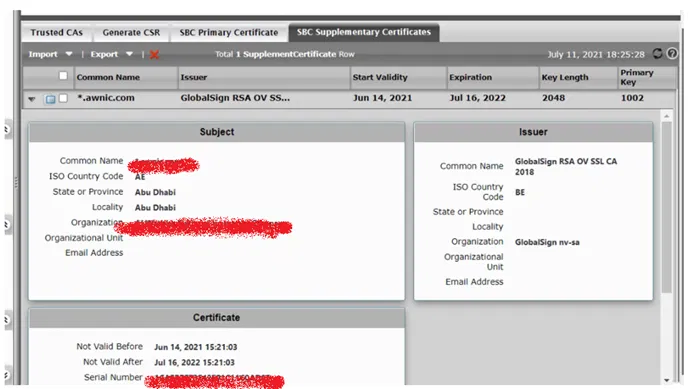
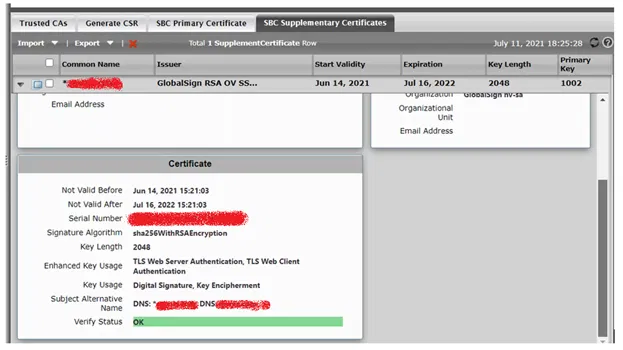
The new certificate will appear under the list of supplementary certificates

You can expand it to show the details of the certificate

Configuring TLS profile to use the newly imported certificate.

To utilize the newly imported supplementary certificate, you need to configure the TLS profile of the service that you want to configure it to use the certificate.

In my example below, I am configuring the TLS profile that was used by Teams Direct Routing (to make my device use the new certificate for Teams Direct Routing and keep the main certificate used for other services)

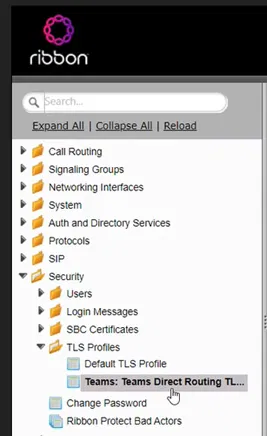
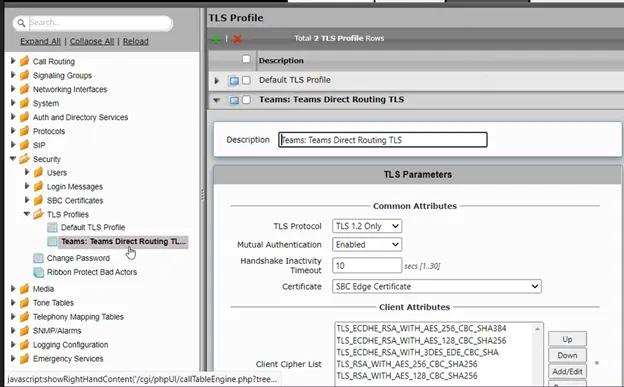
Go to Settings Tab > Security > TLS Profiles > Select the TLS profile that you want to configure it to use the newly imported certificate

The details of the select TLS Profile will be shown

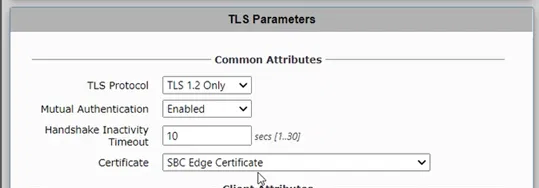
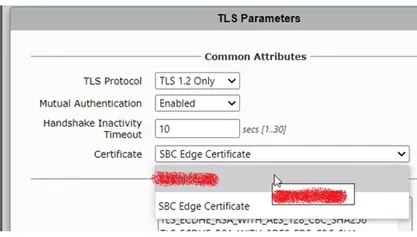
Under TLS Parameter, select the certificate list

From the list of certificate, select the supplementary certificate to be used

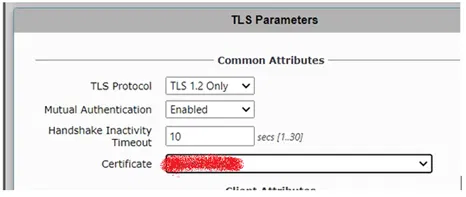
The parameter named certificate will show the chosen certificate

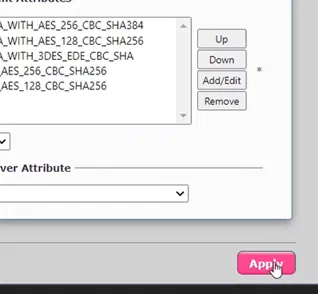
Scroll down and click on Apply button

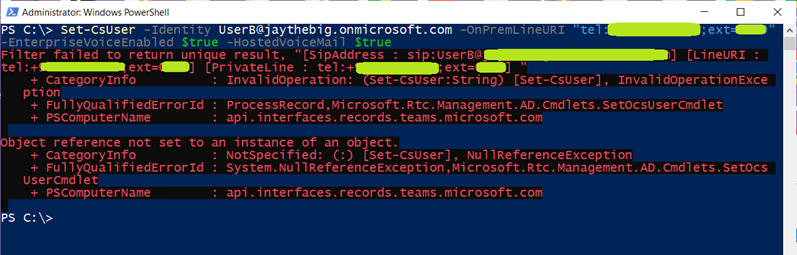
Filter failed to return unique result

When you try to enable a user for Teams DirectRouting and assign a LineURI to a user using a command such as the below

Set-CsUser -Identity user@domain.com -OnPremLineURI “tel:+xxxxxxxxxxxx;ext=xxxx” -EnterpriseVoiceEnabled $true -HostedVoiceMail $true

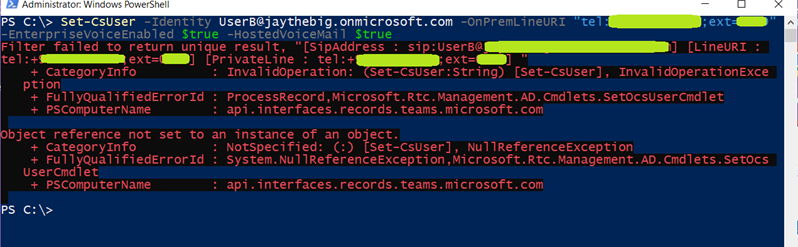
And you get the following error:

Filter failed to return unique result

This might mean that the LineURI is already assigned to another user, Call Queue

You need first to remove the LineURI from the other users

To remove the Line LineURI (which represents the phone number that is assigned to the user) from a user

Removing the licensing of Office 365 is not enough. It would disable users on Teams, but the LineURI will remain unusable

To solve the issue, you simply need to run the following on the old user

Set-CSUser olduser@domain.com -OnPremLineURI $null

The would set LineURI and the number will be free to be assigned to another

Now, you can run Set-CsUser to assign the LineURI to the new user

Set-CsUser -Identity user@domain.com -OnPremLineURI “tel:+xxxxxxxxxxxx;ext=xxxx” -EnterpriseVoiceEnabled $true -HostedVoiceMail $true


User Account Roles Required to Configure Teams Direct Routing

The following are the user accounts roles required to configure Teams Direct Routing

Global Administrator

A user with a Global Administrator role is required to check and manage the settings of the tenant. If there are any changes in the tenant settings. This user account should be used in case of any.

Teams Service Administrator

A user account with this role is required for creating, managing, and viewing a Teams direct routing configuration. That includes things like registering SBC as a gateway, creating dial plans, and voice routing policies.

Of course, if you have access to a Global Administrator, you don’t need a user account with the Teams Service Administrator role. But it is always better to use a user account with minimum required privileges.

Skype for Business administrator

You also need Skype for Business administrator role. This role is required for enabling Teams users for direct routing, which includes enabling enterprise voice, hosted voicemail, and setting a direct routing phone number.


Usually, I ask my customers to create a user with the Teams Service Administrator role and Skype for Business administrator role. And they are ok with giving me its credentials so I can use it freely. When I have changes that require a Global Administrator. I ask and guide the customer to do these changes.

The following image shows Teams Service Administrator role and Skype for Business administrator role both selected for the same user (in Admin Center of Office 365):

Set-CSuser Fails If When Using The Old MicrosoftTeams Module

This happened to one of my customers

After using

Import-Module -Name MicrosfTeams

and connecting to teams using Connect-MicrosoftTeams

I tried to use Set-CSUser to assign the LineURI and other information

But, we were getting

Get-CsUser : The term ‘Get-CsUser’ is not recognized as the name of a

cmdlet, function, script file, or operable program. Check the spelling

of the name, or if a path was included, verify that the path is

correct and try again. At line:1 char:1

It seemed that we were using an old version of MicrosoftTeams module

In fact, many of the PowerShell commands that are used to manage Teams Direct Routing might fail if you are using the old version of MicrosoftTeams module

I asked my customer to close all of the opened PowerShell windows and open a new one and run the following command to uninstall the old module.

Uninstall-Module -Name MicrosoftTeams -Force

After that, we run:

Install-Module MicrosoftTeams -AllowClobber

And also connected to teams using

Connect-MicrosoftTeams

After that, Set-CSUser worked fine

Remember, many of the PowerShell commands that are used to manage Teams Direct Routing might fail if you are using the old version of MicrosoftTeams module

Connect-MicrosoftTeams : The term ‘Connect-MicrosoftTeams’ is not recognized

When you run the PowerShell Connect-MicrosoftTeams on the machine for the first time, you might get the following message

Connect-MicrosoftTeams : The term ‘Connect-MicrosoftTeams’ is not recognized as the name of a cmdlet, function, script

file, or operable program

To fixe this, do the following:

Start PowerShell as Administrator and run the following command

Set-ExecutionPolicy -ExecutionPolicy RemoteSigned

Filter failed to return unique result

When you try to enable a user for Teams DirectRouting and assign a LineURI to a user using a command such as the below

Set-CsUser -Identity user@domain.com -OnPremLineURI “tel:+xxxxxxxxxxxx;ext=xxxx” -EnterpriseVoiceEnabled $true -HostedVoiceMail $true

And you get the following error:

Filter failed to return unique result

This might mean that the LineURI is already assigned to another user

You need to first remove the LineURI from the other users

To remove the Line LineURI (which represents the phone number that is assigned to the user) from a user

Removing the licensing of Office 365 is not enough would disable users on Teams, but the LineURI will remain unusable

To solve the issue, you simply need to run the following on the old user

Set-CSUser olduser@domain.com -OnPremLineURI $null

The would set LineURI and the number will be free to be assigned to another

You can run to assign again the same LineURI to the another user

Set-CsUser -Identity user@domain.com -OnPremLineURI “tel:+xxxxxxxxxxxx;ext=xxxx” -EnterpriseVoiceEnabled $true -HostedVoiceMail $true


Installing a Certificate (with its private key) on Ribbon SBC 1000 / SBC 2000 / SBC SWe Lite / SBC Edge

The steps below show how to install a certificate with its private key with the *.PFX format on SBC 1000 or SBC 2000

Installing such a certificate is needed when you are configuring your SBC to work with Microsoft Teams Direct Routing

The same steps can be followed in case you want to install a private certificate for example you are configuring the SBC to work with the on-premise version of Skype for Business

Note:

Before you install the certificate, you need of course to install the certificate of the Root CA where you have requested this certificate from and also you need to install an intermediate certificate(s) if that is required by your certificate provider. The procedure of installing certificate of the Root CA and Intermediate CAs are mentioned in a previous article.

The following    are the steps:

On the web interface, go to Tasks Tab


Go to SBC Easy Setup> Certificates


Click on SBC Edge Certificate

This will show the currently installed certificate on the device, and it will also give the option to import a new certificate


To import a new certificate

Click on Import > “PKCS12 Certificate and Key”

(This article only explained how to import a certificate and its key)


 A new window will pop up

select a *.pfx file and supply the password that is protecting the file


 Click on OK


 Click on OK


 The new certificate and the private key associated with it will be installed on the device and it will be shown under SBC Edge Certificate


Enabling and additional PRI for Ribbon SBC 1000 / SBC 2000 after configuring the first PRI

In this article, I will explain how to setup additional PRI (ISDN) and configure to have the same configuration and behavior as the first PRI (assuming that we already configured the first PRI).

This is useful when you need to have more than 30 channels (concurrent calls) and you need to have the same configured settings and routes as the first the first PRI (each PRI support 30 channels)

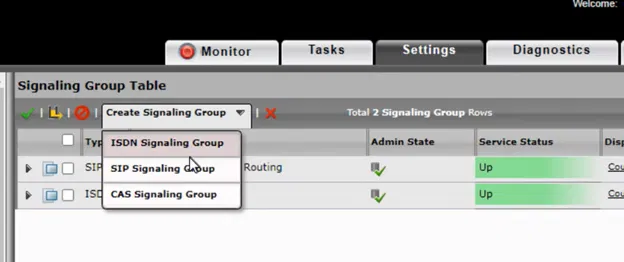
Go to the settings tab

Click on the “Create Signaling Group” menu, then select “ISDN Signaling Group”

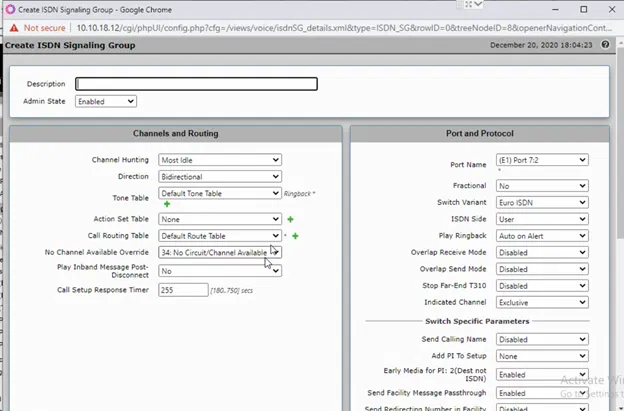
The “Create ISDN Signaling Group” dialog box will pop up and will be ready for filling

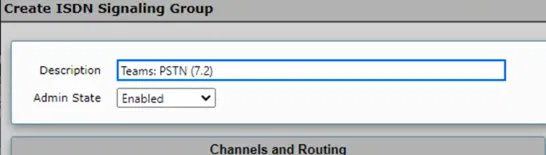
I kept the name of “Description” of the new signaling group same as the first one, but ending with (7.2) instead of (7.1) to indicate that I am using the second ISDN port

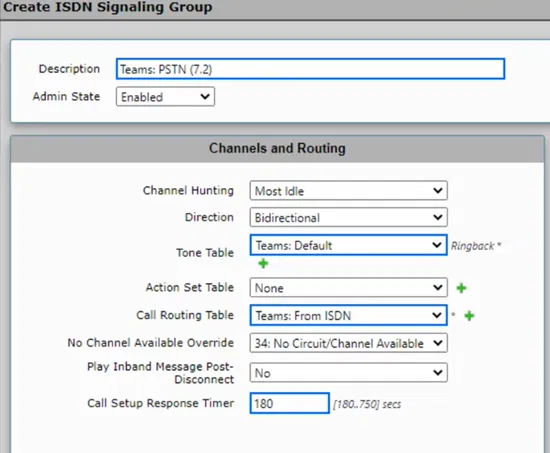
I am trying to use the same settings that was used in the first Signaling Group that was created by the wizard

Most important setting is the Call Routing Table, which control where the calls coming from this Signaling Group will be sent to.

Afte filling the dialog box, click on OK

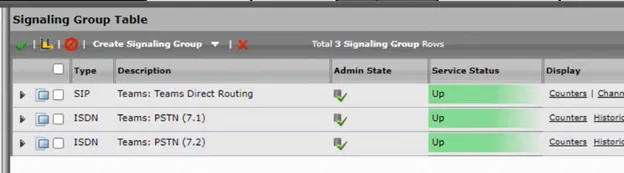
The new Signaling Group will be shown under the list of the Signaling Group

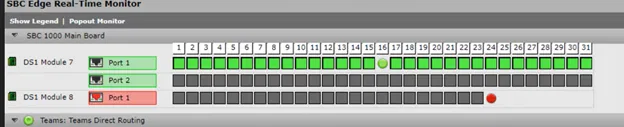
If the PRI cable to connected, the Signaling Group will be up and will be shown as green

Making the new Signaling Group as the destination for the outgoing calls from Microsoft Teams

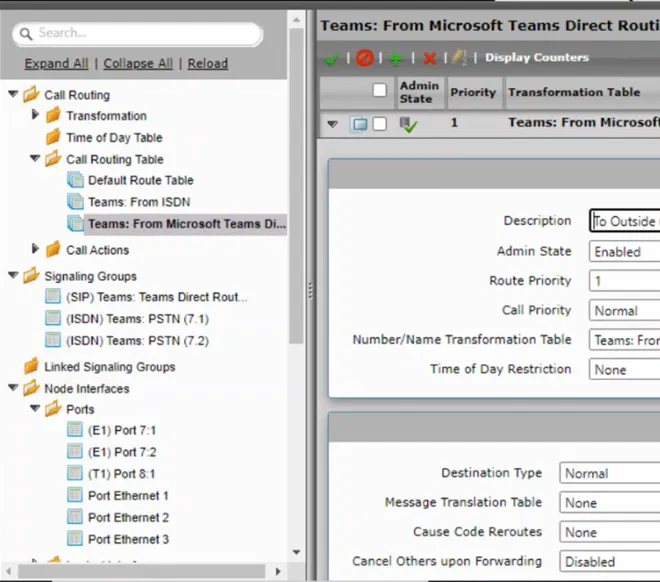
Expand Settings Tab > Call Routing > Call Routing Table

Select the call routing table that is used for the calls that are going out from Microsoft Teams

Expand the entry on table by clicking the arrow that is next to it

The details of the entry will be shown

Scroll down to “Destination Signaling Groups”

Click on “Add/Edit” button

Select the newly created signaling group and make sure that the original first ISDN Signaling Group is remained selected and click on the OK button

You will be back to Routing Table entry, and you will notice that new Signaling Group is listed as a destination

Click on Apply