Azure SWe Lite

Part 1: Creating a Ribbon SBC SWe Lite VM using Quick Launch Template from Azure Marketplace

In this article, I am showing how to create a Ribbon SBC SWe Lite VM on the Azure cloud and make it ready to be integrated with Teams Direct Routing

I am selecting the “Quick Launch” Template of Ribbon SBC SWe Lite from the marketplace

Such setup can be used for production or just simply to learn, test, and practice configuring a Teams Direct Routing with SBC

It might not be feasible to purchase a hardware SBC and to have public IP setup with correct firewall settings just for learning or practicing.

With Azure, you can have it configured with minimum cost and you can even use the Azure pay as you go option or even use the Azure trial to reduce the cost.

The installation will continue to full work until the trial is finished (I think the trial ends within 1 month).

You can contact a Ribbon distributor to purchase permeant licenses if you like to keep using your setup.

Below are the steps to do the deployment.

Selecting the VM from Azure Market Place

Access your Azure Admin Portal
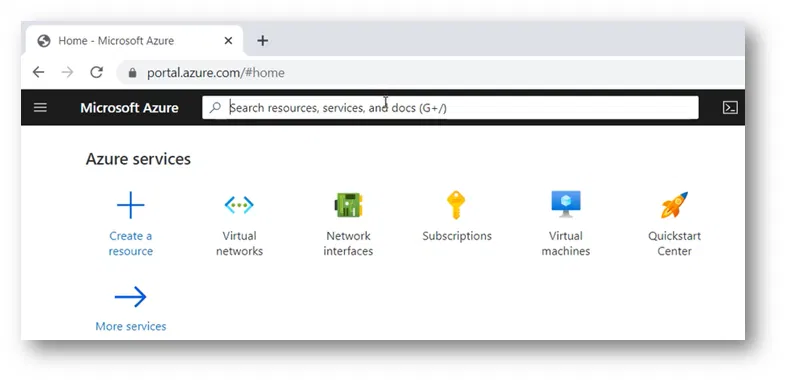
Click on the search bar

In the search bar, search for Ribbon SBC SWe Lite. For example, type “sbc swe”
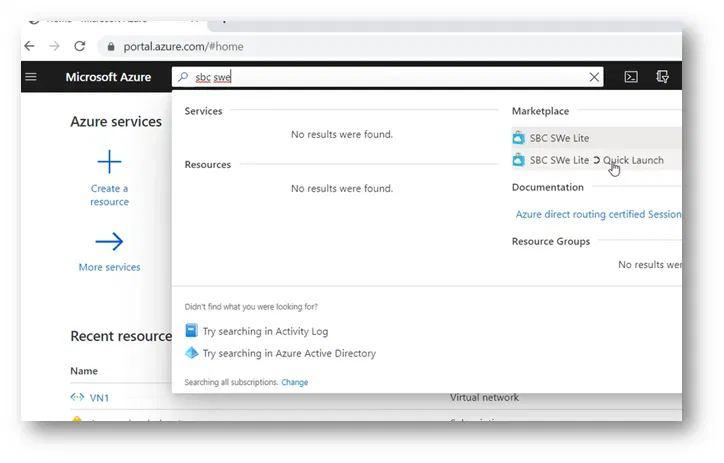
You will have types of VM Templates available in the Marketplace:

  • SBC SWe Lite
  • SBC SWe Lite Quick Launch

We will use “SBC SWe Lite Quick Launch” Template because it is designed to deploy SWe SBC Lite with the recommended configuration and is suitable for Teams Direct Routing (things like 2 Network Interfaces with the correct range of ports opened)
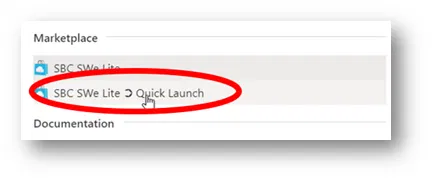
This will start wizard-like steps to collect the information needed to build the VM

Creating The VM And Selecting the Options

Click on the “Create” button
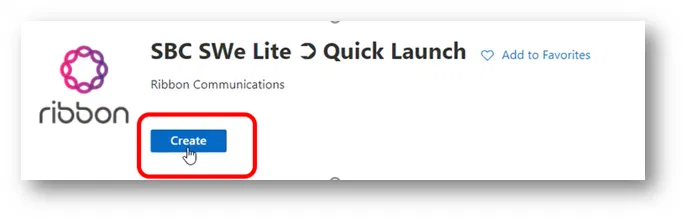
This will take you to the Basics tab

Basics Tab

The subscription will be automatically selected
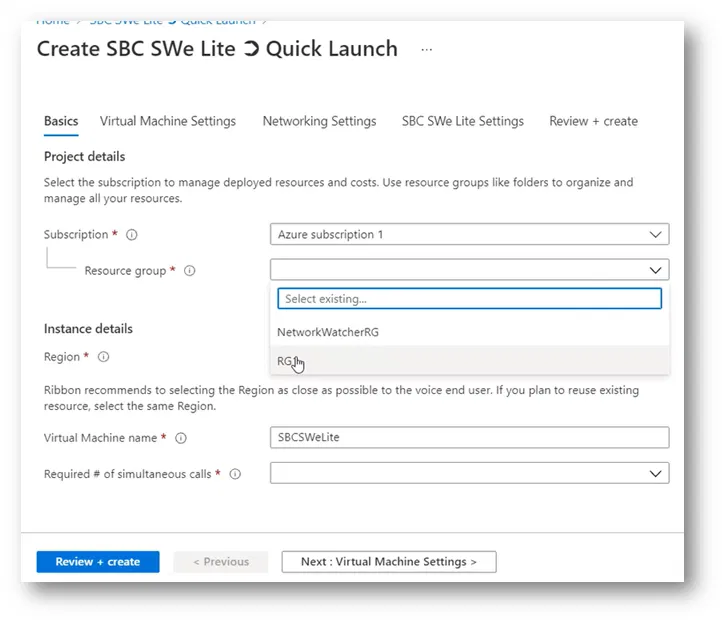
If you select an existing Resource Group with resources inside it, it will give you an error
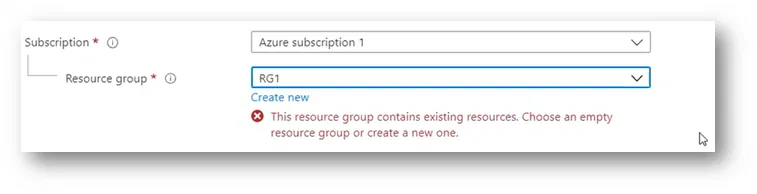
It requires its own Resource Group

For my case, I am creating a new Resource Group to be used for the SBC and named it SBCResourceGroup

Under Region, select the region where you want the VM to be created within

Type the name to be used as a Virtual Machine name inside Azure
Specify the Required # of simultaneous calls (to tell you the truth, I couldn’t find the purpose of this parameter tell this moment)

Virtual Machine Settings Tab

On Virtual Machine Settings, I kept the default settings

Networking Settings Tab

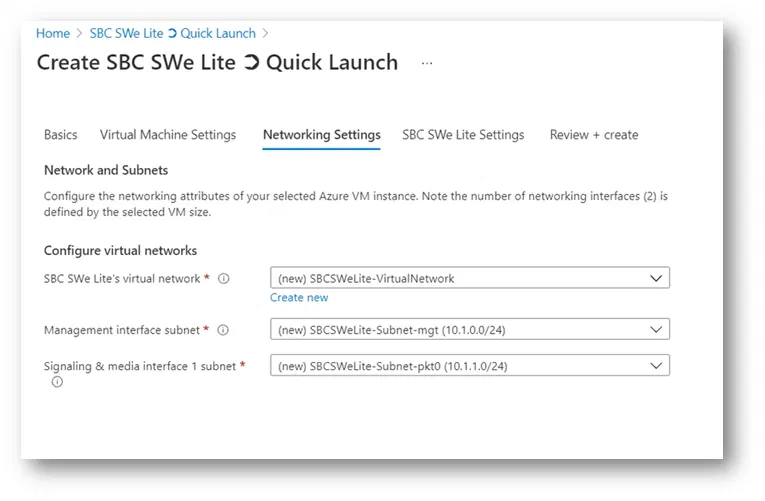
I kept the default settings (where it will create a new virtual network with two subnets)

Each of the two subnets is going to be connected to a network interface of the VM

  • Management subnet (connected to Management interface)
  • Signaling & Media subnet (connected to Signaling & Media interface)

(This way, the VM will be automatically created with the recommended configuration by Ribbon)

Note:

You can select your own existing virtual network and select the subnets to be used
SBC SWe Lite Settings Tab

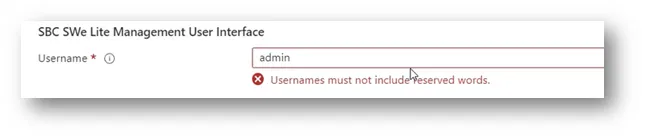
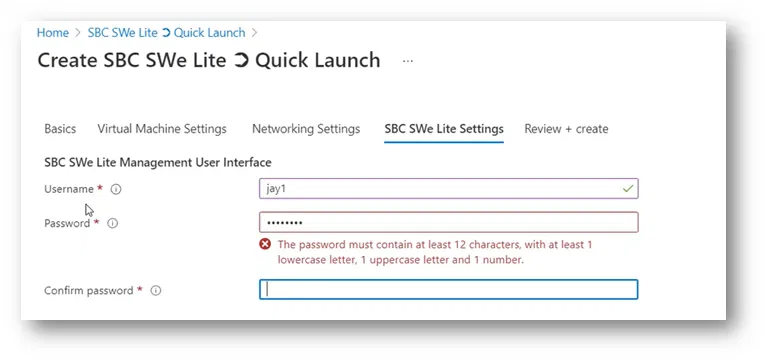
On the SBC SWe Lite Settings tab, specify the username and the password for the VM

The username cannot be a revers word such as admin
Follow the correct password policy
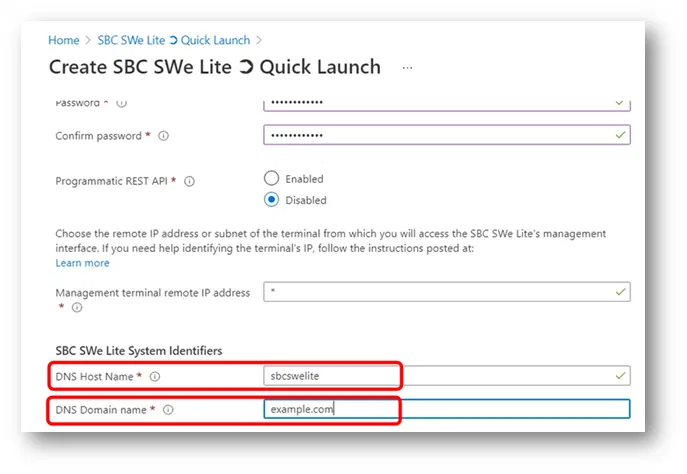
On the SBC SWe Lite Settings tab, I have typed a temporary hostname and a temporary domain name for the VM. I am planning to change these settings later inside the configuration of the SBC after the deployment is completed.
Review + create Tab

On the last tab “Review + create”. It will validate your settings and will show you “Validation Passed” if everything is acceptable to create the VM

It will also show you the summary of the settings that you

I had to scroll down to check all the settings

If all the settings are acceptable, click on the “Create” button. This will start the deployment of the VM.

Step by Step Walkthrough Creating an Ribbon SBC SWe Lite VM on Azure and fully Deploying it with Teams Direct Routing

In the following series of articles, I will demonstrate how I have created a fully working Ribbon SBC VM (SBC SWe Lite) on Azure. I will also show how to integrate it with Teams Direct Routing and SIP Trunk

Such setup can be used to fully test and practice:

  • Configuring Teams Direct Routing with Ribbon SBC
  • Configuring Ribbon SBC
  • Integrating a SIP Trunk with Ribbon SBC

Also can be used to demonstrate a proof of concept

Or you can even use it as a production. It is a fully working setup

Some of the advantages of such a setup:

  • You don’t need to have a hardware SBC
  • You don’t need to have your own Public IP to have integration with Direct Routing
  • You don’t need to set up a firewall and other network equipment
  • You can easily have integration with any SIP Trunk

The following are the links to the articles:

Part 1: Creating a Ribbon SBC SWe Lite VM using Quick Launch Template from Azure Marketplace – Jay’s Lab (jayslab.online)

Part 2: Checking the resulting VM and Accessing the Web Interface of the SBC – Jay’s Lab (jayslab.online)

Part 3: Adding a Domain to Microsoft 365 – Jay’s Lab (jayslab.online)

Part 4: Adding A User Account to The Domain That Will Be Used for the SBC – Jay’s Lab (jayslab.online)

Part 5: Connecting the SBC SWe Lite to Teams Direct Routing – Jay’s Lab (jayslab.online)

Part 6: Changing the Host Name and Domain Name of SBC – Jay’s Lab (jayslab.online)

Part 7: Installing Certificates on the SBC – Jay’s Lab (jayslab.online)

Part 8: Running Easy Config Wizard – Jay’s Lab (jayslab.online)

Part 9: Teams Direct Routing Call Routing – Jay’s Lab (jayslab.online)

Part 10: Enable users for Direct Routing, voice, and voicemail – Jay’s Lab (jayslab.online)

Part 11: Testing Outgoing and Incoming Calls – Jay’s Lab (jayslab.online)

Using Supplementary Certificate of SBC 1000 / SBC 2000 / SBC SWe Lite for Teams Direct Routing

With the newer firmware versions of SBC 1000 /2000 and even SWe Lite, you can add a supplementary certificate that is different from the main certificate of the device.

This is helpful if you want to keep the main certificate intact while adding an additional certificate to be used with other services. The only thing you need to do after adding the supplementary certificate is to configure the TLS profile that is associated with the service to use that certificate.

You can have multiple supplementary certificates and use each certificate for a different service. All you need to do is to assign each certificate to the TLS profile of that service.

In my experience, this is useful mostly if you have an SBC that is configured and associated to work with Skype for Business (on-premise) and you want to configure the same device to be integrated with Teams Direct Routing.

Importing a supplementary certificate

On the SBC web interface select the Task tab

Under “SBC Easy Setup”, select certificate

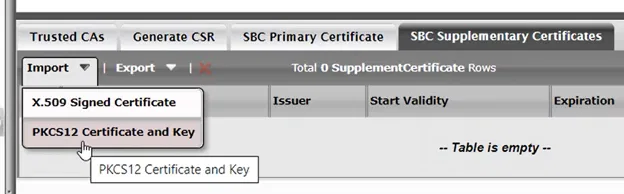
Click on “SBC Supplementary Certificates” Tab

Click on “Import” > “PKCS12 Certificate and Key” to import a certificate with its private key

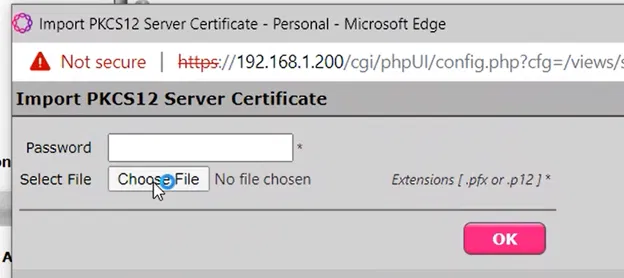
Click on “Choose File”

Select the file that contains the certificate

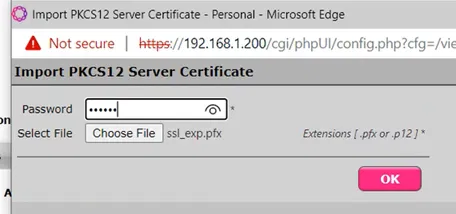
And click on Open

Supply the password for PFX file (remember that each PFX contains a password to protect the Private Key. The password was set during the export of the certificate to PFX)

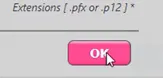
And click on OK

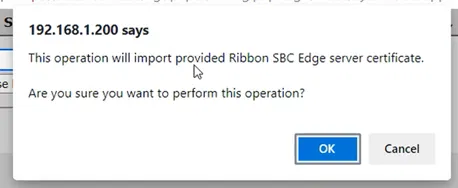
A warning about importing a new certificate will appear. Click on OK

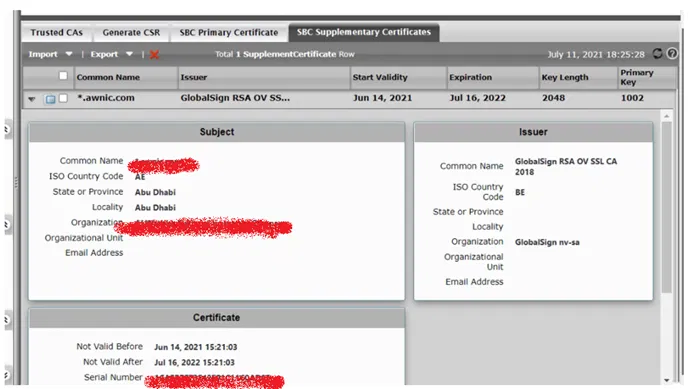
The new certificate will appear under the list of supplementary certificates

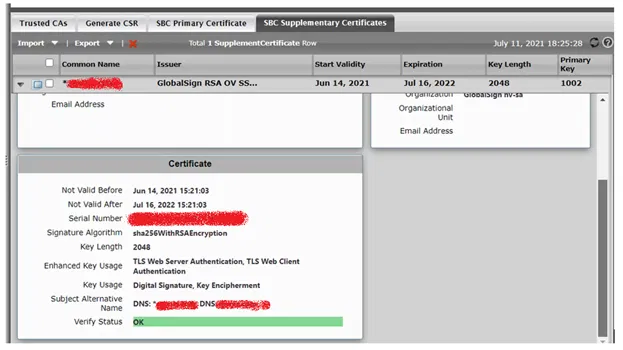
You can expand it to show the details of the certificate

Configuring TLS profile to use the newly imported certificate.

To utilize the newly imported supplementary certificate, you need to configure the TLS profile of the service that you want to configure it to use the certificate.

In my example below, I am configuring the TLS profile that was used by Teams Direct Routing (to make my device use the new certificate for Teams Direct Routing and keep the main certificate used for other services)

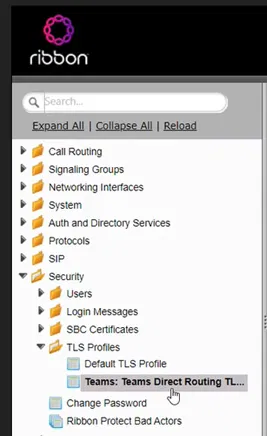
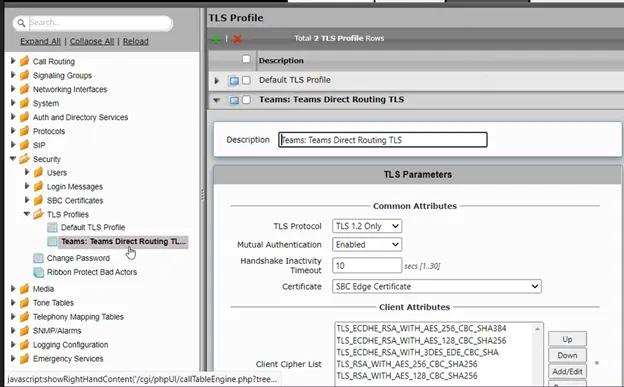
Go to Settings Tab > Security > TLS Profiles > Select the TLS profile that you want to configure it to use the newly imported certificate

The details of the select TLS Profile will be shown

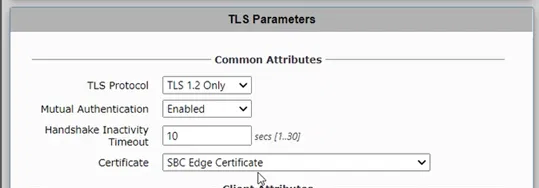
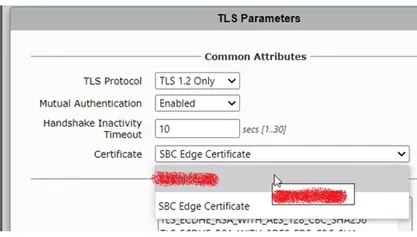
Under TLS Parameter, select the certificate list

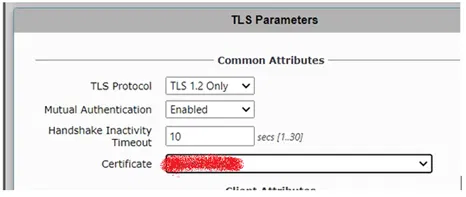
From the list of certificate, select the supplementary certificate to be used

The parameter named certificate will show the chosen certificate

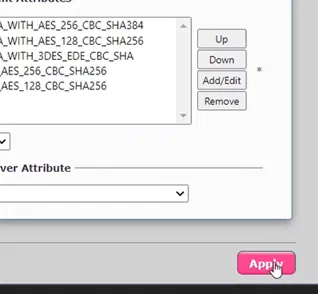
Scroll down and click on Apply button