In this part, we will create an Online Voice Routing Policy and the needed components. You can assign this policy to the users to allow them to make outgoing calls using the on-premise SBC.
For simplicity and to complete the setup. We are creating:
- A “Usage”
- An “Online Voice Route” that is associated with the new Usage and uses our SBC for all outgoing calls
- An “Online Voice Routing Policy” that uses the Usage (this way it will use the new SBC for outgoing calls)
You can improve this configuration by creating more of these 3 voice elements (I cannot explain this part better than Microsoft documentation)
For simplicity also, I am calling each of these components “PassAall”
Preparing the Session
Before you can use any of Teams PowerShell commands, you need to connect the PowerShell to Microsoft Teams Online using the command:
Connect-MicrosoftTeams
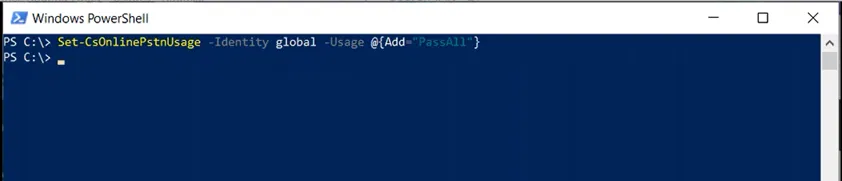
Creating a usage
This is how to create a new usage
Set-CsOnlinePstnUsage -Identity global -Usage @{Add=”PassAll”}
Creating an Online Voice Route
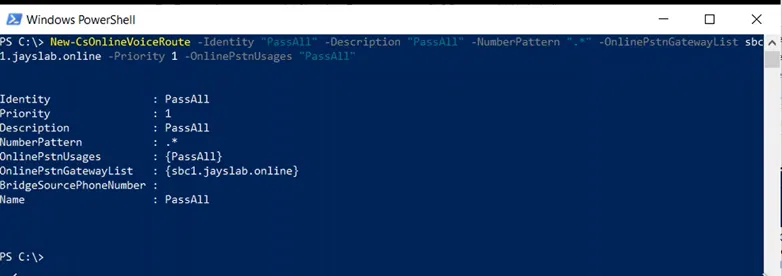
The below shows how to create a new Route (Online Voice Route) and associate it with the usage “PassAll” that we have created above
New-CsOnlineVoiceRoute -Identity “PassAll” -Description “PassAll” -NumberPattern “.*” -OnlinePstnGatewayList sbc1.jayslab.online -Priority 1 -OnlinePstnUsages “PassAll”
Creating a new Online Voice Routing Policy
The below shows the creation of a new Online Voice Routing Policy that uses the “PassAll” usage that we have created earlier. This way, this Policy will use the route (Online Voice Route) that we have just created.
New-CsOnlineVoiceRoutingPolicy “PassAll” -OnlinePstnUsages “PassAll”
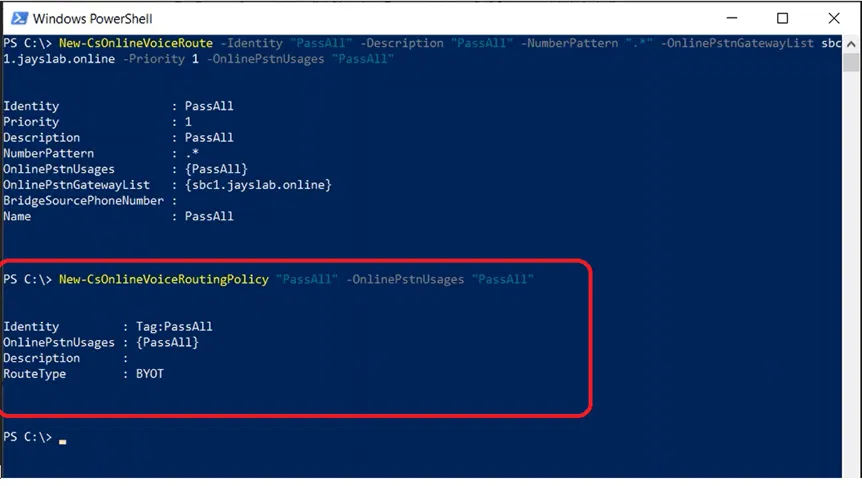
Now, this “Online Voice Route” is read and can be assigned to the user(s)
Viewing The Newly Created Components on Teams Admin Center
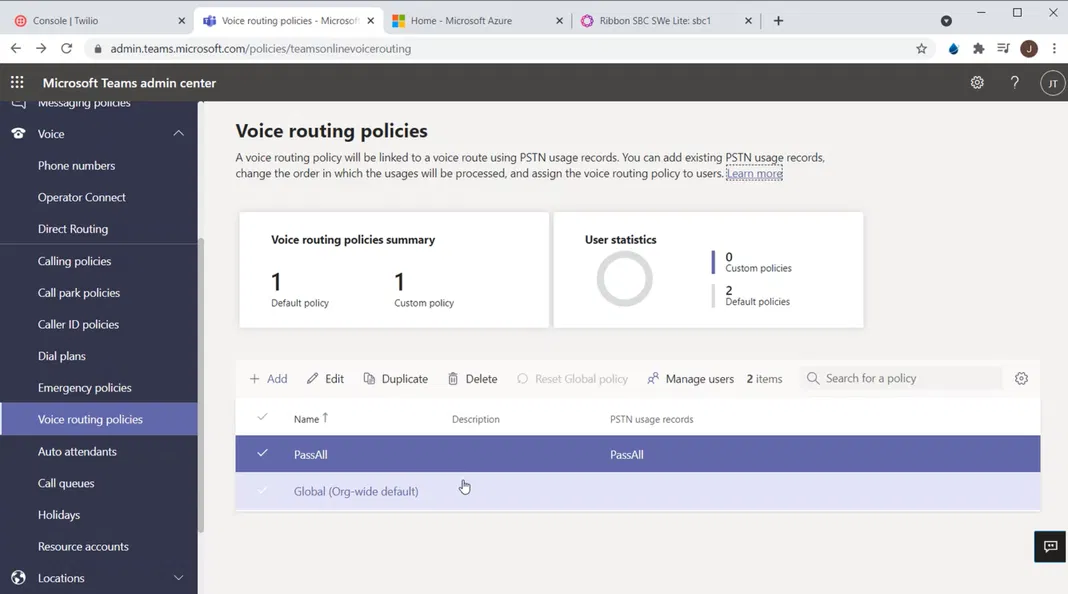
Teams admin center > Voice Routing Policies
You will see the policy “PassAll” that we have created earlier. Click on the “PassAll” policy to open it
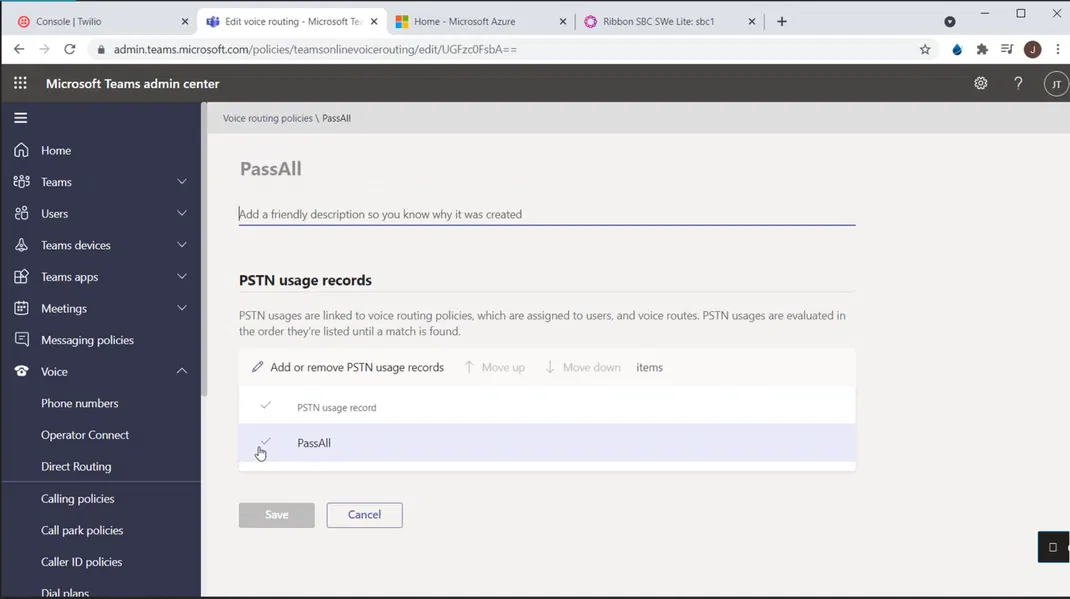
The details of the policy will be shown. Under “PSTN usage records”, you will see the usage named “PassAll” is listed
Viewing Voice Routes
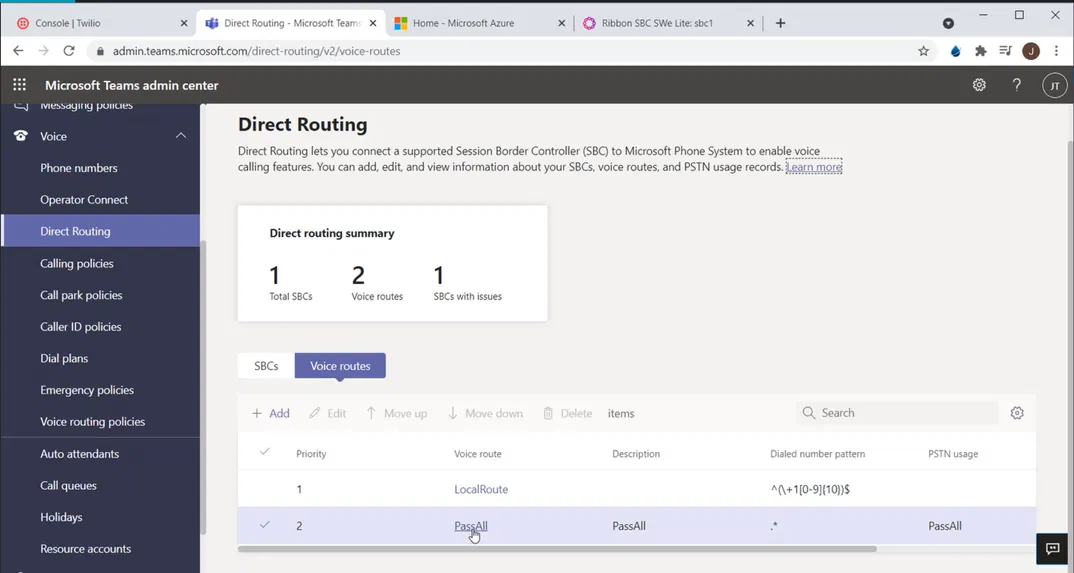
Teams Admin Center > Voice > Direct Routing
Click on “PassAll” to view its properties
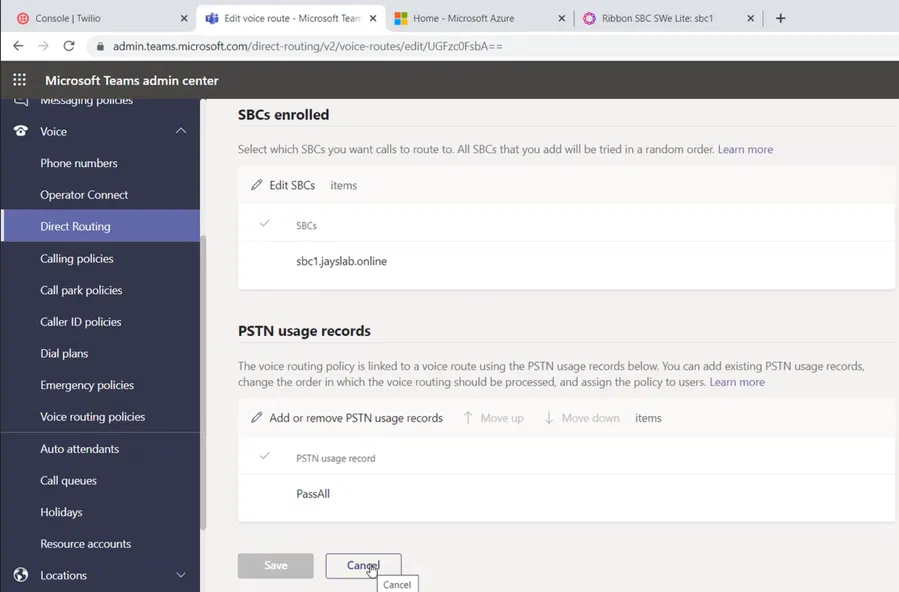
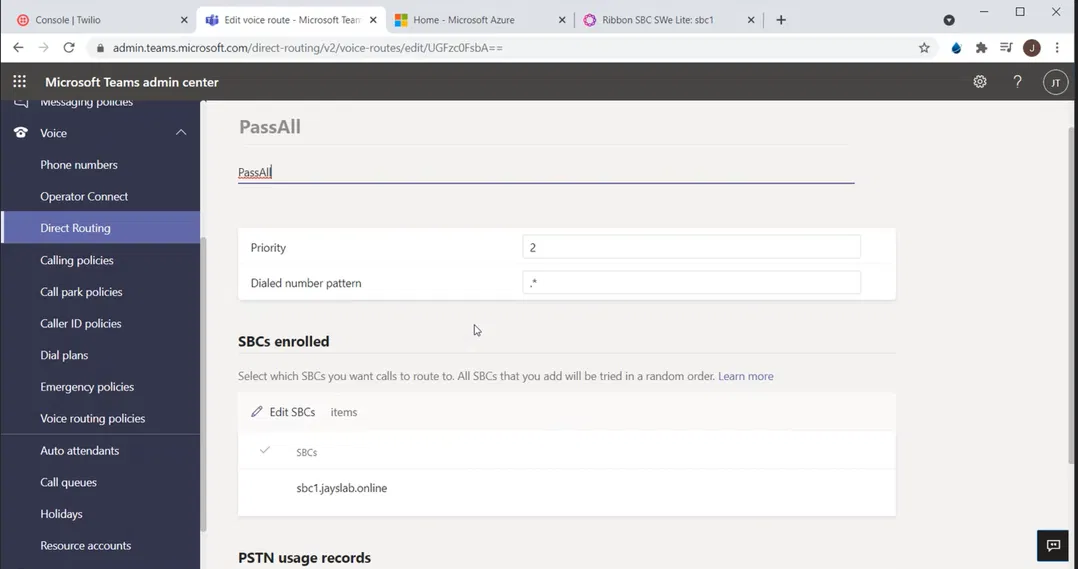
Under “SBCs enrolled”, which shows the list of SBCs that this route use you will see our SBC list
Scroll Down to view the list of “PSTN usage records”
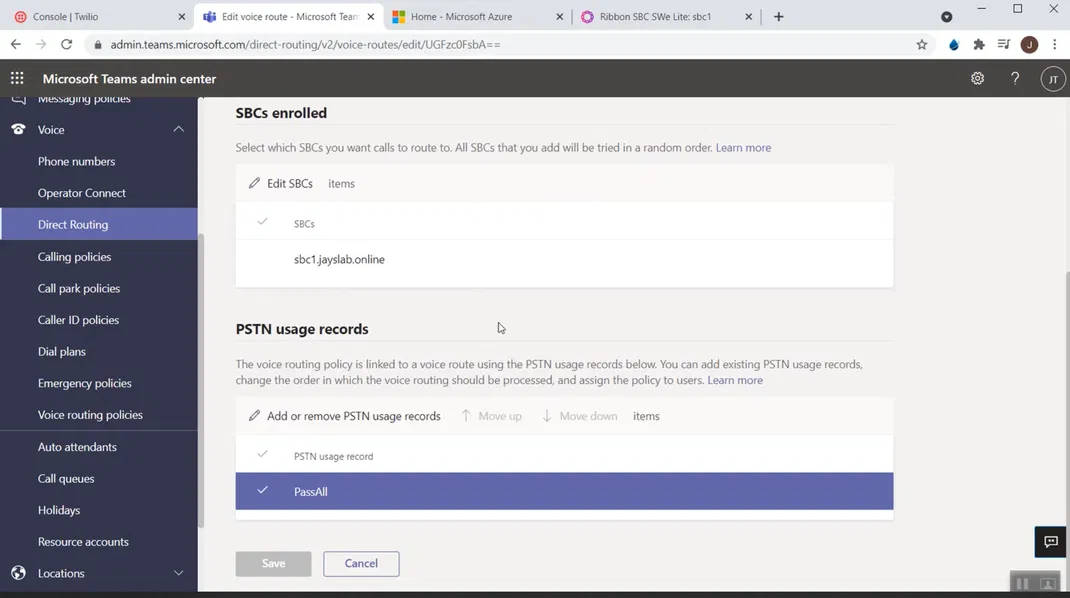
Click on Cancel to get out of the details of the Voice Route