With the newer firmware versions of SBC 1000 /2000 and even SWe Lite, you can add a supplementary certificate that is different from the main certificate of the device.
This is helpful if you want to keep the main certificate intact while adding an additional certificate to be used with other services. The only thing you need to do after adding the supplementary certificate is to configure the TLS profile that is associated with the service to use that certificate.
You can have multiple supplementary certificates and use each certificate for a different service. All you need to do is to assign each certificate to the TLS profile of that service.
In my experience, this is useful mostly if you have an SBC that is configured and associated to work with Skype for Business (on-premise) and you want to configure the same device to be integrated with Teams Direct Routing.
Importing a supplementary certificate
On the SBC web interface select the Task tab

Under “SBC Easy Setup”, select certificate

Click on “SBC Supplementary Certificates” Tab


Click on “Import” > “PKCS12 Certificate and Key” to import a certificate with its private key
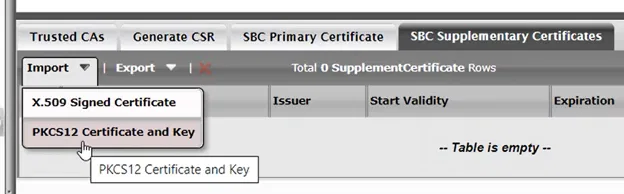
Click on “Choose File”
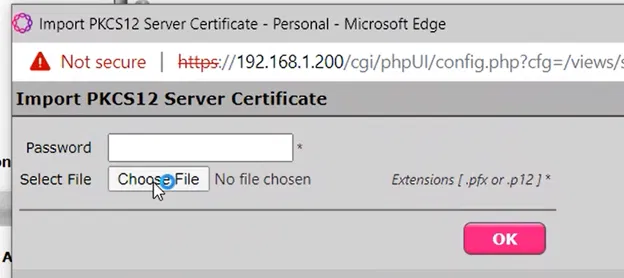
Select the file that contains the certificate

And click on Open

Supply the password for PFX file (remember that each PFX contains a password to protect the Private Key. The password was set during the export of the certificate to PFX)
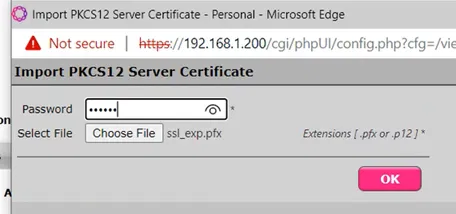
And click on OK

A warning about importing a new certificate will appear. Click on OK
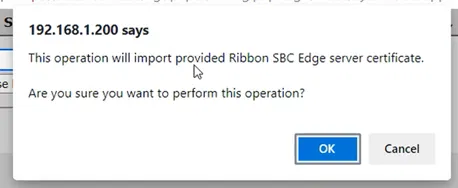
The new certificate will appear under the list of supplementary certificates

You can expand it to show the details of the certificate
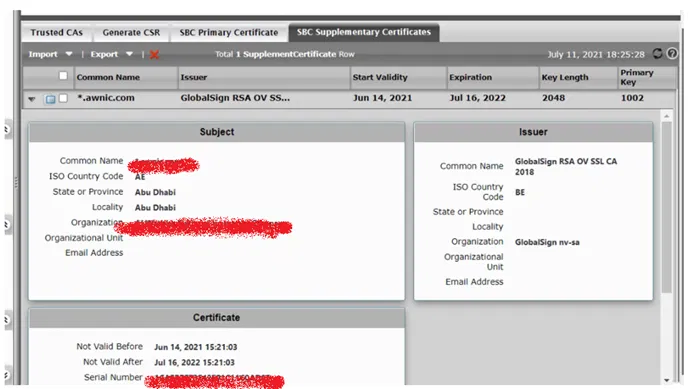
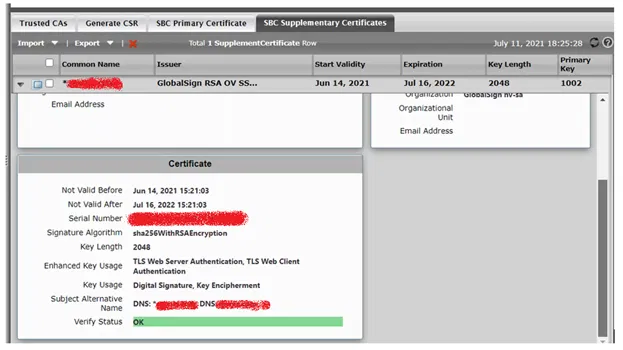
Configuring TLS profile to use the newly imported certificate.
To utilize the newly imported supplementary certificate, you need to configure the TLS profile of the service that you want to configure it to use the certificate.
In my example below, I am configuring the TLS profile that was used by Teams Direct Routing (to make my device use the new certificate for Teams Direct Routing and keep the main certificate used for other services)
Go to Settings Tab > Security > TLS Profiles > Select the TLS profile that you want to configure it to use the newly imported certificate
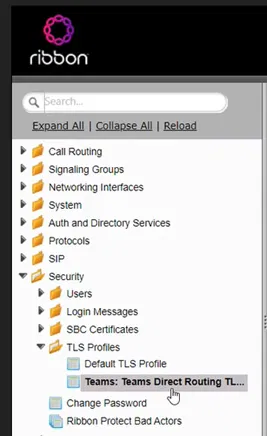
The details of the select TLS Profile will be shown
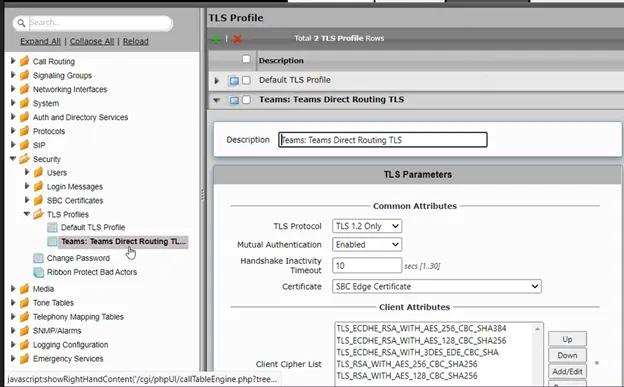
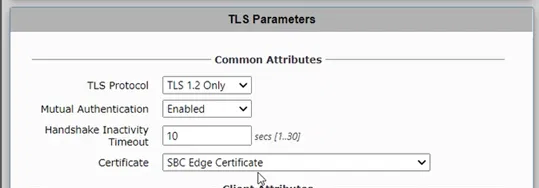
Under TLS Parameter, select the certificate list
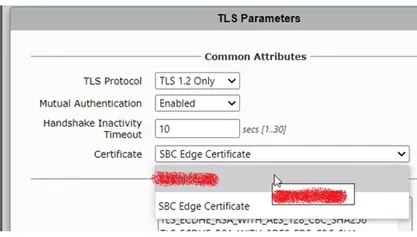
From the list of certificate, select the supplementary certificate to be used
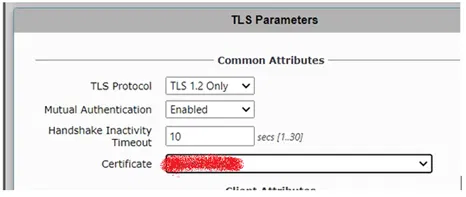
The parameter named certificate will show the chosen certificate
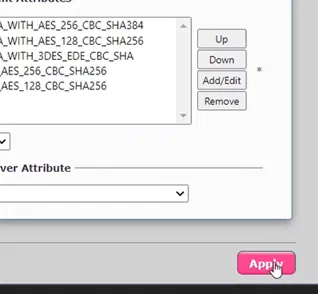
Scroll down and click on Apply button