
The steps below show how to install a certificate with its private key with the *.PFX format on SBC 1000 or SBC 2000
Installing such a certificate is needed when you are configuring your SBC to work with Microsoft Teams Direct Routing
The same steps can be followed in case you want to install a private certificate for example you are configuring the SBC to work with the on-premise version of Skype for Business
Note:
Before you install the certificate, you need of course to install the certificate of the Root CA where you have requested this certificate from and also you need to install an intermediate certificate(s) if that is required by your certificate provider. The procedure of installing certificate of the Root CA and Intermediate CAs are mentioned in a previous article.
The following are the steps:
On the web interface, go to Tasks Tab

Go to SBC Easy Setup> Certificates

Click on SBC Edge Certificate
This will show the currently installed certificate on the device, and it will also give the option to import a new certificate

To import a new certificate
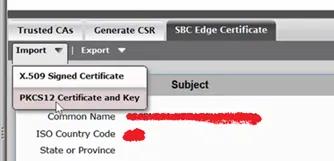
Click on Import > “PKCS12 Certificate and Key”
(This article only explained how to import a certificate and its key)
A new window will pop up
select a *.pfx file and supply the password that is protecting the file
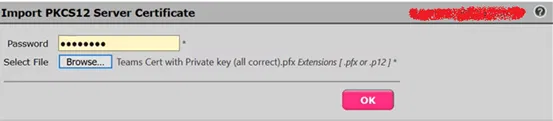
Click on OK

Click on OK

The new certificate and the private key associated with it will be installed on the device and it will be shown under SBC Edge Certificate
