
In this article, I will explain how to setup additional PRI (ISDN) and configure to have the same configuration and behavior as the first PRI (assuming that we already configured the first PRI).
This is useful when you need to have more than 30 channels (concurrent calls) and you need to have the same configured settings and routes as the first the first PRI (each PRI support 30 channels)
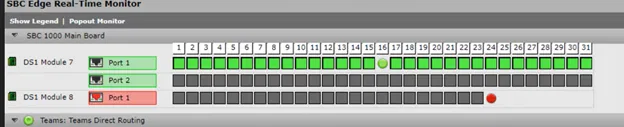
Go to the settings tab

Click on the “Create Signaling Group” menu, then select “ISDN Signaling Group”
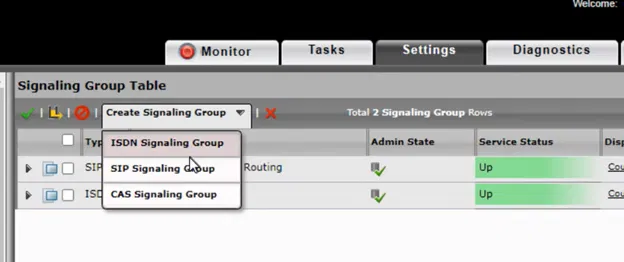
The “Create ISDN Signaling Group” dialog box will pop up and will be ready for filling
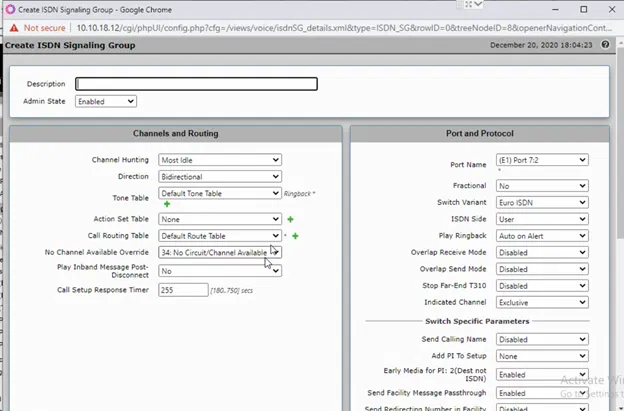
I kept the name of “Description” of the new signaling group same as the first one, but ending with (7.2) instead of (7.1) to indicate that I am using the second ISDN port
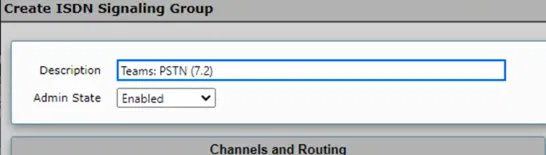
I am trying to use the same settings that was used in the first Signaling Group that was created by the wizard
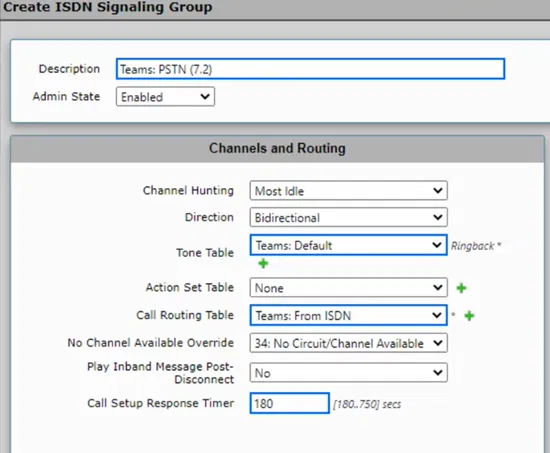
Most important setting is the Call Routing Table, which control where the calls coming from this Signaling Group will be sent to.

Afte filling the dialog box, click on OK

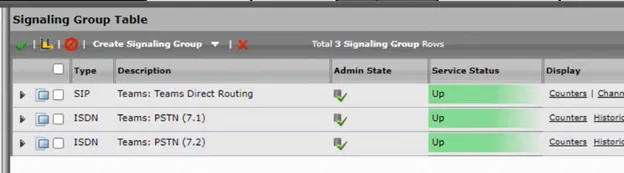
The new Signaling Group will be shown under the list of the Signaling Group
If the PRI cable to connected, the Signaling Group will be up and will be shown as green
Making the new Signaling Group as the destination for the outgoing calls from Microsoft Teams
Expand Settings Tab > Call Routing > Call Routing Table
Select the call routing table that is used for the calls that are going out from Microsoft Teams

Expand the entry on table by clicking the arrow that is next to it

The details of the entry will be shown
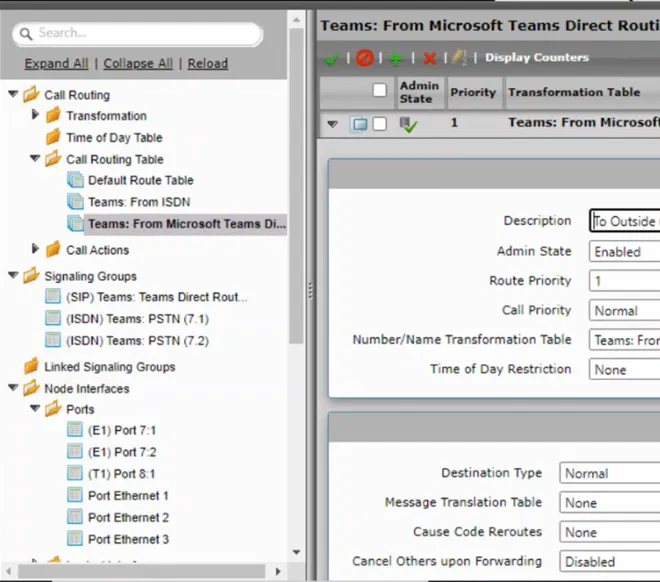
Scroll down to “Destination Signaling Groups”

Click on “Add/Edit” button

Select the newly created signaling group and make sure that the original first ISDN Signaling Group is remained selected and click on the OK button

You will be back to Routing Table entry, and you will notice that new Signaling Group is listed as a destination

Click on Apply
