What is Call Queue
Call queues route incoming calls to specific Teams users (Teams, Groups, or Users). Call queues control how the call is routed and distributed to Teams users (agents).
The following steps show how to create a call queue:
- It redirects the call to an Office 365 Team
- Members of that team are going to be the agents
- The agent that has been ideal for the longest time will have the call
Call Queues Pane
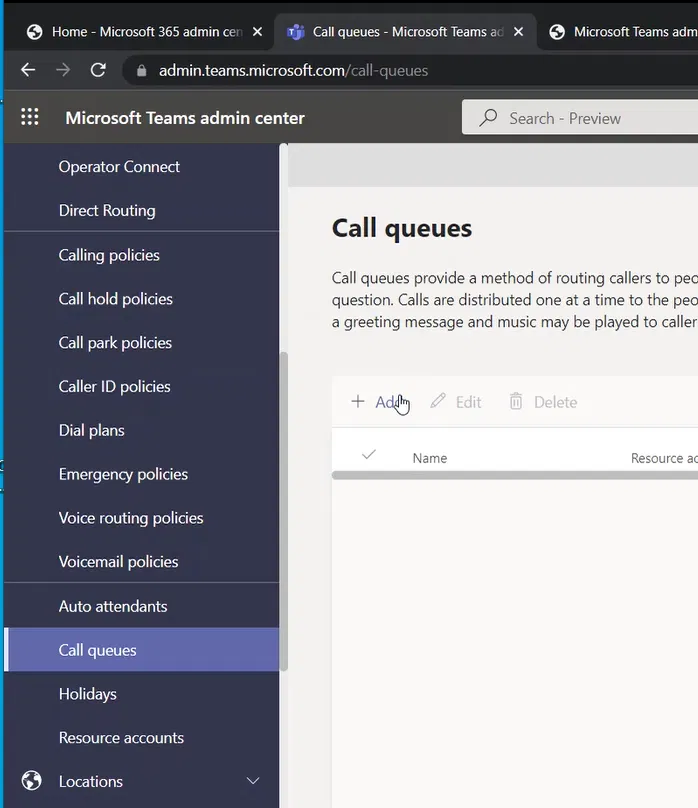
On Teams Admin Center, expand the “Voice” menu and select “Call queues”
Adding a New Call Queue
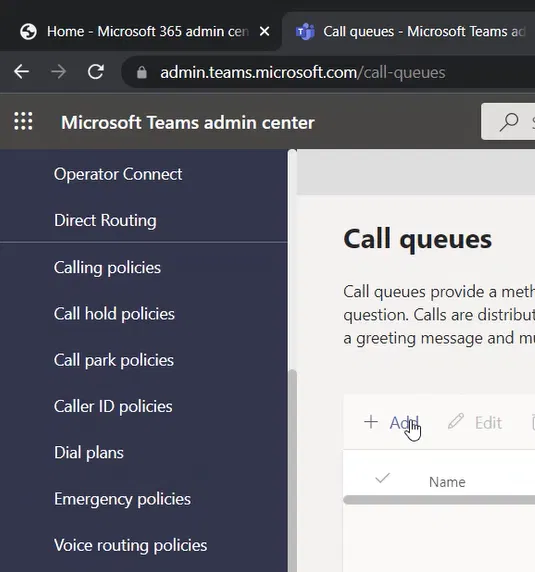
To add a new “Call Queue” click on Add
General Info Page
The “Add a call queue” wizard will appear, and it will start with the General info page
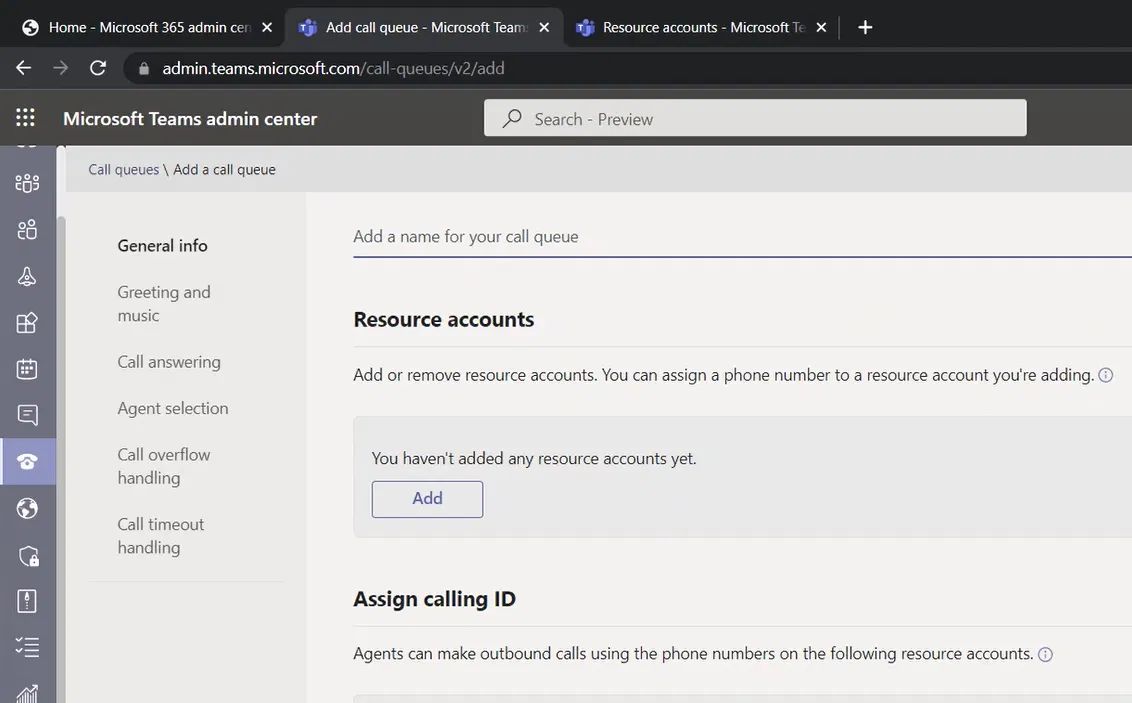
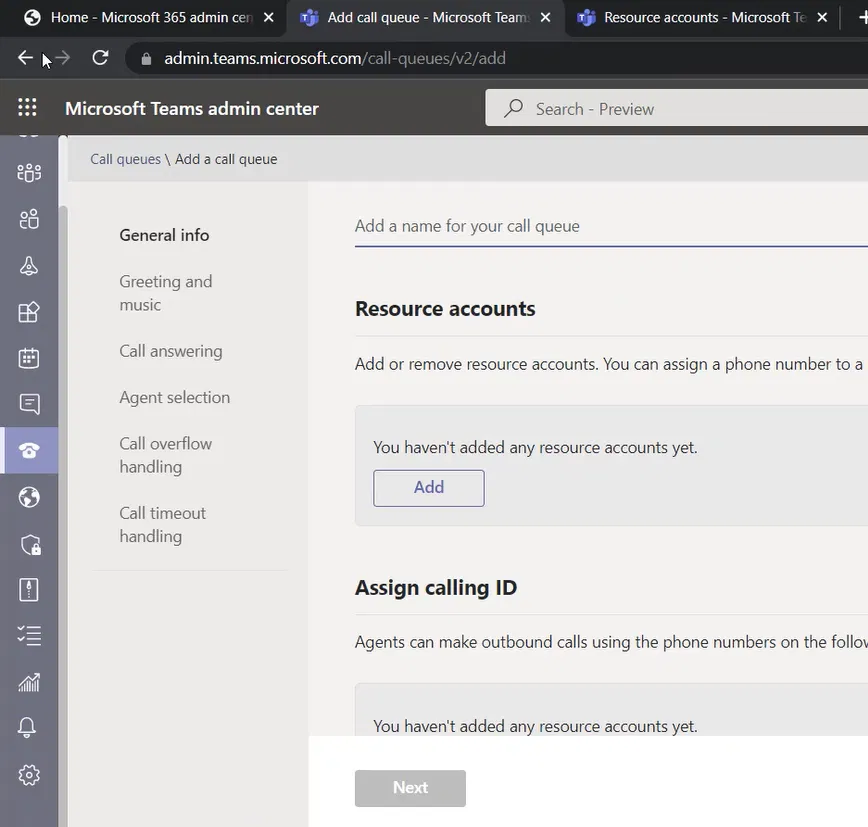
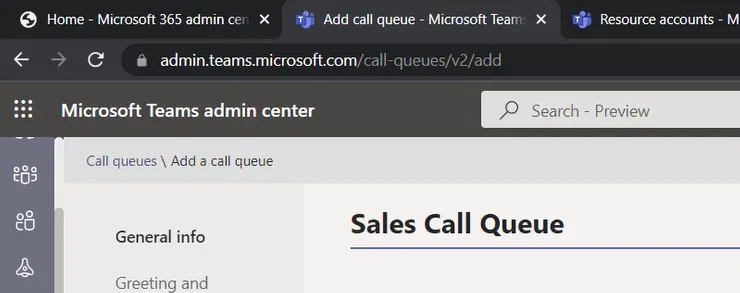
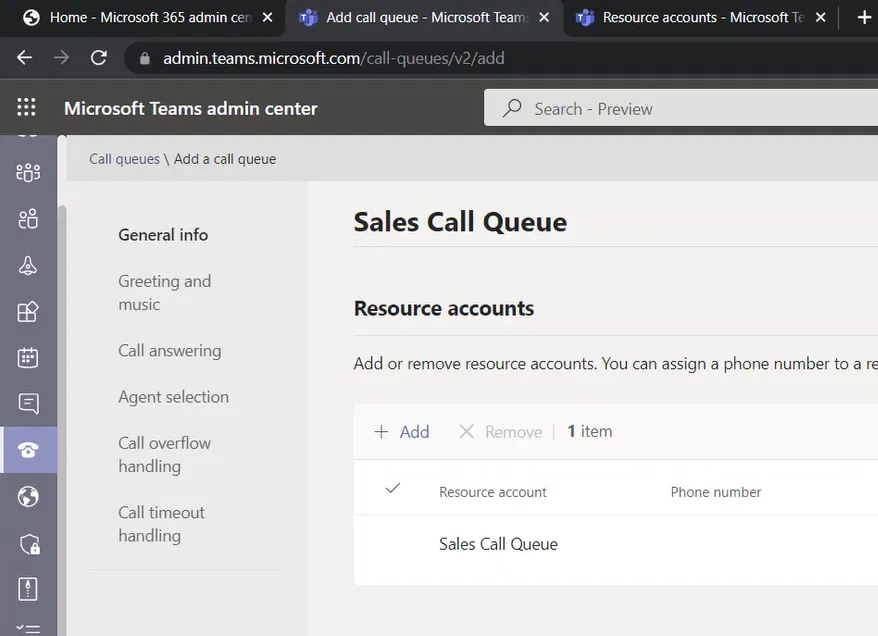
Type the name of the Call Queue. For me, the name is “Sales Call Queue”
Adding a Resource Account to The Call Queue
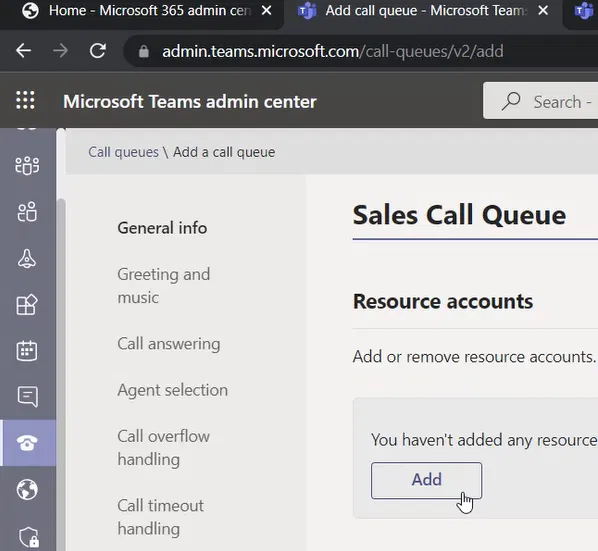
Under “Resource accounts”, click on the “Add” button
The “Add account” pane will appear on the right side
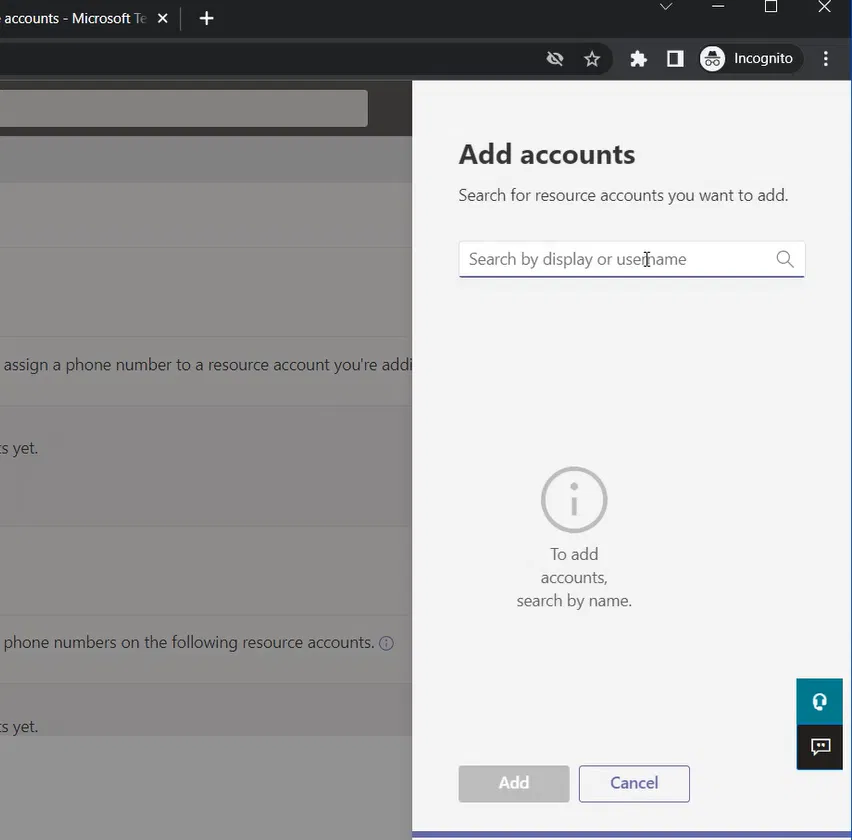
In the search box, search for the name of the resource account that you created earlier. For me, I am typing “Sales Call Queue”. (You can type at least 3 letters to search)
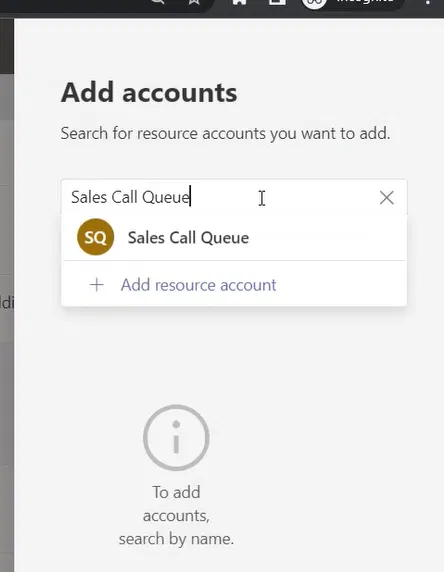
It will show all the resource accounts display name matches for the search. Hover the mouse pointer over the resource account name and an “Add” button will appear next to the resource account Click on it
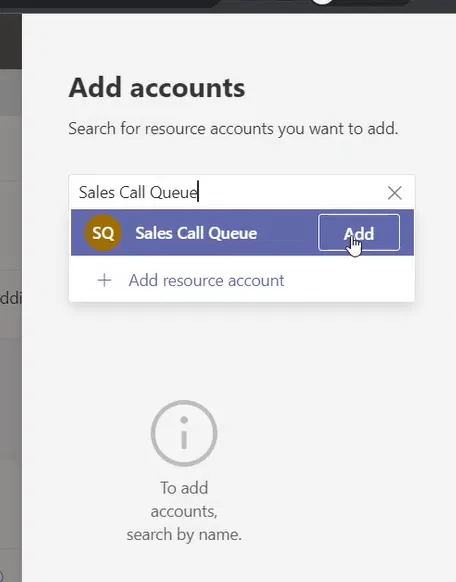
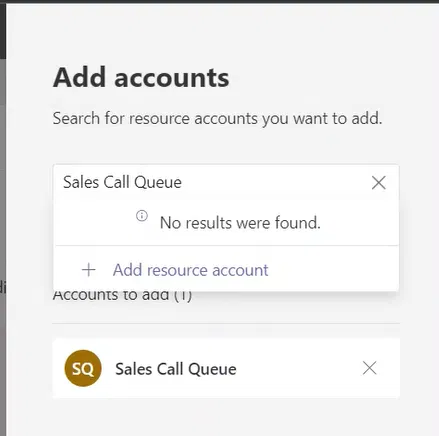
The added resource account will be listed (you can add more accounts if your setup needs that)
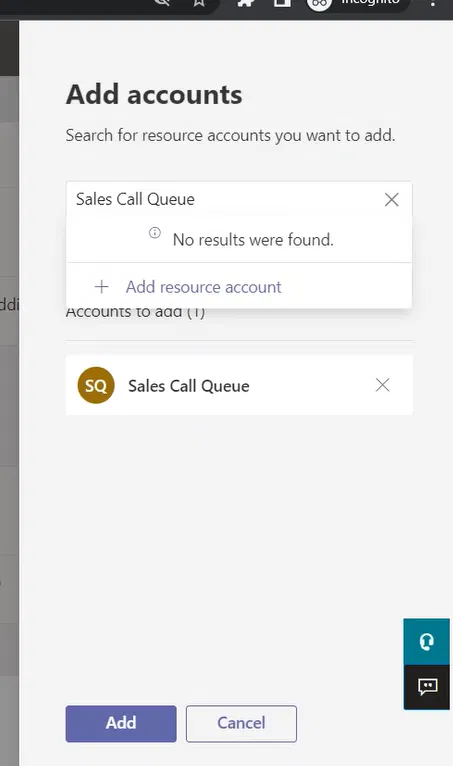
Click on “Add” bottom of the pane
When you back to the “General Info”, you will see the resource account(s) that you have added
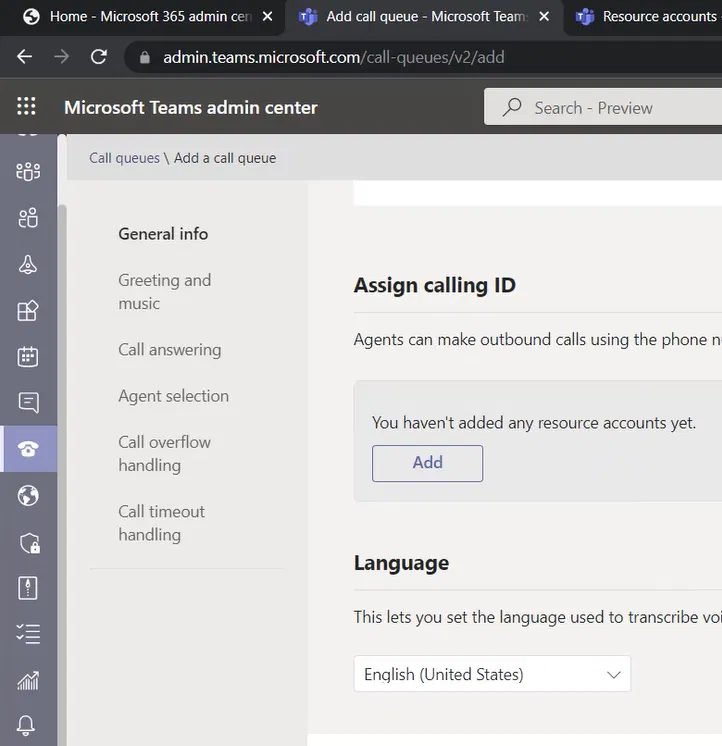
Scroll down until you reach “Language”. This is where you specify the language that will be used for the automatically generated voice messages

Search and select the language
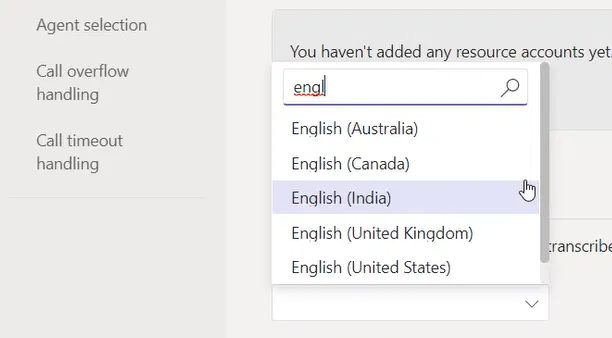
The below image shows my selection of language is “English (United States)”
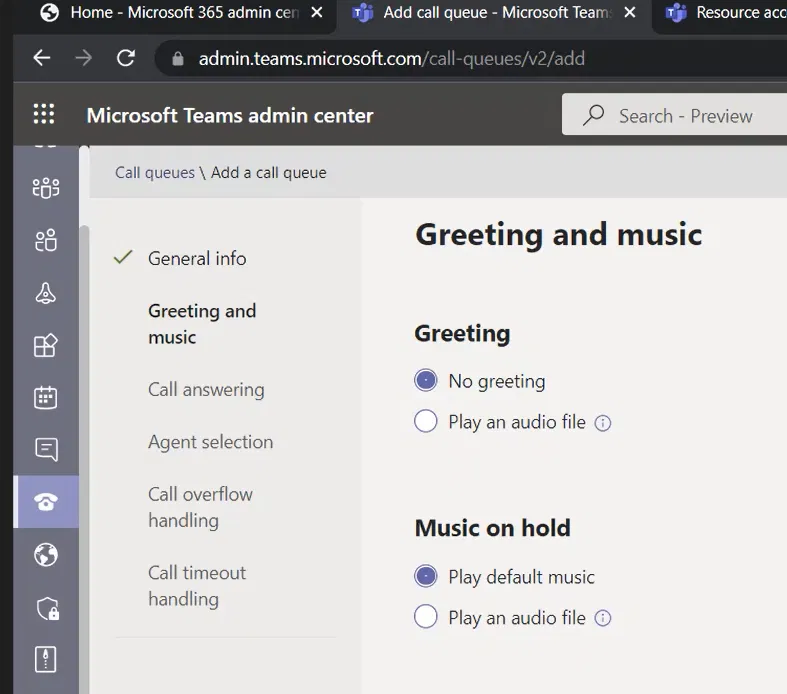
Greeting and Music Page
Click on Next, and you will be on the “Greeting and music page. I will keep it as it is for simplicity. Then, click on “Next” to reach the “Call answering” page
Call Answering Page
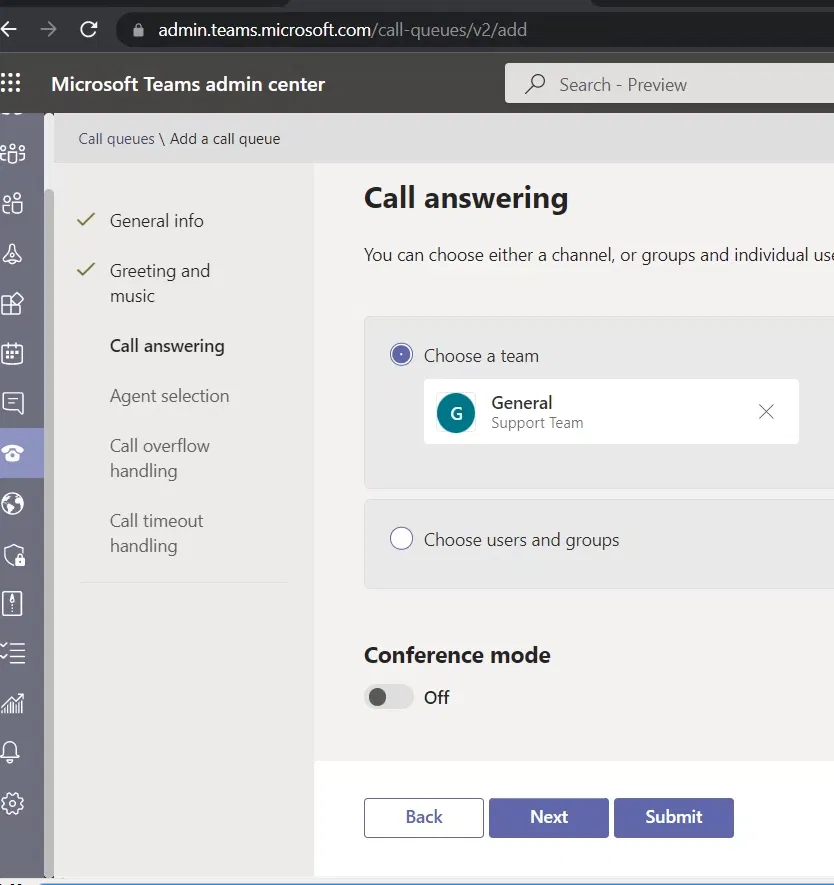
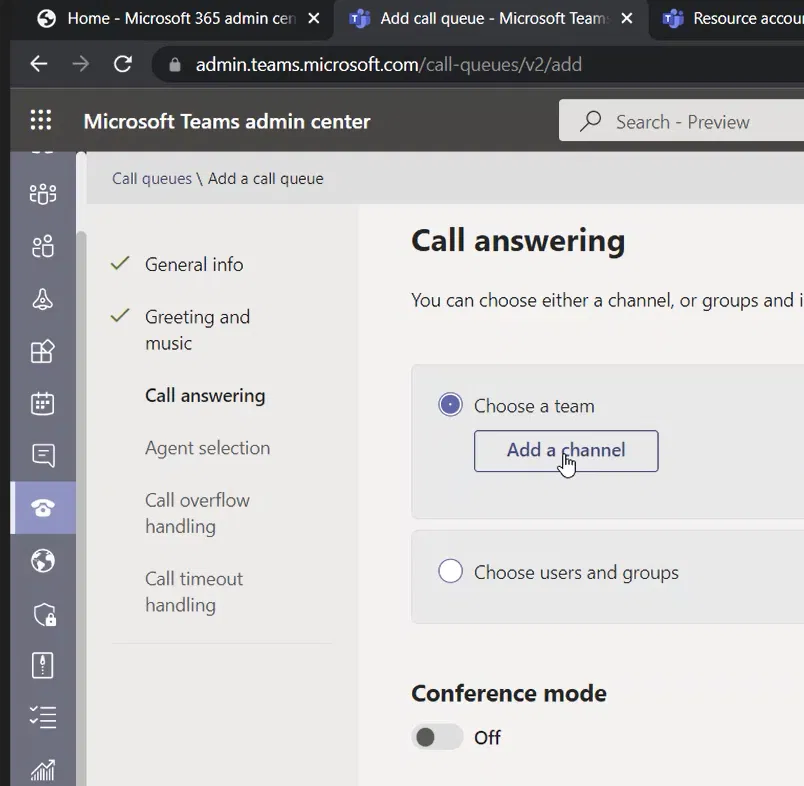
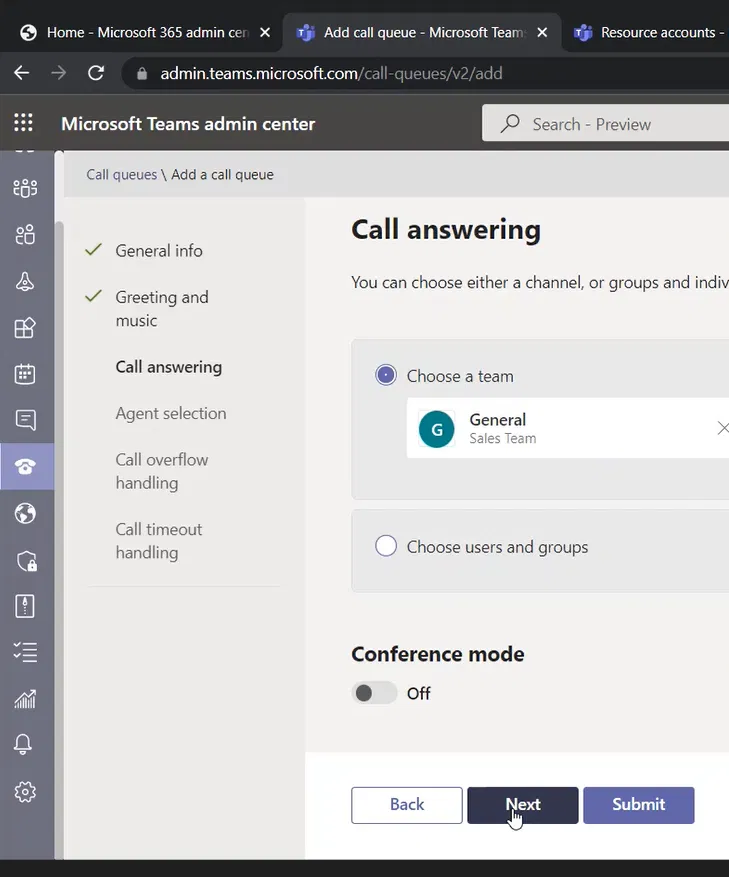
Here, you select who will handle the call. you can select a channel of a team, or you can select specific users and groups
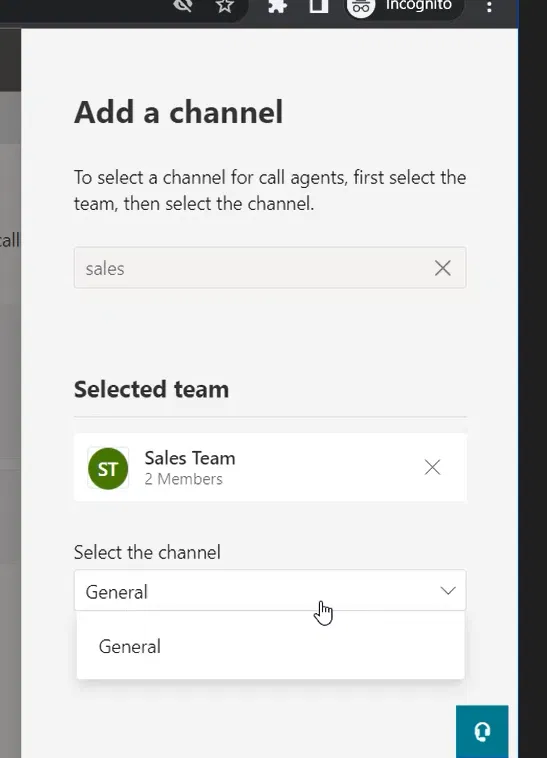
For me, I kept the “Choose a team” option selected, and I clicked on “Add a channel” (you need to select a Team, then select the channel from the list of channels for that Teams)
The “Add a channel” pane will be shown on the right side
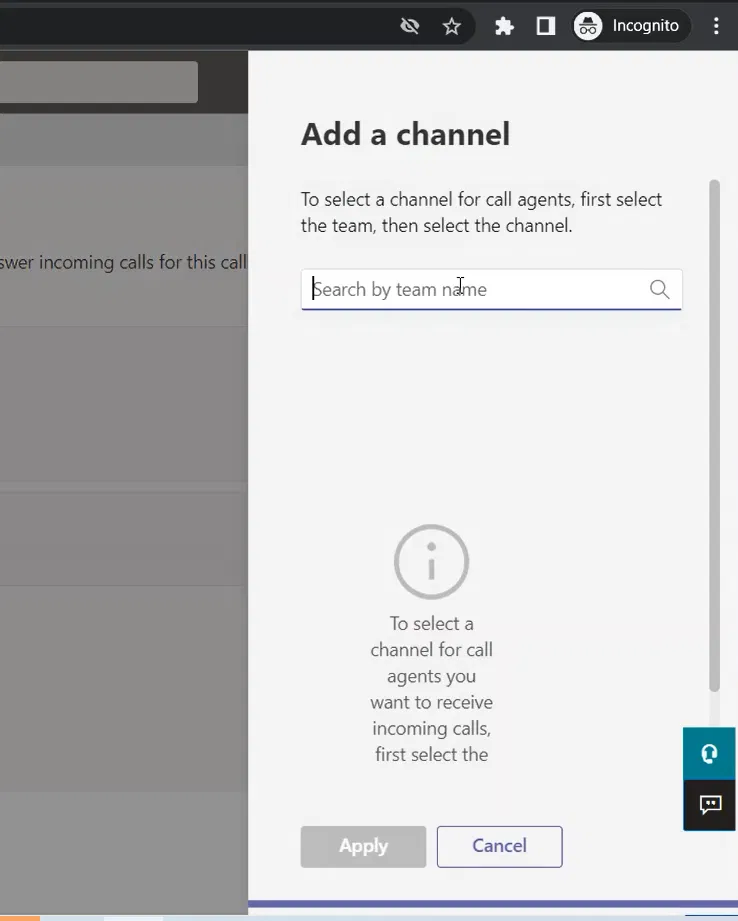
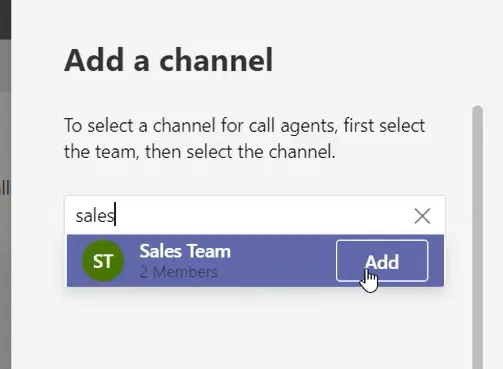
First, you need to select the team
Then, select a channel from that team
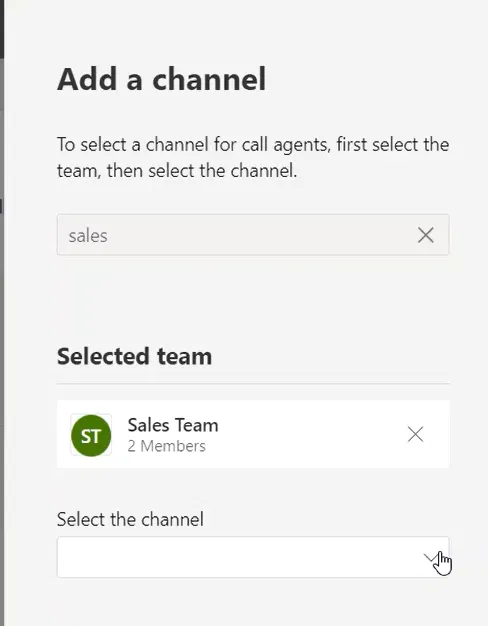
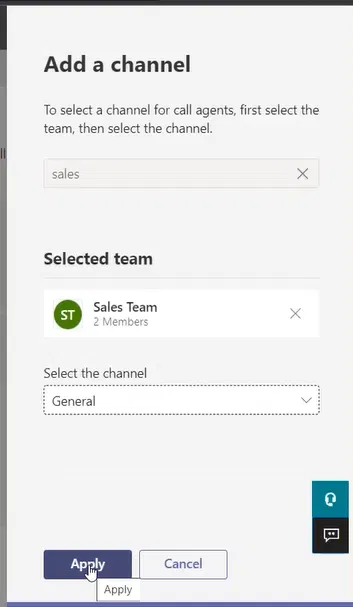
For me, I have selected the default “General” channel of the team named Sales
Click on Apply
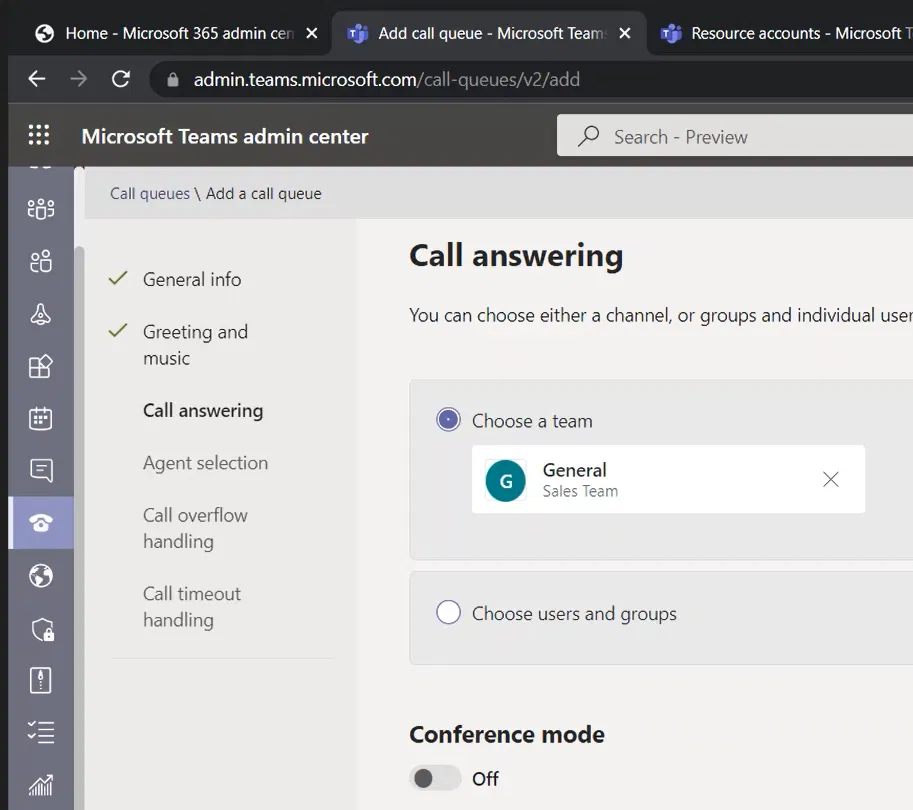
The “Call answering” page will now show the selected channel and to which team that channel belongs to
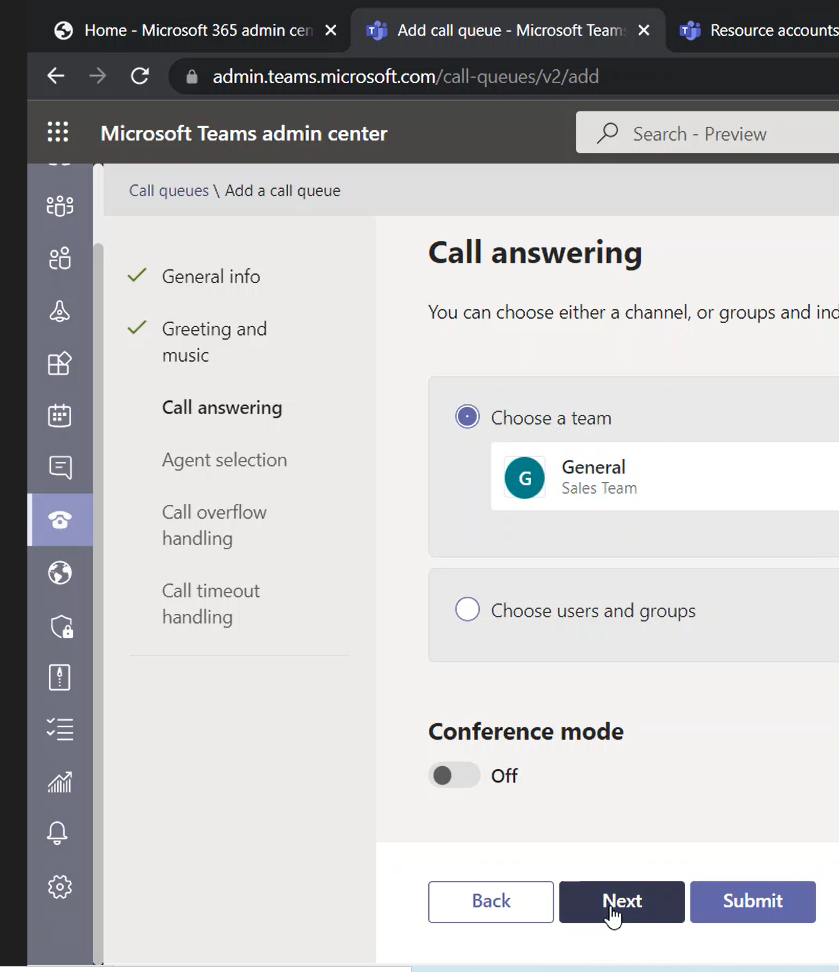
Click on Next
Agent Selection Page
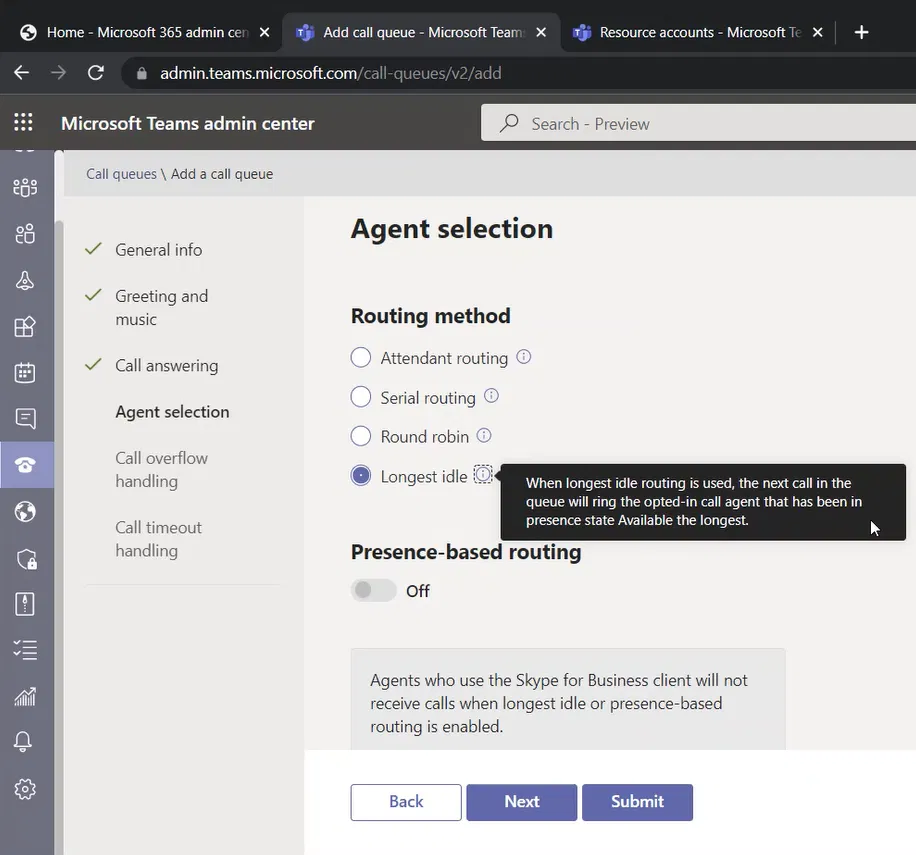
An agent is a member of the Teams that we have selected in the previous step.
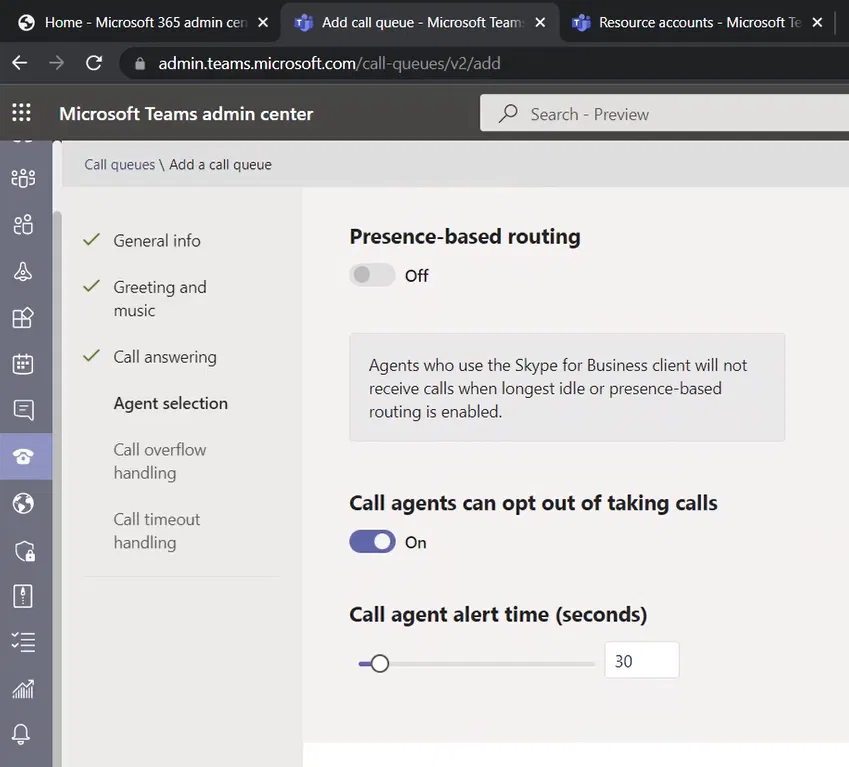
On the “Agent selection” page, I am selecting the “Longest idle” method of routing. This way, the agent that has been ideal for the longest time will have the call forwarded to him/her. Note that
I am keeping the remaining of this page as default and I am clicking on the “Next” button
Call Overflow Handling Page
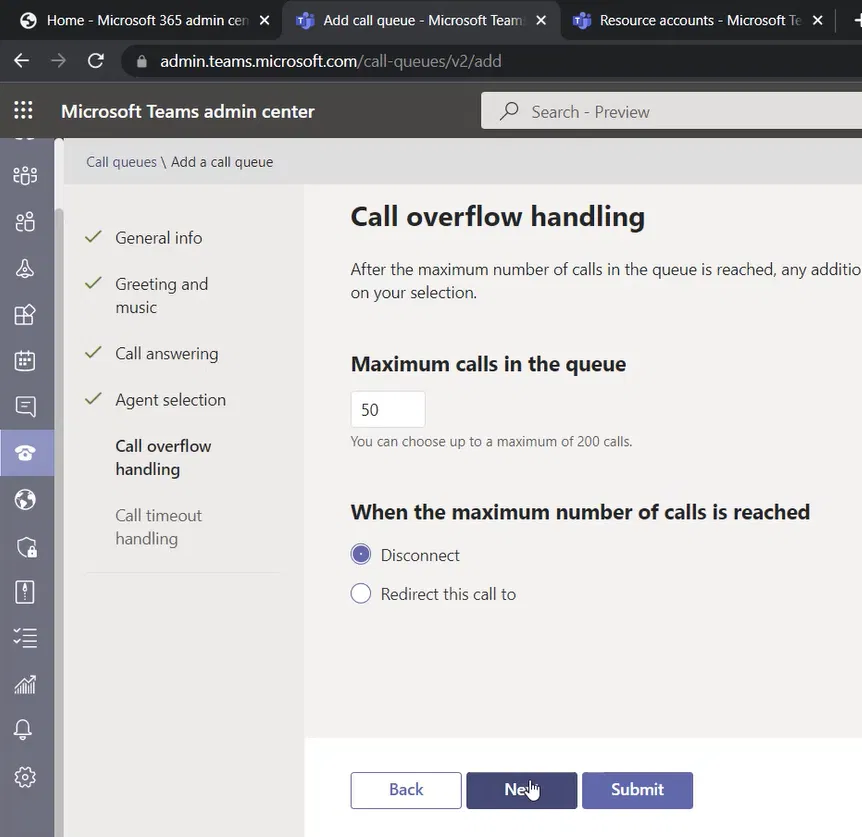
I am keeping the “Maximum calls in the queue” as 50, and if more calls are there, the calls will be disconnected
Important note:
In case you are using Teams Direct Routing, you need to keep some channels to regular Teams Direct Routing calls, you achieve this by reducing the “Maximum number of calls in the queue” so that you will not let your Call Queues consume the full PSTN connections (PRI or SIP Trunking),
Keeping a high number of calls waiting in a call queue might consume your channels (channels of the PRI or the SIP Trunking). And that might make you not able to do outgoing PSTN calls or receive incoming PSTN calls on Teams
If you have multiple call queues, you need to watch for the total sum of all “Maximum number of calls in the queue” of the call queues.
Call Timeout Handling Page
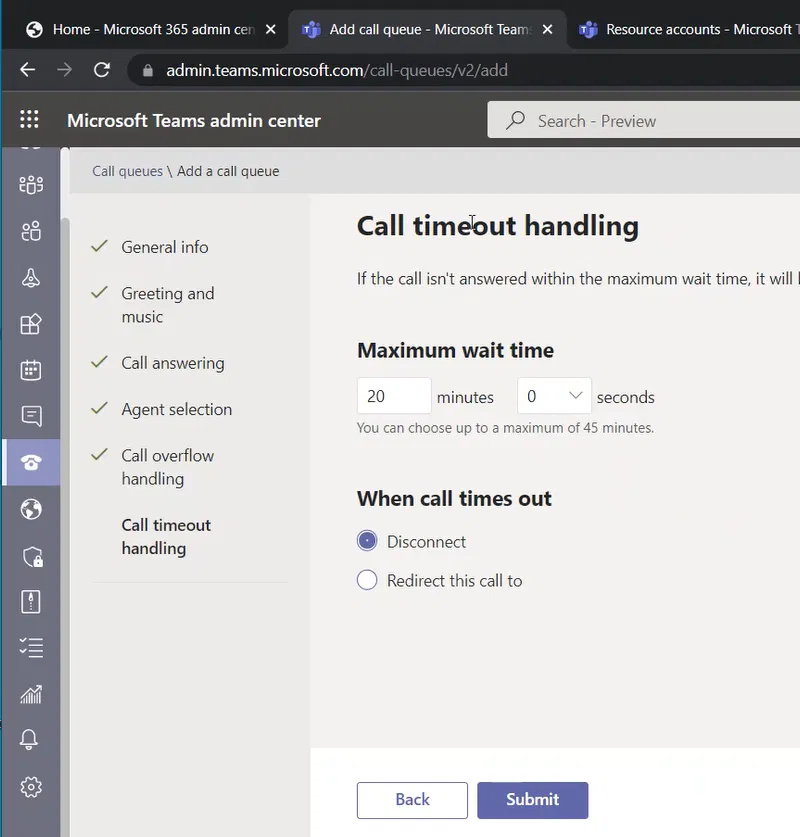
This is the last page of the wizard. Here you will specify how long the caller will be waiting for an agent to answer the call. If the call exceeds this wait time, the call will be disconnected, or you can select to redirect the call
I am keeping this number as the default 20 minutes.
Submitting the changes
After completing the wizard and you are fine with the settings, you can click on the “Submit” button
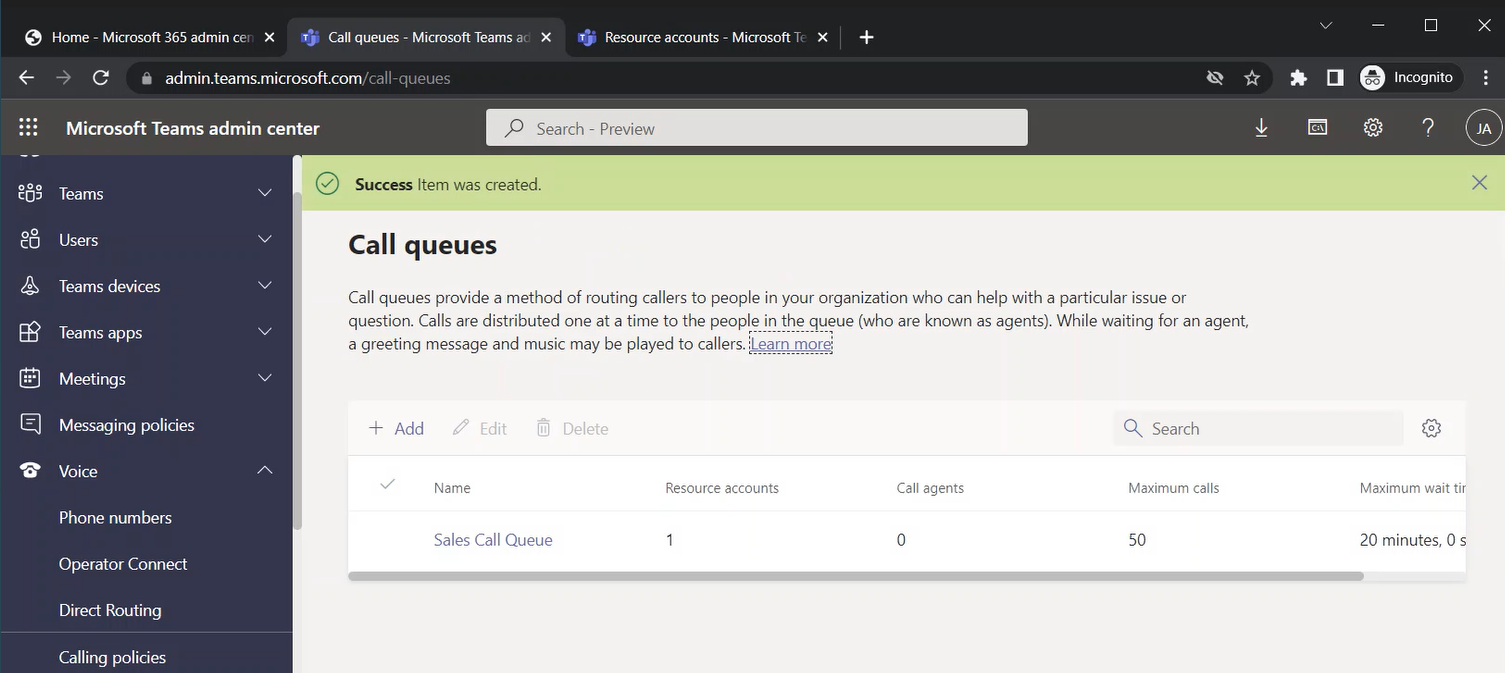
The call queue will be created, and it will be listed on the main page “Call queues”
Support Call Queue
For my setup, I am creating another call queue called “Support Call Queue”. The Support Call Queue has the exact settings, except that it routes the calls to the “Support” team (the setting is on the “Call Answering” page)