
What is Resource Account:
- Each Auto Attendant and Call Queue requires a Resource Account.
- Without a Resource Account, you will not be able to create an Auto Attendant or a Call Queue
- You can assign a phone number to a Resource Account. When you call that number, you will reach the Auto Attendant and Call Queue associated with that Resource Account
- You can create a Resource Account in Teams Admin Center
- Resource Account will be listed in Microsoft 365 Admin Center like any other type of accounts
- You assign the needed special license to the Resource Account using Microsoft 365 Admin Center the same way you assign a license to any regular account. The license name is “Microsoft Teams Phone Resource Account”
Creating a Resource Account for the “Sales Call Queue”
The following are the steps to create a resource account
On Teams Admin Center, expand the “Voice” menu
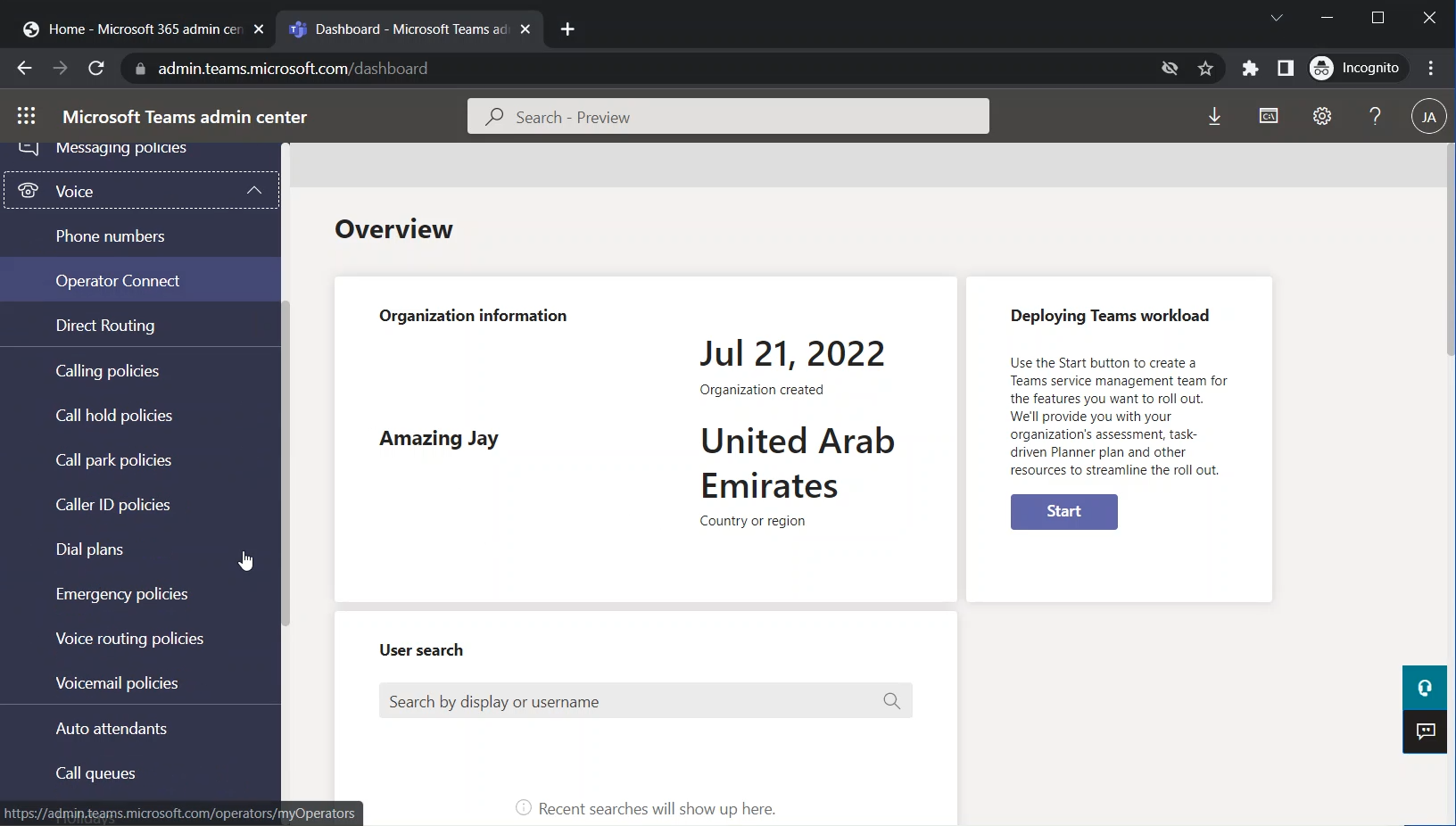
Select “Resource accounts”

The “Resource accounts” page will appear
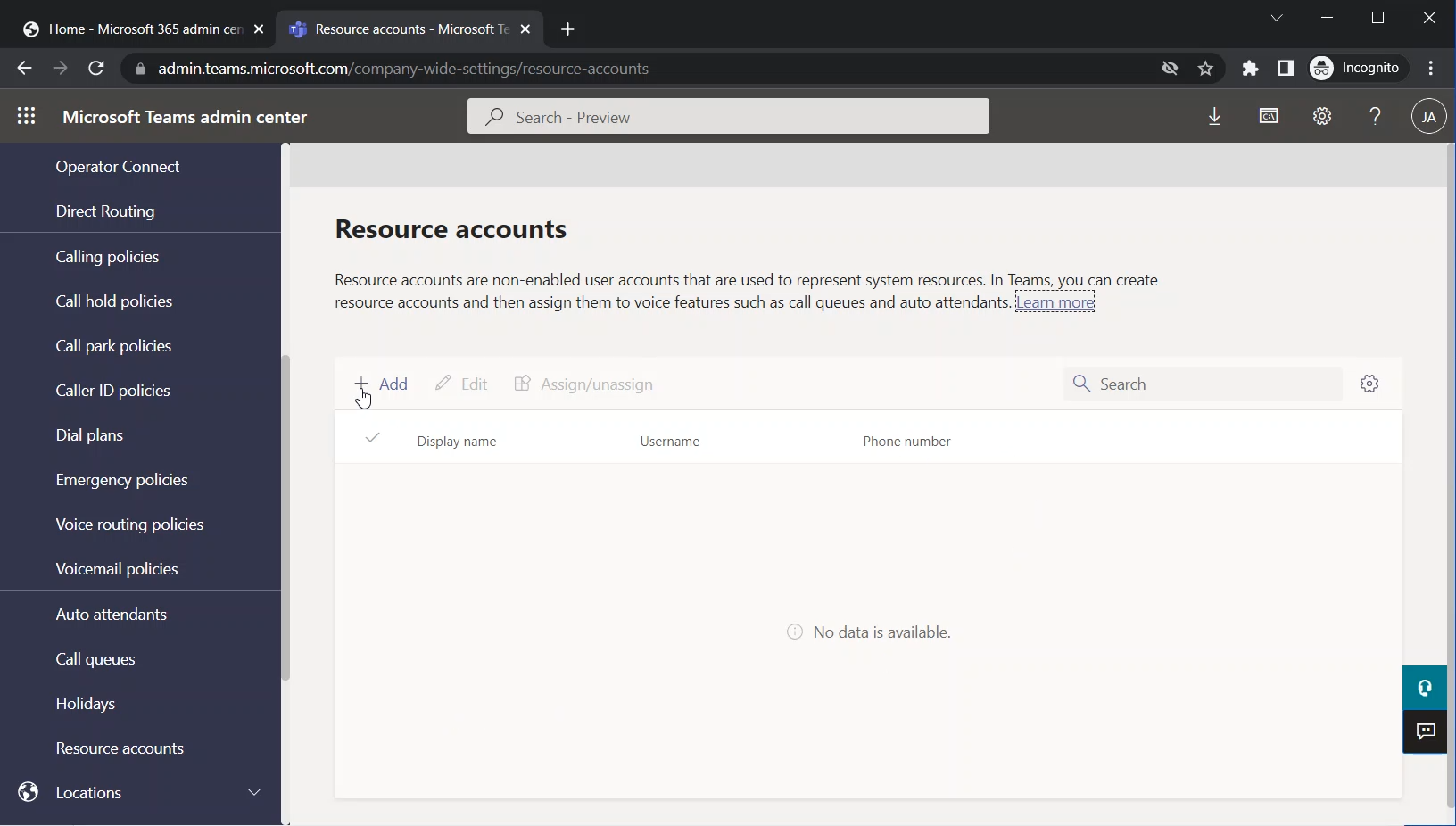
Click on Add

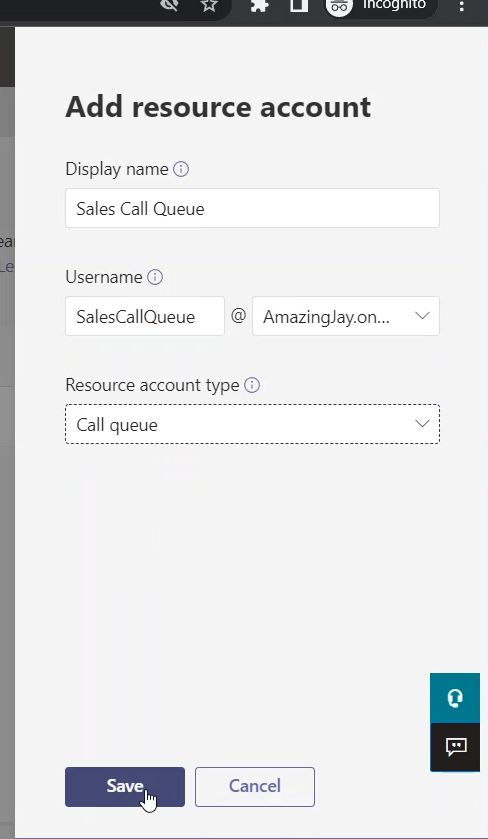
The “Add resource account” pane appears on the right side of the browser

The following image shows an empty “Add resource account” pane

Fill in the following fields:
Display Name
The display name makes the account easier to be identified and also it will appear in the “Microsoft 365 Admin Center”
Username
And also type the Username. This username will appear in Microsoft 365 Admin Center where you can assign the “Microsoft Teams Phone Resource Account” license to it.
Resource account type
Here, you select if the account is going to be used for “Auto attendant” or for “Call queue”

Click on Save to save the changes and close the “Add resource account” pane
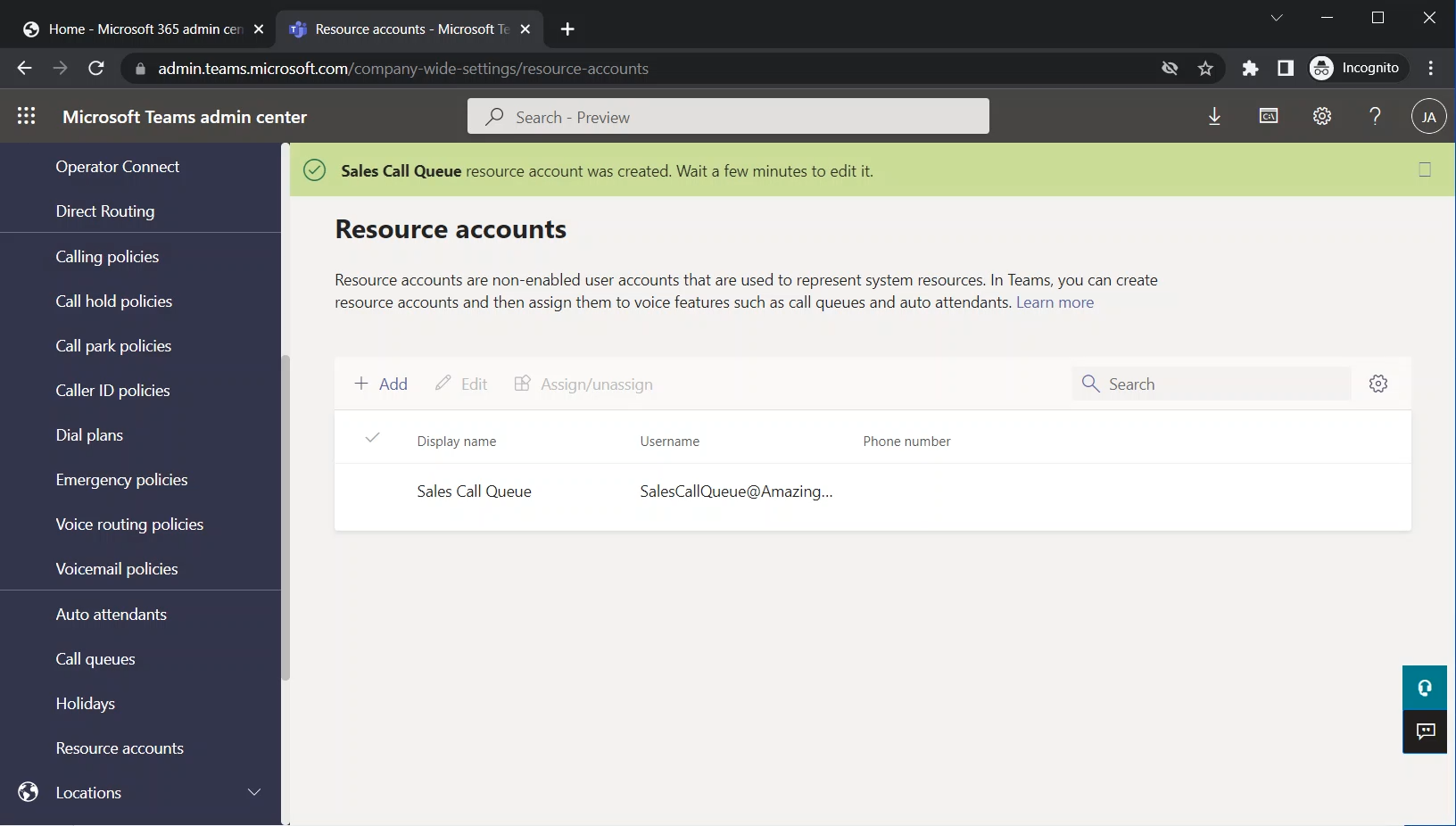
The following image shows the “Sales Call Queue” on the main page of “Resource accounts”
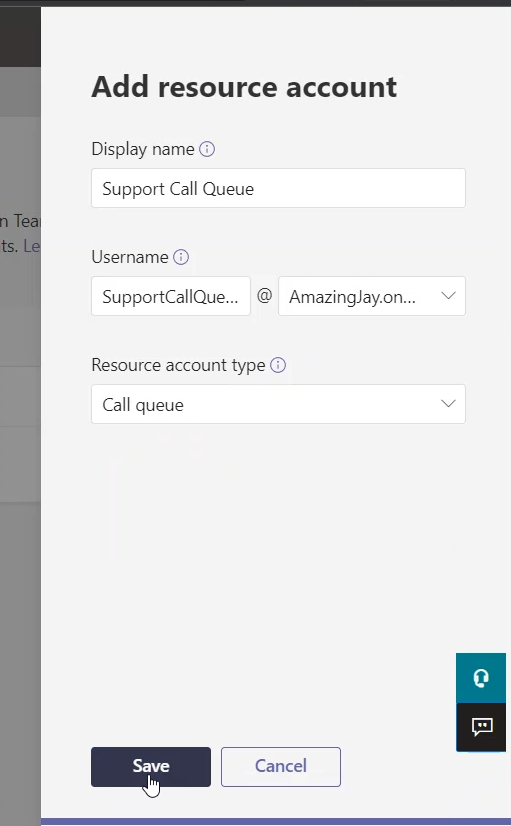
Resource Account for “Support Call Queue”
In the same way, I am adding the resource account for the “Support Call Queue”
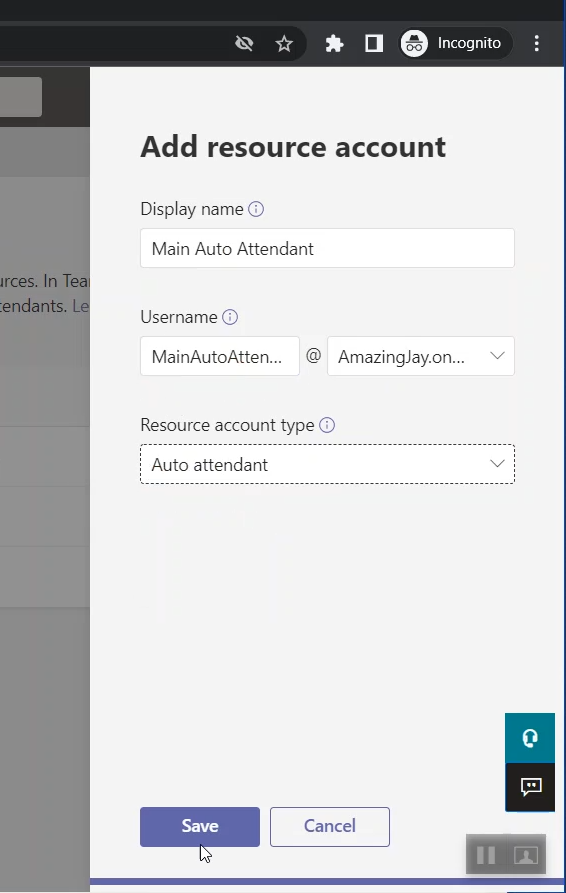
Resource Account for “Main Auto Attendant”
And also, I am adding the resource account for “Main Auto Attendant”
The Newly Created Accounts Listed Under The Resource Accounts Page
The following image shows all the 3 resource accounts that we are going to use
